

5 Clever Uses For Your Old Mini PC
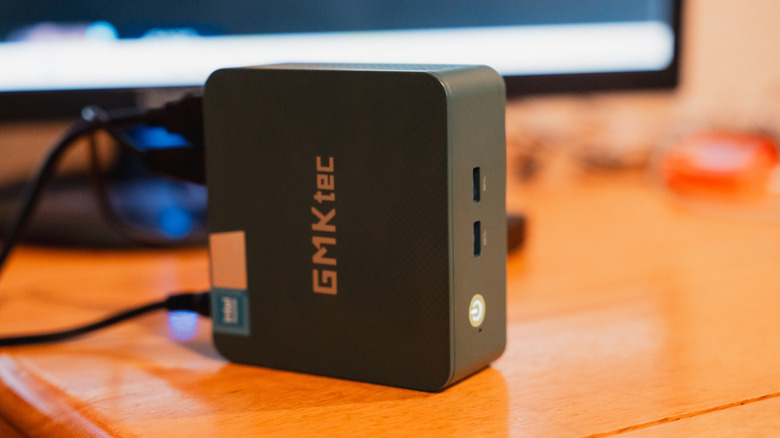
An old mini PC can have uses beyond just collecting dust and cobwebs. Whether you have one laying around because you decided to upgrade, or you simply didn't think the perks of switching to a mini PC were all that advantageous, there's likely still plenty of mileage in your old hardware. Their small size can make them suitable for areas with little room, and we have more than one idea for what you can do with an old mini PC.
Those that don't like to tinker with their primary rig can naturally use an older machine to test operating systems, but utilizing a mini PC's smaller size also has its perks. For entertainment, a mini PC can be good for building a media server or retro gaming station, but you can also get more serious use out of the system by transforming it into a smart home hub for controlling accessories. For those with kids, a mini PC can also be good for a child's play area, though knowing the right steps is critical.
If nothing below tickles your fancy, there are still some other options available. Remember you can always sell the device online (and rising component costs may make this lucrative), or donate it to a local non-profit. Considering there can be plenty of mini PCs that dominate a desktop tower, the hardware inside your own machine can still be quite valuable. If you're thinking of getting rid of your old device, here's what you can do instead.
Experiment with different operating systems
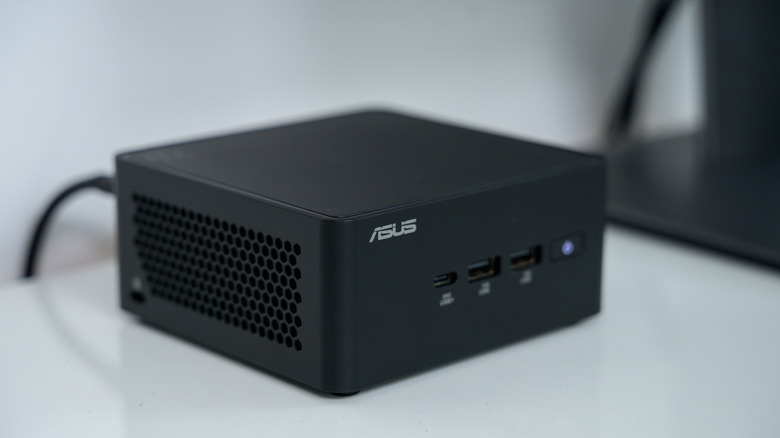
There's a lot you can do with a piece of tech so long as it functions, and having an old mini PC laying around can be a good opportunity to channel your inner scientist and have fun experimenting with different operating systems. Depending on how you use your primary machine, you may not be comfortable having dual boot options, especially if it's a machine for work. However, the world of alternate OSes can be enormous, and something new may do wonders for your machine.
Along with getting to try something different, other operating systems may also be beneficial for old hardware. For starters, if an old PC can't update to Windows 11, a different operating system may help with security updates and patches. Certain operating systems, such as Linux and its various "distros" can often be far lighter in terms of storage and RAM when compared to Windows. Linux also has an advantage in that it can do plenty of things that Windows can't.
You'll need to do research to ensure any operating systems you're interested in support the specs of your mini PC, but the world is your oyster in terms of options. If you're scared by a command line, plenty of Linux distros offer a Windows-like experience, including Ubuntu (especially Cinnamon), Linux Mint, and Zorin OS. You could even install ChromeOS Flex if you want a Google-centric platform. There's more to a machine than just macOS or Windows, and an old device gives you the opportunity to explore.
Build a media server
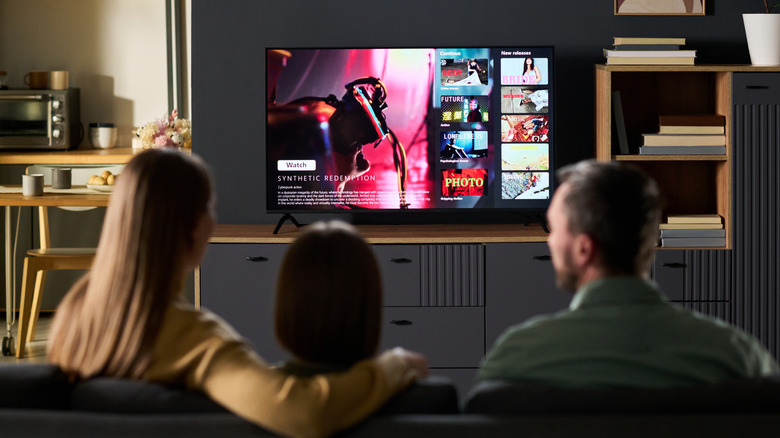
Putting the "mini" in "mini PC" to good use often means the device is leaving plenty of space on your desk, but a machine having a small footprint also means it can be good for the area around your television. Turning an old machine into a media server can be a solid idea if you have the resources, as they essentially store all your content so that you can stream it on other devices. They can be a great way to access movies, TV shows, music, and more.
If you're really into the idea, we've got a guide on turning physical media into your own streaming service, but local media files you already have on your machine will work just fine too. In terms of software, our how-to article dives into more specifics, but options like Plex can offer wide OS compatibility (and even include things like live TV) , and Jellyfin is also a popular free choice. Experimentation and research will be your friend, but keep in mind different platforms may offer different options and features.
If you're just getting started, it's best to use a clean install of an OS, and avoid using the media server for anything other than its dedicated purpose. It can also be something of a challenge if you're inexperienced, so be sure to read support documents carefully. Software will need to be kept up to date, but building a dedicated media server ultimately gives you more customization and control.
Make your own retro gaming station
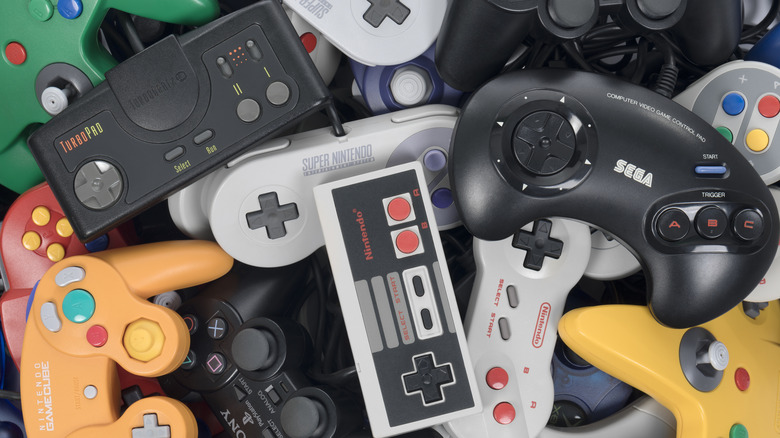
If a mini PC can make a nice accessory for your TV thanks to its media server capabilities and small physical footprint, then the same also holds true for turning an old device into a retro gaming station. Thanks to emulation, your PC can potentially imitate consoles from a bygone era, netting you access to a library of retro games. Getting started is simple enough, but there are many details to know.
Emulators are legal in the U.S., but downloading the actual games (ROMs) when you don't own the original isn't. You'll need to do your own research in this area, but your actual hardware will also be a factor. So long as you have a CPU with decent single-core speed, around 8GB of RAM, and a solid GPU, you'll likely be fine to run older consoles (pre-PlayStation 2), but you'll certainly need more power for newer consoles (ideally a multi-core CPU and 16GB of RAM). You'll also want some sort of USB controller.
In terms of emulators, there are a number of places to start, though RetroArch is typically recommended for its console selection. There's an Emulation General Wiki if you want a learning resource, but we also know of the best retro emulators for PC gamers if you want to explore further. Should you want to go full gaming mode, you can also consider a Linux distro that focuses on gaming, such as Bazzite, though this may require additional research and steps.
Make a PC for the kids
Any secondary PC you have can be great for providing guests access to a system that isn't your main rig, and a mini PC can be good for putting a guest system pretty much anywhere in your home. It can also make for a nice backup in that regard, but if you have children or they seem to be a constant presence in your life, setting up a mini PC for the kiddos can be a smart move.
Depending on the PC's size, you'll have lots of options where to place it (just avoid this one major rule to prevent damage), and relying on a backup guarantees you don't have to worry about little ones getting into your primary machine. Of course, one of the major things you'll need to worry about is setting up the device for children to use safely. On Windows 10, for example, you can set up a Microsoft account for the child, create a family group, set screen time/usage limits, and even restrict certain content. For Apple users, macOS has similar options.
Along with the potential benefits of keeping a child off your primary computer, kids can use the mini PC for completing schoolwork or enjoying some casual gaming. Depending on how old the machine is, you may have to worry about certain hardware restrictions with more modern software, but anything with a decent amount of RAM and storage is likely to be fine. You could even add console emulators for additional gaming options.
Transform it into a smart hub
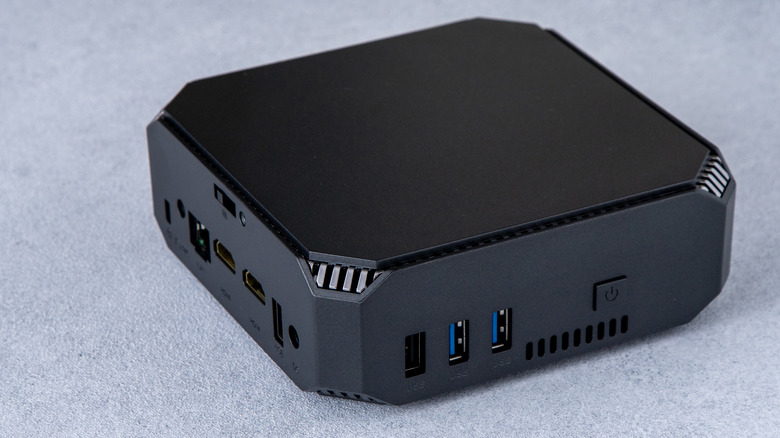
We'll warn you now, this last idea is one of the more complicated tasks on this list, but one possibility for an old mini PC is setting it up to help operate your smart home. Once again, the small size of the rig will make storing it somewhere easier, but creating your own smart home assistant can be great for customizing a setup to your liking or even ensuring that all your smart home accessories actually play well together.
Building your own hub also helps with any privacy issues users may have in terms of a hub collecting data. Unfortunately, setting up a smart hub is a little more complicated than just turning on a mini PC. To get started, you'll need some additional software. In the past, we've considered Home Assistant to be one of the more essential apps for a smart home experience, and its open-source approach to being able to control over 1,500 devices gives it some flexibility, as well.
Getting started with Home Assistant on a mini PC simply involves having a USB stick to flash the boot image to an x86-64 machine (it also supports Raspberry Pi devices). From here, you'll need to complete some other tasks with Home Assistant, such as getting the device onboarded, integrating your devices, and even modifying the dashboard, but Home Assistant does have guides for getting started. Home Assistant also has its own Community for additional information). It can take some work, but you may find the results to be worth the trouble.