

What To Do If Your Nvidia GPU Is Too Loud
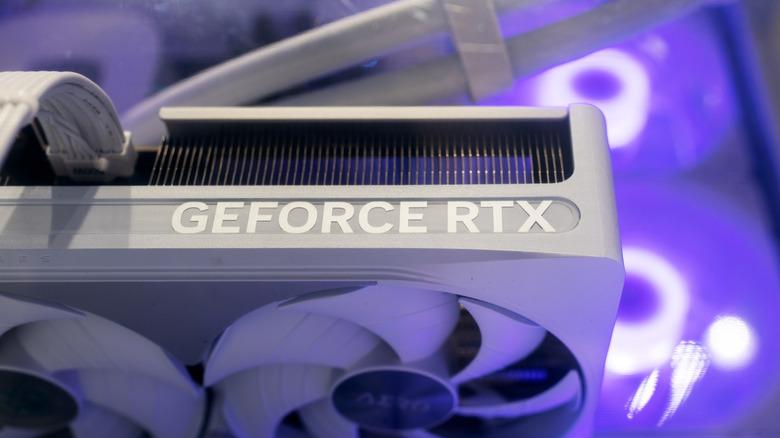
For gamers not in the know, or not expecting it, they may find that when they open a AAA game, their GPU fan might suddenly start loudly whirring. Abnormally loud GPU noise is usually a response to sudden temperature spikes. Some also make a high-pitched whining noise caused by power component vibrations under heavy workloads.
Extremely high or uncapped frame rates, even in game menus, can force an Nvidia GPU to draw peak power, kicking up the fans to maximum speed unnecessarily. This can be quickly solved by setting a frame cap, or enabling G-Sync in the Nvidia Control Panel if you have a compatible gaming monitor. This will immediately reduce a GPU's power draw, which in turn stabilizes power delivery and dampens an electrical whine.
Fluctuating fan speeds can also be distracting when compared to a consistent background hum. Software such as MSI Afterburner give you more control of your GPUs, including features to lock fan speeds into specific temperature bands so fan noise stays smooth and predictable.
Of course, those tricks may not solve everything, and you could be facing bigger issues. But these are the usual first ports of call when dealing with a noisy GPU. I avoid some of these issues by carefully picking parts that work well together. For example, I won't buy a monitor unless it's compatible with G-Sync, both for peace of mind around compatibility, and snappy gaming monitor performance.
Physical maintenance and fan replacement
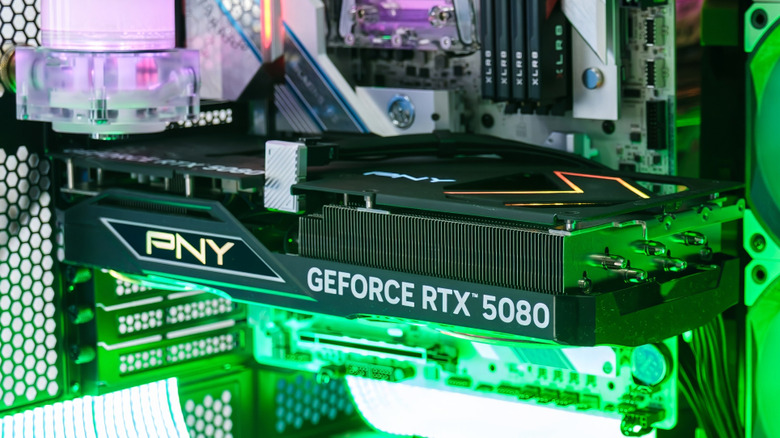
If software tweaks aren't helping make a GPU less noisy, it's time for some physical troubleshooting. The heatsink inside an Nvidia GPU is key to dissipating heat. If it's clogged with dust and debris, it can't control ambient airflow. This will then cause GPU fans to spin up to emergency speeds to prevent core temperatures from exceeding critical thresholds like 86°C.
Using compressed air to clear out trapped dust is an instant, cost-free fix for excessive airflow noise. It's always a good practice to remove the GPU entirely before blowing the air. Otherwise, hold the GPU fans so they're stationary while blowing the air to prevent potential reverse current spikes that could travel into the motherboard.
If you hear physical grinding or clicking noises coming from the GPU, you are likely facing a bigger issue that compressed air isn't going to fix. Those sounds typically indicate the mechanical bearing for the fan may have worn down. You can test for this by spinning the fans by hand. If the noise persists, peeling back the center fan sticker and add a touch of oil can help (WD-40 is not designed for electronics). Alternatively, remove the full GPU shroud to install new fans.
Undervolting, repasting, and system environment fixes
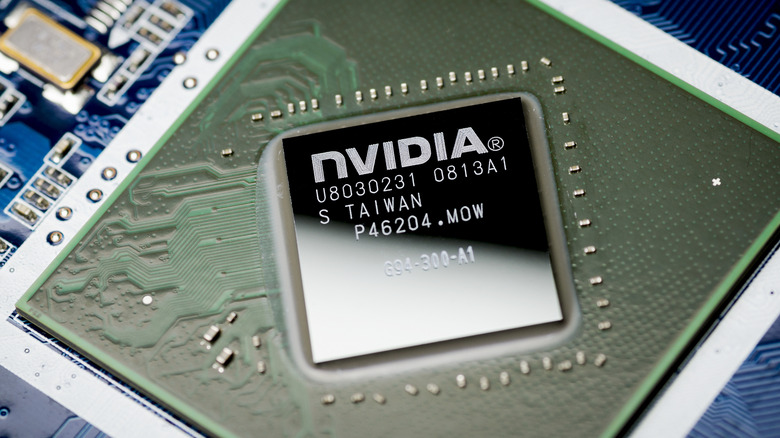
There are other acoustic solutions to try instead of flat-out replacing Nvidia GPU parts. For Nvidia GPUs that continue running hot and loud despite a clean heatsink, it might be time to replace the thermal paste and pads inside the GPU.
Dismantling the cooler to reapply fresh thermal compound and pads where needed restores efficient heat transfer, particularly on older Nvidia GTX 10 to RTX 30 series cards. Taking the time to do this allows a graphics card to operate quietly and smoothly under full load as its fans aren't working overtime.
One other way to tackle thermal fan noise and electrical coil whine is to undervolt a GPU, or reduce its power consumption. It involves dropping power consumption and heat output while maintaining performance. This is usually only a slight drop in voltage, which can be done via the MSI Afterburner app. Finally, just make sure to have a closed case, so the fans can ensure efficient airflow while dampening noise from internal components. Personally, I believe reapplying thermal paste and pads should be a yearly or bi-yearly task. You can see dramatic performance improvement if it's not been done for a couple of years.