

5 Ways To Keep Your Laptop Cool On A Budget
Nothing ruins a good time or destroys productivity faster than a laptop that runs hot. Inconsistent performance, component damage, and even memory errors can signal that your laptop is overheating, but there are several ways to reduce the issue. Cooling pads are one option, but cheaper alternatives are available if you're on a budget.
Ventilation plays an important role in keeping a laptop performing optimally, which is why laying a laptop flat on a desk may be more harmful than you realize. This also applies to using a device in bed or on any other soft surface. Another factor is the environment where a laptop sits, meaning how you keep your house's conditions plays a role, too. Finally, users can explore certain software settings if heat is a concern, and we've got suggestions to help with any of these situations.
There are plenty of reasons a PC may overheat, and many of them can also apply to laptops. Fortunately, many preventative measures cost virtually nothing, but there are also some cheap accessories users can consider. Beyond this list, you can also keep a device cool by replacing a laptop's thermal paste, but the ideas below can help you get started if you're looking to stay cool on a budget.
Keep your laptop elevated

Examining how you keep your laptop on a desk is one of the first places to start for those concerned about heat management. For laptops, the bottom of the chassis is where heat is released through the device's vents, and accidentally blocking these vents can trap extra heat. Since your device needs air to pull in from under it and push hot air out the rear or sides, keeping it elevated can do wonders for letting heat escape.
If your laptop is lying completely flat against a surface, there may be little space for air to enter. The material your laptop sits on also plays an important role, but we'll get to that. What you want to aim for is passive elevation, which helps drop the temperature of your laptop by a few degrees. A good laptop stand can easily complete this task (while helping you stay productive), and one can typically be found online for pretty cheap. Remember to check reviews and see what actual customers have said about a product.
If you want to avoid spending money, plenty of DIY solutions can elevate a laptop, and most involve objects you're likely to find around the house. For quick examples, you could put bottle caps at the corners of your laptop, or even use books of equal thickness. Again, make sure nothing is blocking your airways.
Be aware of your surfaces
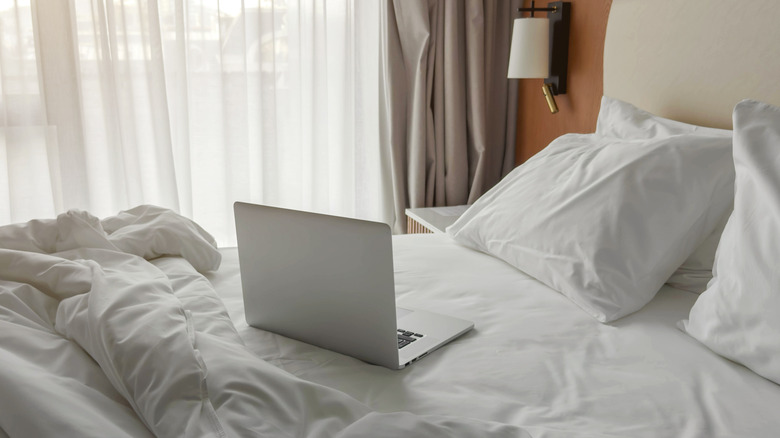
How a laptop sits on a surface can affect heat dissipation, and the surface type also plays a role in keeping the device cool. We've gone deeper into this idea by exploring why using your laptop on soft surfaces can kill it, but the nuts and bolts are that a soft surface can easily block air from flowing through your laptop. It may be fun having your laptop in bed, but it can ultimately be detrimental.
Naturally, long periods of heat exposure are pretty bad for the laptop's internal components. If you don't consistently monitor your device's temperature, you likely don't know the full extent of the problems caused by leaving your laptop on a soft surface. A soft surface likely isn't flat, which can also cause issues. Keep your laptop away from soft materials, especially while charging and avoid covering it with any cloth materials while it charges. Avoid using a laptop in your actual lap for the same reason.
The answer to this one may not be that fun, but the less time you keep your laptop on something soft, the less likely you are to overheat the machine. Avoiding it altogether is obviously the cheapest way to prevent issues, but laptop stands for a bed do exist, and they cost about as much as a laptop stand for a desk. A very large book or cutting board may also do the trick.
Environment matters

A laptop typically doesn't handle extreme temperatures well, even indoors. Keeping your laptop out of direct sunlight helps reduce heat, but keeping it away from indoor heating sources also matters. When you're not using it, store your laptop in a dry, cool room and remember to give it periodic breaks, especially if you've been doing demanding tasks for a long time.
During the hotter months, try to avoid leaving your laptop plugged in all the time. Not only do you generate unnecessary heat by leaving a laptop charging, but this move also likely harms your battery (and plenty of daily habits can kill a laptop battery). While we're talking about hardware, users should also avoid placing other devices on top of or beneath their laptop, as they can generate their own heat and create additional issues.
Remember, laptops often come with built-in tools for monitoring heat. For example, you can monitor GPU and CPU temperatures in Windows Task Manager, and view GPU and CPU usage in Mac Activity Monitor. A laptop case can also accidentally raise internal temperatures, so check whether it is blocking any necessary vents. Finally, keeping the room well ventilated can also do wonders for your laptop. It's not always possible during the more extreme months, but it makes a difference.
Keep the laptop clean
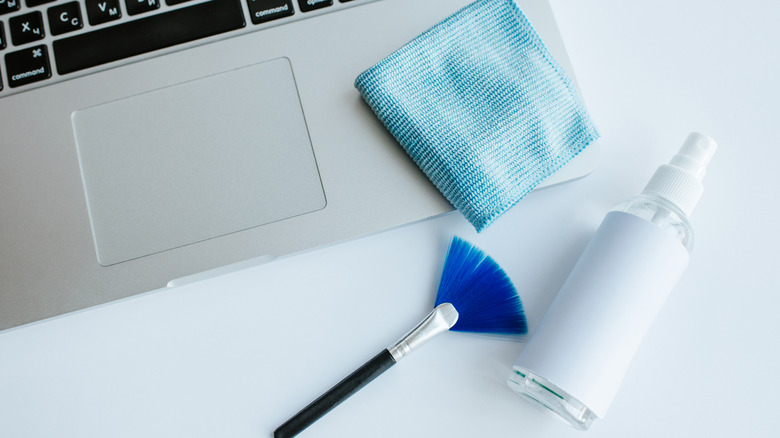
By now, it should seem obvious that proper ventilation helps keep your laptop cool, but to drive the point home, consider how cleanliness affects heat dissipation. If your laptop relies on a cooling fan, dust or other debris can easily get sucked into the system. Dust and dirt can also affect desktop PCs, but fortunately, the solution is usually a deep clean.
Along with avoiding certain surfaces, cleaning your laptop can help remove dust or dirt that may be blocking heat from escaping. Using a soft brush to clean a laptop's vents is acceptable, but a can of compressed air can also do wonders. Just make sure you don't blow dust deeper into your laptop. If you're inexperienced, opening a laptop's case is usually a bad idea (and likely voids your warranty), so consult a specialist if you think the laptop is particularly dirty.
Ideally, check the manual for your specific laptop to see if the manufacturer has tips for keeping it clean. Specialty tools also exist if you want to clean your device properly regularly. A good rule of thumb is to clean a laptop at least once a quarter, but doing it more often certainly won't hurt. How often you use the laptop may also affect how often you clean it.
Optimize your software for a cooler experience
External factors play a critical role in keeping a laptop cool, but a few operating system adjustments can also make a big difference. One of the quickest ways to cool your machine is to close unused background apps. This takes pressure off your CPU, which may be working overtime to handle everything open. In Windows, for example, you can close background apps by pressing Ctrl + Shift + Esc to open Task Manager. Go to the Processes tab, select an app and choose End task.
Remember that software updates can also improve performance, and lowering your screen brightness can help reduce excessive heat. Periodically check for system updates. Some operating systems may also have different power settings and modes you can experiment with. For example, in Windows 11, Power mode includes Best power efficiency (helps battery life), Balanced (keeps battery and performance in check), or Best performance. You can find these settings in Start > Settings > System > Power & battery.
Experimenting with different power settings can help, but some laptop companies also offer proprietary tools to keep things cool. For example, Dell machines can use Dell Optimizer or Dell Power Manager for thermal management, while HP uses HP CoolSense or HP Command Center for heat mitigation. Consult your manual for specifics. Lastly, remember that things can happen to a PC that's left on all the time, and much of this information applies to laptops as well.