

5 Cheap PC Component Purchases That May Backfire In The Long Run
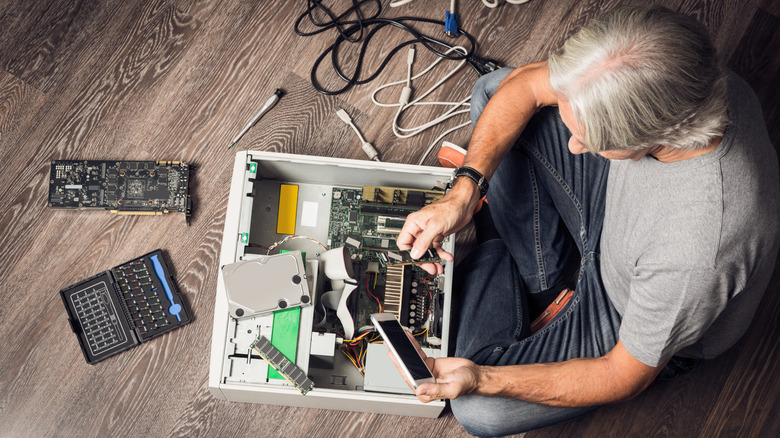
PC part prices have surged to all-time highs largely as a result of AI data centers eating up massive amounts of GPUs and memory. So it's no surprise that many people who want to take up PC gaming or building as a hobby are looking for ways to save a few bucks wherever they can. While foregoing the non-essentials, like RGB lighting, massive SSDs, and fancy PC cases can keep more money in your pocket, there are a few components you should never cheap out on.
First and foremost: the power supply unit (PSU). It's never worth it to go for a cheap PSU. An unreliable power supply unit could mean system instability, sudden shutdowns, and permanent damage to other expensive PC components. Especially since the difference in price between a cheap PSU and a quality unit is fairly modest.
Other parts worth investing in from the start are the motherboard, CPU, Wi-Fi adapter, and cooling solution. There are plenty of cheap motherboards on the market, but going with the bottom of the barrel limits your upgrade options, compatibility, and feature set. Similarly, a bargain bin Wi-Fi adapter will severely stunt your download speed and can quickly turn online gaming sessions into a frustration simulator laden with connection issues. Of course, there are some great budget options for each of these components, and buying the most expensive option isn't always necessary (especially in today's market). You just have to know the warning signs to watch for each part.
Power supply unit
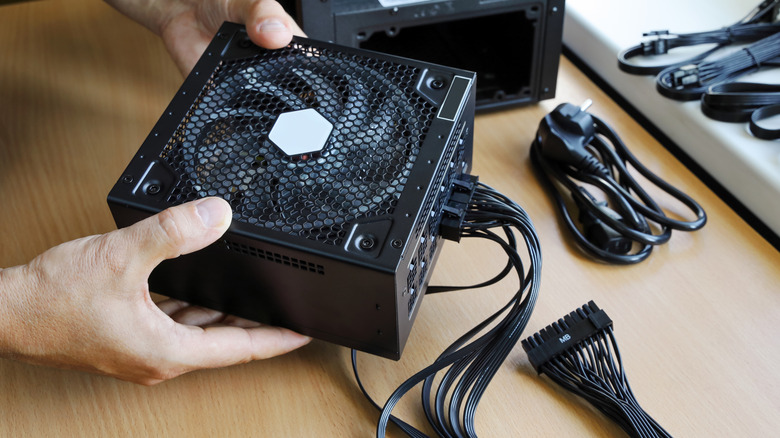
The power supply unit is the foundation of your entire PC. It's responsible for pulling AC (alternating current) from your wall and converting it to DC (direct current) to power every part in your system, making it the last place you should cut costs. A cheaply-made PSU is far more likely to suffer from poor voltage regulation and shoddy safety protections as a result of low-quality internal components (like transistors and wiring). This can lead to a PC that shuts down at random, reduced performance during resource-intensive activities like gaming or video editing, and, in the worst case, it can pose a serious electrical fire hazard. While a used GPU can make for a great deal, you should never consider buying a used power supply.
It's also important to consider future-proofing. Opting for a cheap power supply that only fulfills your rig's current power demands restricts your ability to upgrade to a more demanding CPU and GPU combo down the road. When you want to upgrade these other parts, you'll also have to replace the PSU to match demand. Spending a little extra on a PSU from the get-go saves you from the need to replace it and ensures your PC has all the power it needs to perform.
For quality power supply units, brands like Corsair, Seasonic, EVGA, Be Quiet!, MSI, and Asus are all good bets. Consider a unit with an 80 Plus efficiency rating, like 80 Plus Bronze, Gold, or Titanium. This rating indicates energy efficiency–if you want to compare them at a glance, Gamers Nexus uploaded a useful efficiency rating table.
Motherboard
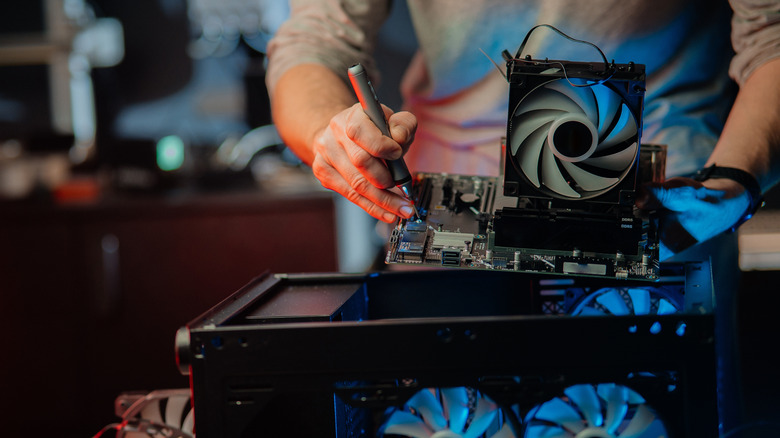
A cheap motherboard is a lot like a cheap power supply. While a motherboard has a much lower chance of damaging components, it does limit the on-board functionality and upgrades you'll be able to make in the future. Dropping $300 on a premium motherboard isn't necessary, but going with the cheapest option on Amazon isn't the best move either.
Cheap motherboards usually have fewer, slower expansion slots and connectivity ports and may lack built-in support for Wi-Fi and Bluetooth, meaning you'll have to buy separate adapters which can easily add up to the price you saved by purchasing a cheap motherboard in the first place. You might see last-gen USB ports, fewer M.2 slots for SSDs, a lower number of fan connection pins, or just two RAM slots with a low-budget motherboard. And motherboards are another example where the price jump from a cheap motherboard to a decent budget board is not that wide of a gap.
It's also important to keep the voltage regulator module (VRM) in mind when choosing a motherboard. The VRM supplies power to your CPU, and low-quality motherboards often use poor VRMs with shoddy cooling or insulation, leading to potential overheating and bottlenecked CPU performance during power-heavy workloads (like gaming or 3D rendering). Asus, MSI, Gigabyte, and ASRock offer solid budget motherboard options at major retailers like Amazon, Best Buy, and Newegg.
Cooling
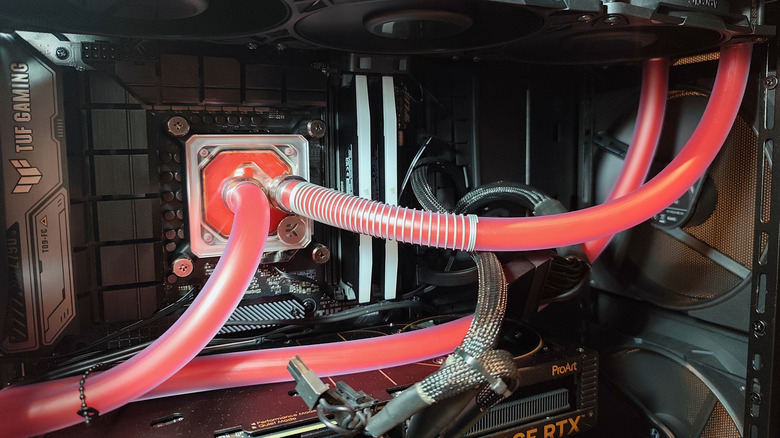
Your cooling solution, whether air or water-cooled, is another PC component that can cause problems if you go for the cheapest options on the market. Many pre-built PCs and PC cases come with a few fans already installed, but may not be optimal. If you're opting for air cooling over water cooling, the biggest concern is thermal throttling as a result of poor airflow. Your case should have fans working together to push cool air across your PC's components and exhaust hot air out the back, top, or bottom of the case. Fans can also experience wear and tear as a result of constant spinning, and cheap fans have a higher chance of failure from mechanical stress placed on them.
If you only have a few intake fans, and your CPU or GPU run particularly warm during the games you play or the apps you use, your components will may throttle efficiency to avoid overheating. Consistently lower frame rates and stuttering — along with a PC you could use as a space heater — are all symptoms of a PC that could do with a better cooling solution.
Liquid cooling is a whole different story. A cheap liquid cooling solution, even just a CPU all-in-one (AIO) cooler, can faile from due to pump malfunctions, tube degradation and connector leaks. Neither your PC nor your bank account wants that problem. Brands like Noctua, Arctic, Thermalright, Lian Li, and Be Quiet! carry quality cooling options for both air- and liquid-cooled systems.
Wi-Fi adapter

If your motherboard doesn't come with built-in support for Wi-Fi connections, you'll have to purchase a Wi-Fi adapter. The problem is, there are a ton of cheap adapters to avoid if you want a steady connection. The Wi-Fi adapter you choose, whether it's a USB dongle or PCIe expansion card, determines the wireless standard your PC supports and plays a major role in network speed and reliability.
The biggest difference between cheap Wi-Fi adapters and higher-quality options is often support for newer Wi-Fi standards. Older Wi-Fi 4 and Wi-Fi 5 adapters are potentially capable of handling everyday browsing, but Wi-Fi 6, 6E, and Wi-Fi 7 models offer greater efficiency, capacity, and overall performance when it comes to gaming, streaming, and other network-intensive tasks. Wi-Fi 7 takes things a step further with features like Multi-Link Operation, though you'll need a compatible router to take full advantage of its features; Since Wi-Fi 7 is still in the early adoption phase, these are less common and more expensive. Wi-Fi 6 is the sweet spot.
TP-Link, Asus, Intel, Netgear, and MSI all offer quality Wi-Fi adapters worth considering. Make sure to check whether the Wi-Fi adapter you're thinking about is compatible with your motherboard before committing to a purchase.
CPU
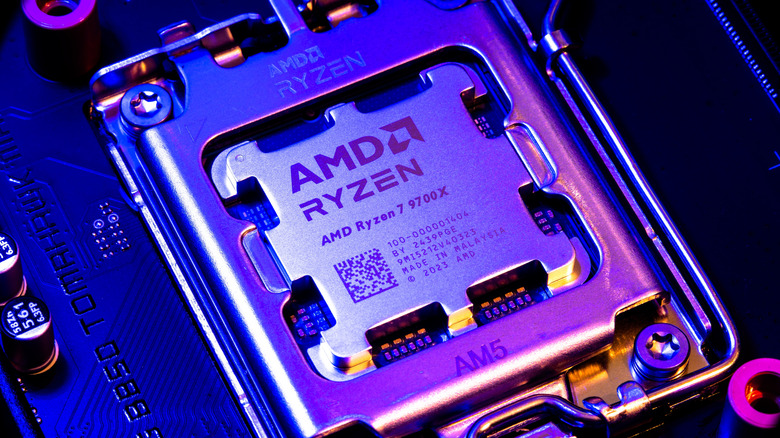
The CPU is one of the most important components of your entire PC, and while there are plenty of great budget processors on the market, buying the cheapest one you can find is likely to end up costing you more in the long run. Your CPU handles everything from running your operating system and critical background applications to processing game logic and sending instructions to your graphics card–if it can't keep up with the rest of your hardware, it can pose a major bottleneck and cause you to upgrade sooner than you expected.
Even if you somehow landed a top-shelf GPU at today's prices, a middling CPU will struggle to keep up, causing lower average FPS, stuttering, and unpredictable frame times. This is especially noticeable in CPU-heavy titles with a lot of logic to compute, like Sid Meier's Civilization or Minecraft. Core count and platform compatibility are also important to consider; an inexpensive four-core processor will eke out basic schoolwork and browsing, but six, eight, or 12 cores gives you more breathing room for gaming, creative hobbies like CAD software, and multitasking in general (such as running Discord, a video game, background music, and a few Chrome tabs all at once).
The right CPU for your setup depends on the rest of the build; an AM4 socket AMD CPU, for example, is only compatible with DDR4 RAM, whereas an AM5 socket CPU is only compatible with DDR5 memory. Make sure to check the compatibility of all of your components with a tool like PcPartPicker before buying.