

5 Devices That Support Lossless Apple Music Streaming
Let's face it: hearing your favorite song in the highest-quality audio is awesome. Hearing every crash of a cymbal or strum of a guitar can really sweeten an experience, and Apple Music can be a good choice for streaming audio. Though there may be some disadvantages to the platform, users can access high-resolution lossless audio, and some may be surprised at what devices actually support this option.
Hi-Res audio is available for a variety of devices through Apple Music, including some beyond the Apple ecosystem. To deliver lossless audio, Apple Music relies on the Apple Lossless Audio Codec (ALAC) to preserve a track's original data. So long as you're an Apple Music subscriber, you can enjoy audio ranging from CD Quality 16-bit/44.1kHz to 24-bit/192kHz, though this depends on a couple of factors we'll dive into. Running lossless on Apple Music may require additional accessories on the user's end, sometimes even a full audio setup.
There are some things to know about Apple Music, as well. Not all of its content will be available in lossless. This includes music videos, broadcast radio, live radio, and on-demand content from Apple Music 1, Apple Music Country, and Apple Music Hits. Be aware that lossless audio consumes far more data than standard-definition audio, and downloading the audio to your device will also take up more storage space. Additionally, users may also want to know what to look forward to with Apple Music in iOS 27.
iPads and iPhones
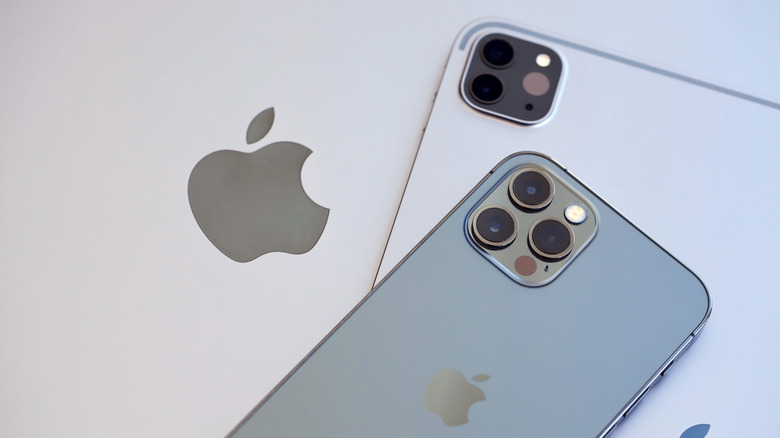
So long as users are running the latest version of iOS or iPadOS, they can access lossless audio through the Apple Music app. However, there are some caveats. First, keep in mind that AirPods earbuds do not support lossless audio. However, users can use wired headphones that support the format, meaning the AirPods Max 2 and AirPods Max (2024) are good to go. A device's built-in speakers are also acceptable, or users can get an external digital-to-analog converter (DAC) for songs with sample rates above 48kHz.
You also need to be sure lossless is enabled in Apple Music. Here are the steps:
-
Open Settings on your iPhone or iPad.
-
Choose Music.
-
Select Audio Quality.
-
Select Lossless Audio, then enable or disable it.
For lossless, users can choose between Hi-Res Lossless for a max resolution of 24-bit/192kHz or Lossless at 24-bit/48kHz. Bear in mind that iPhones have supported lossless since the iPhone 7, but they usually cap out at 24-bit/48kHz. The same goes for the iPad. It's also worth noting that only AAC is supported when using Bluetooth, as Bluetooth connections cannot be lossless on Apple products.
If you are interested in a complete portable setup for Apple Music, we know the best portable DACs, according to experts, that can help ensure a proper connection. Once you've got the proper setup going, you'll be able to enjoy Lossless audio while you're on the move, meaning you'll have access to your favorite tracks with the best sound possible from Apple.
Macs
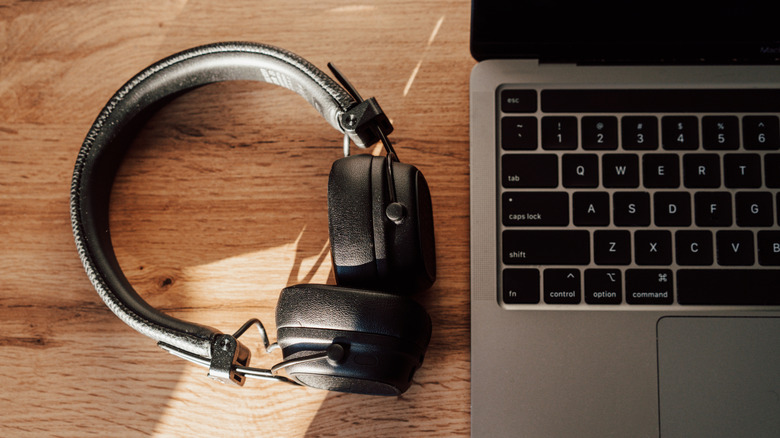
Just as users can use an iPad or iPhone, Apple naturally allows Mac users to enjoy hi-res audio through its streaming platform. However, Macs need to follow some of the same rules as their mobile brethren — this is in addition to ensuring your Mac is running the latest version of macOS.
For example, the following Macs have built-in DAC hardware that supports 96kHz sample rates:
-
2023 iMacs or later
-
MacBook Airs 2022 or later
-
MacBook Pros 2021 or later
-
Mac Pro (2023)
-
Mac Studios 2022 or later
-
Mac minis 2023 or later
If your device isn't on this list, you'll need an external DAC to support bitrates beyond 48kHz, and your Mac will need one to support rates above 96kHz. You'll also need wired headphones, powered speakers, or a receiver that supports lossless. However, Apple also states that a Mac's built-in speakers are fine. Just like smaller Apple products, users need to enable lossless in the Apple Music app.
Follow these steps:
-
Open Apple Music.
-
From the menu bar, select Music.
-
Click Preferences.
-
Choose the Playback tab.
-
Enable or disable Lossless audio under Audio Quality.
Users will have the same lossless 24-bit/48kHz or Hi-Res Lossless 24-bit/192 kHz options as they do on iPhone and iPads. Remember that wireless earbuds won't support either format—meaning some users may want to double-check whether USB-C headphones work on a MacBook (the short answer is yes).
Apple TV 4K
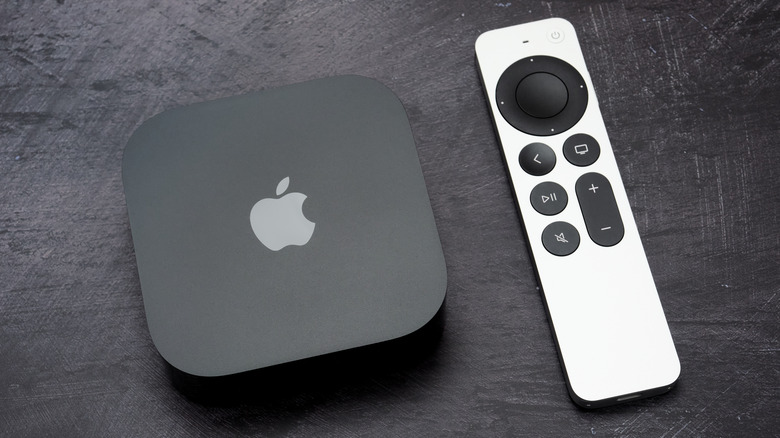
The cool thing about an Apple TV 4K is that it supports 24-bit/48kHz lossless audio. The not-so-cool thing is that it doesn't support Hi-Res audio, so don't expect 24-bit/192kHz support (though this may change with tvOS 27). For some, this can be okay, as it's questionable whether people can hear the difference between lossless and Hi-Res lossless anyway (though folks with truly professional setups may vehemently disagree).
Regardless, users need to ensure they're running the latest version of tvOS and that their Apple TV 4K is connected to an AV receiver via an HDMI cable. As a refresher, you can update tvOS on your Apple TV by navigating to Settings, selecting System, and choosing Software Update. A message appears if one is needed. Be sure to enable lossless in Apple Music.
Here are the steps:
-
Open the Settings app.
-
Choose Apps.
-
Select Music.
-
Choose Audio Quality under Audio.
-
Enable or disable Lossless Audio.
For what it's worth, an Apple TV 4K supports a variety of formats aside from Apple Lossless, including Dolby Atmos, Dolby 5.1, Dolby Digital Plus 7.1, FLAC, WAV, AIFF, MP3 up to 320Kbps (and MP3 VBR), AAC up to 320Kbps, and HE-AAC, so users aren't short on sound options whether they're watching video or listening to audio. However, updates to tvOS may change this in the future.
PCs
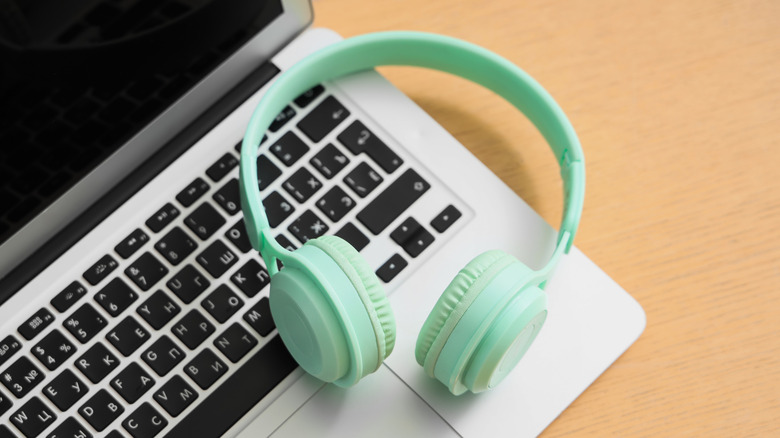
While we've been focusing on Apple products that support lossless through Apple Music, users outside this ecosystem can get in on the fun as well. It's a good idea to check the specs of any PC to see what it actually supports, though Apple recommends a DAC for sample rates above 48kHz. Fortunately, getting this one started through Apple Music is simply a matter of finding the right settings.
Here are the steps:
-
Open Apple Music.
-
Click Sidebar Actions (three horizontal dots) from the top.
-
Select Settings.
-
Choose Playback.
-
Turn Lossless audio on or off under the Audio Quality section.
PC users will see the usual suspects in the list: either 24-bit/48kHz Lossless or 24-bit/192KHz Hi-Res Lossless. Remember that wireless headphones won't be of much use at resolutions this high, so a pair of wired headphones will be your friend (just remember the signs when you need new ones). Naturally, users can also connect powered speakers and receivers via a wired connection or rely on the device's built-in hardware.
For what it's worth, the Playback section of the Settings menu also includes options such as Dolby Atmos settings, Video playback quality, Download quality, Crossfade abilities, and more. One particularly useful feature may be the Sound check option, as it sets all music and videos to the same volume. It's worth exploring for those interested in sound, and fine-tuning your playback options can make for a more personalized experience.
Androids
Although users may need to consult their device manual for more information, Apple Music supports lossless audio on Android devices. In addition to checking your device's details to see which audio formats it supports, users should ensure they're running the latest version of the Apple Music app. Double-check by opening the Play Store app, tapping your profile icon, and selecting Manage apps & device. Choose either Update all to update everything or tap See details to see if Apple Music specifically needs one.
Just like other devices, a wired connection will be required for headphones, though a receiver or powered speakers are also options. You may also be able to run the audio through the device's speakers, depending on the options. Users may also need an external DAC for higher audio rates. Knowing this, it's just a matter of enabling lossless in the Apple Music app.
Here are the steps:
-
Open the Apple Music app.
-
Choose the More (three vertical dots) button.
-
Select Settings.
-
Tap Audio Quality.
-
Choose Lossless, then enable or disable it.
Like others on this list, users can choose between 24-bit/48kHz or Hi-Res 24-bit/192kHz. Just like Apple users, Android users should remember that lossless audio files can be rather large, so pay attention to your data usage. For what it's worth, we also know of some tricks for better-quality audio on Android phones for those who are constantly chasing the best sound.