

10 Alexa Commands You Should Know For Controlling Media Playback
We may receive a commission on purchases made from links.
Alexa has way more commands than most people know about. The full list measures in the hundreds and covers tasks from media playback to booking a flight, controlling your smart home tech, and even making full Amazon purchases directly from your smart speaker. Some of the lesser-known commands give you access to even more functions. As with most pieces of tech, the more you know, the more effectively you can use Alexa, and the more overall utility you can get from your purchase, which helps justify the money you spent on it.
When it comes to controlling media playback with Alexa, most people already know the basic commands, like those for playing, pausing, and skipping tracks, and for adjusting the volume. These basic commands have been present on media playback devices for generations, and nearly everyone figures out pretty early on that Alexa supports them. Eagle-eyed folks may have come across a few others when learning more about Alexa, but there are still plenty more to learn, especially once you factor in that Alexa works on speakers of many different types, TVs, and potentially even your car. That gives you a lot of avenues to control media with just your voice.
Alexa also allows you to get pretty creative, but sometimes it helps to have a little inspiration to get you started. So, if you're a consumer of media, here is a list of Alexa commands you may not know about that can help you control your media playback with more efficiency and granularity than with just the base directives.
Alexa, repeat this song
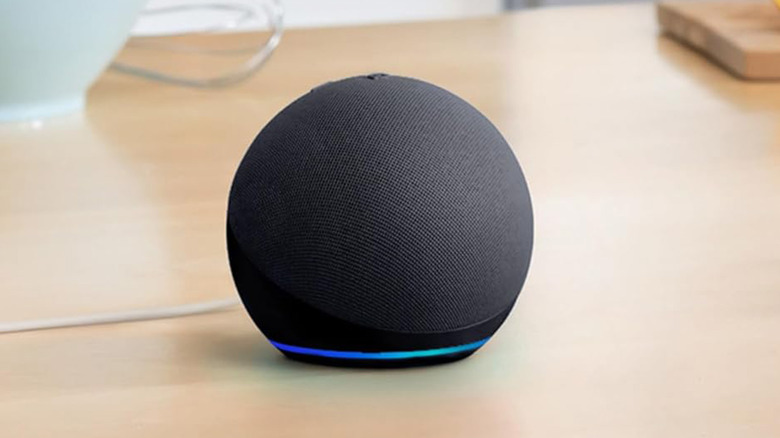
The first set of commands is what you might call the expanded base commands. Alexa can play, pause, and skip tracks, as well as adjust the volume, but that's not all of the basic functions that it can do. It depends on what type of media you're dealing with, but extra commands do exist. For music, you can ask Alexa to start a song over, put a song on repeat, put your music on shuffle, and play a playlist or album on a loop by asking Alexa to engage in Loop Mode.
Movies and TV shows have expanded basic commands as well. You can fast-forward or rewind TV shows in case you want to skip a scene, or if you missed a scene. The "start over" command also works here if you missed the beginning of an episode and want to go back and watch it again, or if someone came in after the start of a movie and you want to restart it.
You can also have Alexa wake you up with music by setting an alarm to whatever playlist or song you wish. A lesser-known feature is the ability to adjust your equalizer (EQ) by telling Alexa to cool it on the treble or add more bass. These commands are available on the base-model Alexa, without the need to buy into a more advanced model.
Alexa, play music on every speaker except the bedroom
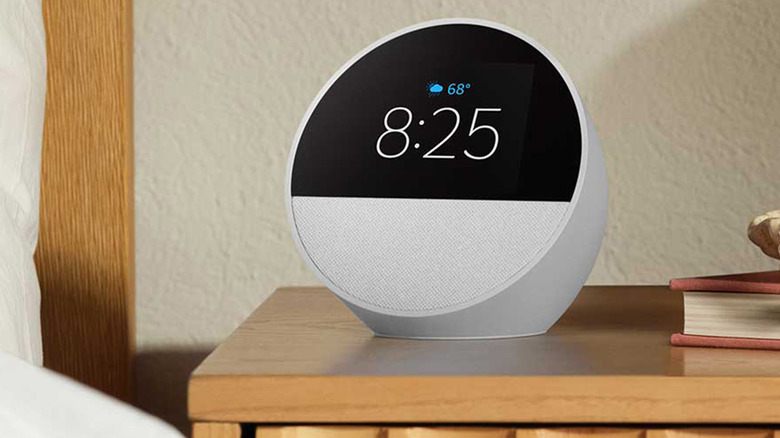
One of the benefits of having multiple speakers in your house is that you can use them all the time, even if you're actively moving around the house. These speakers are fully linked up, and that's why when people buy several smart speakers, they are almost exclusively in the same ecosystem, so they can all work together. This also works with your media playback. Since the speakers are all linked together, you can dictate exactly which speakers play music and when, giving you a pretty simple multi-room audio system that you can command with your voice.
The commands all function the same no matter how you roll them out, but there are multiple versions of the syntax you can use to achieve this. You can tell Alexa specifically which speakers to play. So, if you're hosting a party and are going back and forth between the kitchen, dining room, and living room, you can instruct Alexa to play music on those specific speakers. You can also tell Alexa to play music on every speaker in the house with the exception of a few (every room except the bathroom), or you can tell it to stop playing music on every speaker except the one you want. The only downside is that this is listed as an Alexa+ feature, so you do need to pay for the service to do this, but it might be a good reason to upgrade.
Alexa, play my cool jams playlist on Spotify
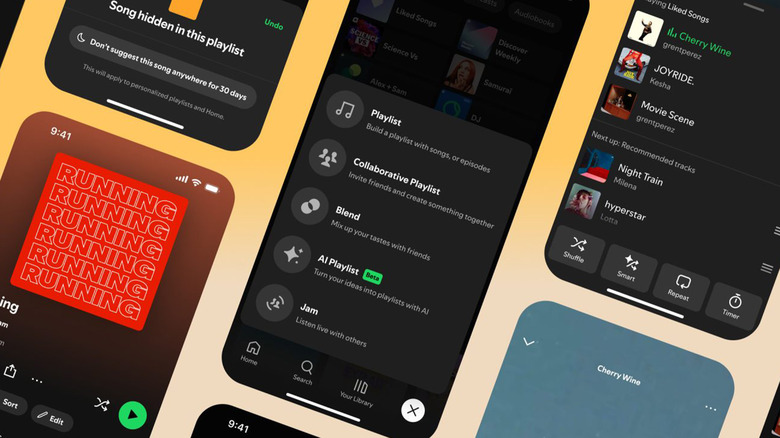
When you ask Alexa to play jams, it will always default to Amazon Prime Music unless you state otherwise, like asking it to play a playlist specifically on Spotify. This can be a pain point for a lot of new users since many people don't use Amazon Prime Music as their primary streaming service of choice. There are two ways to solve this problem.
The first, and easiest, method is to simply remember to tell Alexa to play your music from your music streaming service of choice. This is a bit tedious but requires no work other than connecting your streaming service and remembering to append any music-playing command with "on Spotify" or whatever you use. This is not an elegant solution at best, but it does work.
The superior method is linking to your streaming service and then making it the default. You go through the same process of adding a streaming service like you would always do. After you're done, open the Alexa app on your smartphone, go to Settings, and then Music & More. There, you'll have a bunch of options to change your default streaming service for several commands. Change them to your streaming service of choice, and you'll no longer have to add "on Spotify" to your commands. This works for songs, albums, artists, genres, and even service-specific commands.
Alexa, change the channel to ESPN

Live TV streaming is rapidly replacing traditional TV services, and Amazon has baked in several commands for those who partake. These aren't quite as well-known as Alexa's general movie and TV controls, but they do exist. The first command you should know is "go to live" and "go to channel guide," which will take you to the supported app with live TV or straight to the channel guide so you can browse through and see what's on. There are over two dozen supported apps for this, including YouTube Music, Pluto TV, Sling TV, Philo, and DirecTV, among others.
The other commands are pretty simple. You can tell Alexa to take you to any particular channel by name or number, depending on which service you use. That means you can surf by direct names like ESPN, Comedy Central, or Fox Sports, or by using numerical channel numbers. It's often a lot faster to ask Alexa to do this for you rather than typing in the numbers on your remote, and it's way faster if your remote doesn't have the ability to type in direct numbers. Simply ask Alexa to take you where you want to go, and it'll work. This also works for some specialized apps, like MLB TV, NBA TV, and ESPN's individual app, but usually only with the live TV tab.
Alexa, move this movie to the bedroom TV
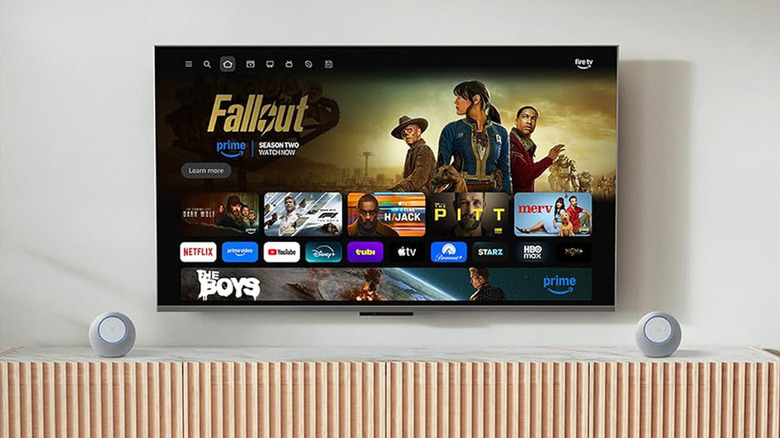
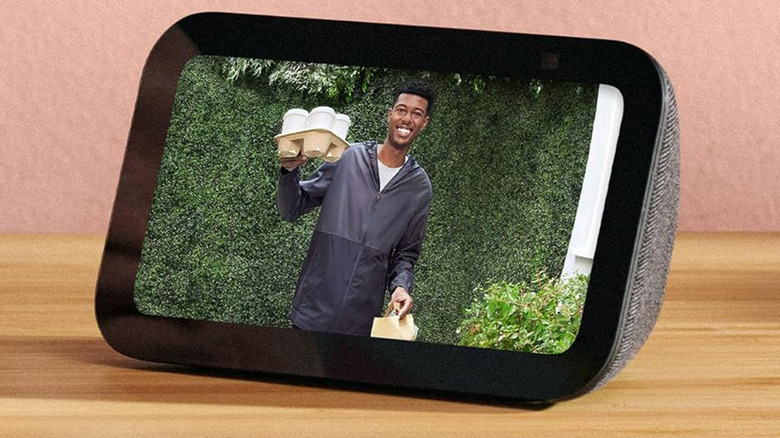
Alexa can move music around to any speaker or TV in your house, letting you continue to jam out wherever you are. The same thing works for movies. This is a bit of a specialized use case, but one I've done before. I have a smart speaker with a display in my kitchen, and I'll often start an episode of TV in there while I make dinner and then move it to my TV when it's time to eat. Another potential use case for this is getting tired of watching TV in the living room and moving it to the bedroom. You can also ask Alexa to set a sleep timer in these cases to automatically turn off your TV.
The command is very simple. You just ask Alexa to move what you're watching from one display to another. Alexa will turn on that display, move the stream, remember where you were in the episode or movie, and then you can proceed with your watching. Pair this with the other movie or TV commands, and you have a surprising amount of freedom to watch what you want, where you want, and to move it around.
Alexa, show me the spoon-bending scene from The Matrix

Alexa+ added some pretty cool features in 2026, including more natural conversations and better smart home management, among others. You can also get tons of recommendations and have casual conversations with Alexa about what to watch or listen to. One of the neater tricks that movie buffs may find fun is the ability to immediately skip to a scene in a movie or TV show simply by describing it to Alexa.
For example, you can ask Alexa to find the spoon-bending scene from "The Matrix," which is one of the most iconic passages from the whole movie. You can describe almost any scene from any movie, and Alexa will figure out what you're talking about. According to some reports, you don't even have to include the title of the movie. An accurate and succinct description of the scene should be enough, provided that Alexa supports the movie. You can also use actor names, quotes, and character names to help your descriptions if you need to.
As of July 2026, this feature is supported only in Amazon Prime Video, which Amazon says makes it available for thousands of titles. Prime Video is included in your Prime subscription, but you may not have access to stream all of the supported movies and TV shows, so prepare to buy or rent something if Alexa supports the title but it's not available with your current service.
Alexa, play some chill music

The great thing about streaming music is that you don't need to resort to piracy or expensive music purchases to listen to what you want. The downside is that there's so much stuff to listen to that you may end up not being able to decide what to play. Alexa can help with this with two separate commands. The first is allowing Alexa to decide what to listen to based on a theme. For example, if you're in the mood for some Marley, you can ask Alexa to play some chill reggae music, and Alexa will use your default streaming service to fulfill your request.
Should you be a fan of Amazon Prime Music, which does come with Amazon Prime, the service has dozens of playlists like this that you can tap into at a moment's notice as well. Spotify and competitors do as well, so there's really no lack of anything to listen to.
You can also ask by context. By telling Alexa to play a song based on lyrics, you can find songs without needing to know their actual names. It's another way to get Alexa to help you figure out what to listen to. It only works with lyrics, though, so you can't just hum the tune as you can with some competitors like Google's Gemini.
Alexa, can you go back one chapter?
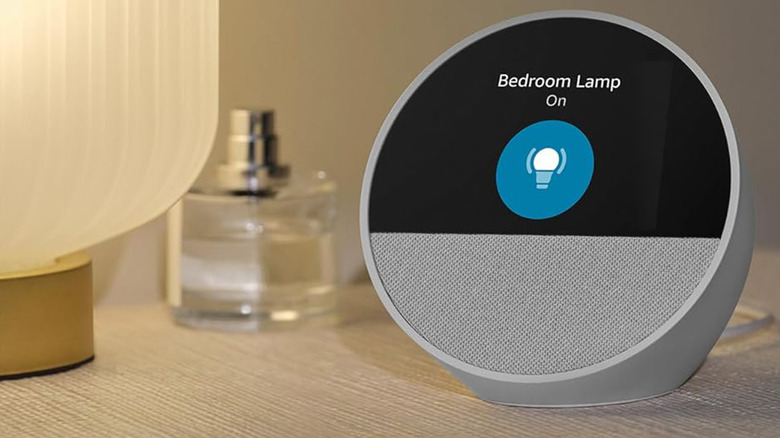
Alexa supports audiobook playback, and audiobooks largely use the same commands as music and TV. That means the usual play, pause, volume, mute, and stop instructions will work with the books you're listening to. You can also skip tracks with audiobooks, but it requires a different syntax than it does with skipping tracks in music or skipping to the next episode in a TV show. To skip ahead or behind in a book, simply ask Alexa to go back or forward a chapter. Then you can go back and listen to part of a book you may have missed or skip a particularly boring part.
There are more granular controls for audiobooks, too. You can use the Alexa app to rewind or fast-forward in 30-second increments if you need to skip around just a little bit instead of by a full chapter. You can also ask Alexa to recommend a book by describing what you like, or have Alexa itself read a book instead of listening to a pre-recorded audiobook. Alexa also remembers your spot when you tell it to stop reading, allowing you to resume at a later time. These controls work with Kindle books you've purchased from Amazon, books available through Kindle Unlimited, and audiobooks from Audible.
Alexa, put WRKZ on the radio
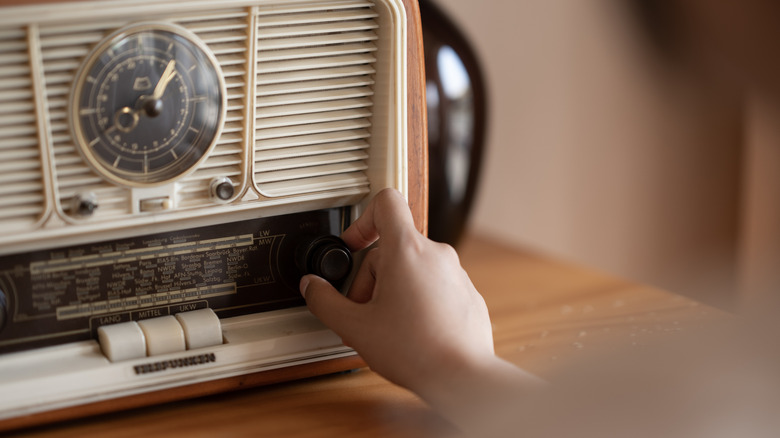
Classic radio stations aren't nearly as popular as they once were, but they do still perform the same function they did 30 years ago when people used them all the time. They offer a nice way to listen to music without needing to control it yourself, and modern stations can introduce you to new singles from existing bands or new bands. Alexa comes with support for AM and FM radio stations, although it does have to stream the Internet feed from those stations. That means if a station doesn't have a stream, Alexa can't play the broadcast.
In any case, you can control these stations the same as any other audio stream, minus the ability to do things like skip tracks, since that's not how traditional radio works. You can also tell Alexa to play specific radio stations by their call sign. Thus, you can say, "Alexa, put KDKA on the radio," and Alexa will put on the first commercially licensed radio station in the U.S., which exists in Pittsburgh and still runs to this day.
Alexa, play music in my car

Some vehicles come with Alexa built-in, and you can use the service in the cockpit similarly to how you use it at home with smart speakers and Fire TV devices. Automakers that include Alexa include Acura, Audi, BMW, all of the GM brands, all of the Stellantis brands, and Ford, with more automakers like Hyundai, Honda, and others adding it to at least some cars. It's true that many will just default to Android Auto or Apple CarPlay as their infotainment system, but those who don't do that can talk to Alexa instead.
Alexa in cars can do all sorts of fun stuff, like remote starting your car from a smart speaker inside the house or opening the garage door when you pull up. It's also worth noting that every command for music and audiobook controls works in the car the same as it does inside your house. Video controls also work on select vehicles, but only if they have Fire TV built in. So, if your car is equipped with Alexa and Fire TV, most of the controls above work in your car as well as your speakers at home.
That includes the ability to move your music. You can listen to a song in the car, ask Alexa to pause, go inside, and have it resume your music on a speaker in the house. This only works on cars equipped with Echo Audio, though, which does require a separate purchase.