

10 Of The Best Android Widgets, According To Phone And Tablet Users
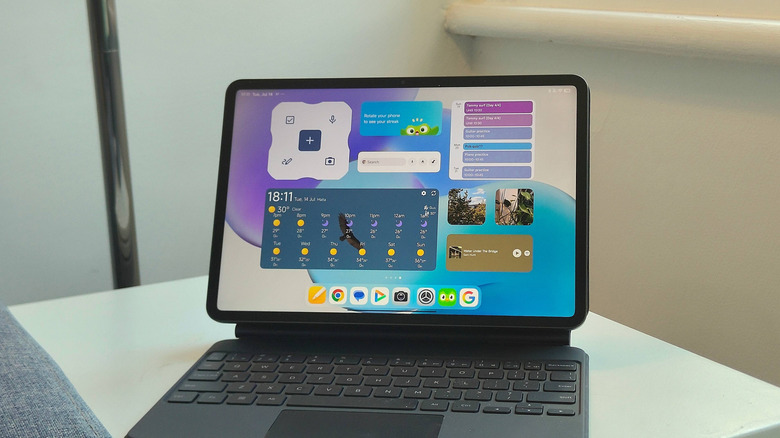
Ever since the first release of Android in 2008, widgets have been an integral part of the operating system. These home-screen applets offer you some of the functionality of your apps, but in a bite-sized chunk. They're part of the core pitch of Android over iOS: total customization over your home screen. Due to their history, there are a huge number of Android widgets available to download, and so it can be hard to know which ones to use.
Most of the essential Android apps have a few you can choose between (if you don't want to pick all), and there are countless more out there which may offer functions you haven't even considered yet. Many of these show you useful information at a glance, while others grant extra customization options to your home screen, and more let you jump into your go-to apps quickly.
To help narrow down the selection, many Android users take to Reddit to share widgets they couldn't do without. And to make it easy for you to find widgets you'll find useful, I've scoured the threads, installed them onto my Android devices (if I wasn't using them already) and condensed them into a list of the 10 best options.
Calendar, for keeping tabs on upcoming events
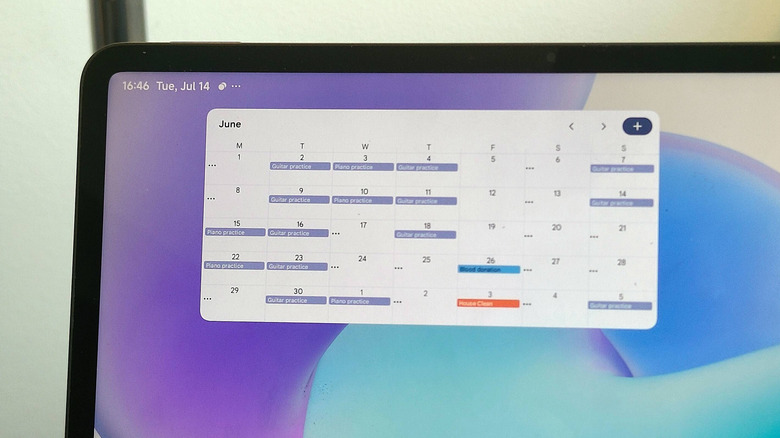
One of the most frequently-recommended Android widgets, which many Redditors compel others to install, comes from one of Google's pre-installed apps: Calendar. You've probably used this app to schedule events, set reminders and block out holidays, and the widgets add another way to use it.
Redditors praise the Google Calendar widget as a great way to get reminders of your upcoming events, with its two options fitting into differently-sized home pages. It has a Calendar schedule option, which lists your next few upcoming events, and a Calendar month view option, which shows you the current month as well as everything programmed into it. Both can be resized, to let you see more information if your schedule is busy.
I've been using the expanded Calendar schedule widget at the top of my phone's home screen for many years now; the at-a-glance reminder of the next few days' tasks and events proves incredibly useful. That's something echoed by Reddit commenters, one of whom said the month-long widget "saved my life so many times" when it came to school and life reminders.
Clock, for analog or digital displays
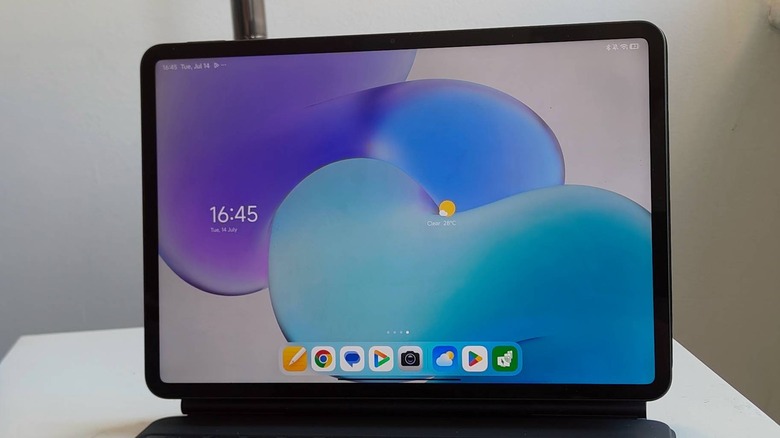
Android smartphones will always have a pre-installed default clock app, which you can use to set alarms, create a timer, time using a stopwatch, or see times around the world. Many mobile manufacturers have their own clock app, but multiple use the Google Clock app, which you can also download from the Play Store if you don't have it . Whichever you use, you might find the widgets a useful addition to your Android phone's home page.
Some Reddit users detail all the various clock widgets they pepper their home screens with , due to the wealth of options on display. Depending on the clock app you have, you can see small analog or digital clocks, larger widgets covering multiple time zones, applets which combine time and weather, or options for the Clock app's other functions.
Like the calendar, I add a Clock widget to every new Android phone I use; these are attractive ways to see the time without having to look at the little display at the top of the user interface. The extra widgets for time zones, alarms and weather conditions are often useful too, especially the one to check if your work alarm is set.
Keep, for taking and remembering notes
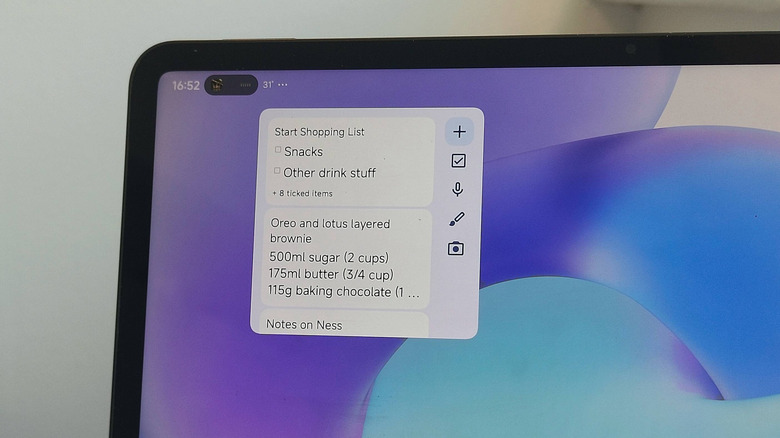
Google Keep is a popular note-taking app, which lets you record notes, ideas or lists, either by typing on the keyboard, handwriting (or using a stylus), leaving a voice memo, or taking a photograph. It can be a useful way to keep notes, especially since it's a cloud service which saves your notes between devices.
One of the ways people make their Android home screen more useful is to use Google Keep's widgets, in order to easily access notes or select shortcuts to create new ones. There are three in total: one shows a single note, another a list of your notes, and the third displays buttons which you can use to quickly begin taking a note. Some Redditors cite Google Keep as a widget they use all the time, often mentioning the cloud syncing as a reason they choose to use it.
Across years of testing I've used plenty of notes widgets, including Keep for years; its syncing is useful, although it can be quite buggy. Occasionally, the widget will fail to scale its size properly, sometimes having font that appears far too large or showing panels that are low-res. Some Redditors have a solution to that, suggesting Microsoft To Do as a rival worth considering.
Spotify, for easily controlling your music
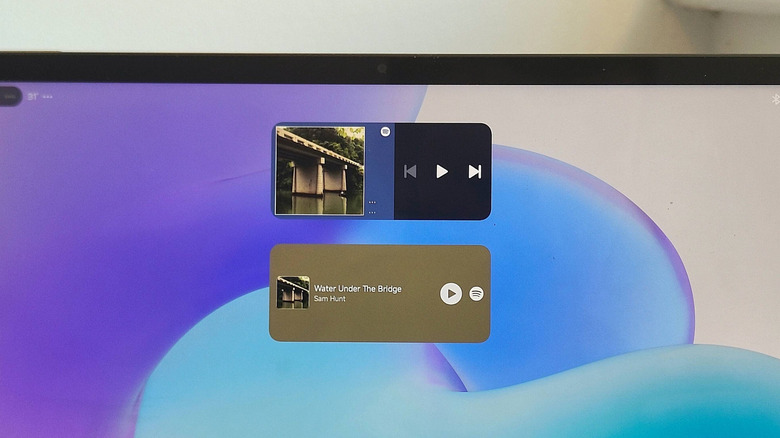
One of the cool things you didn't know Spotify can do, is using the Android home page widget controls to add greater control over your music playback. It's commonly cited as an applet people use , even by users who keep their widget use light, but power-users often mention it too.
There are two Spotify widgets. The first tells you what song you're listening to, with simple media controls: rewind track, play or pause, or skip track. The second has the same options, but also shows you small icons of the last five playlists you've listened to; selecting these opens (though doesn't play) the playlist, so you can manually start it. If you're constantly listening to music, having these widgets may be a helpful way to control your tunes, though it offers the same functionality as Android's built-in media player.
Like many of the other options on this list, I've used Spotify's widgets for many years. While they're not as useful as they really could be, given the lack of options or control over the widgets, Spotify is such a commonplace app that they're still quite handy to have.
Ticktick, for managing your life
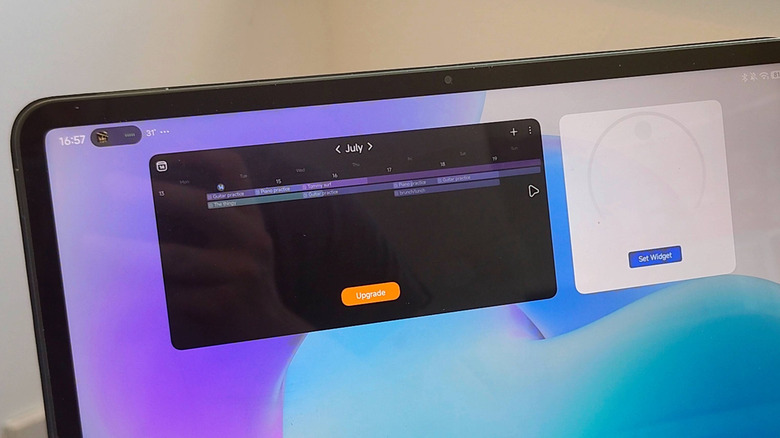
One of the essential Android widgets you need to start using is Ticktick, which one Redditor claimed "has the best widgets" , and is often recommended by online users for letting you easily see your to-do list at a glance. Having used all of the widgets on this list, this author concurs; Ticktick has a wide range of features, and its widgets are the best of all.
But what is Ticktick? In essence, it's a note-taking app, which functions as an alternative to Google Keep or other similar tools. We've recommended it before as one of the best free apps you should download, backing up what the Redditors say, praising its ease of use and contextual understanding of entries to easily create lists.
Ticktick has various widgets, offering the same versatility as all of the great applets on this list. You can add simple to-do lists, a calendar overlaid with all your important events, countdowns to important deadlines, and more; there are habit reminders, a Pomodoro focus timer for helping you focus, an Eisenhower Matrix for organizing your priorities, and so on. The wide selection is another reason some productivity users, like me, find them incredibly useful.
Weawow Weather, for in-depth forecasts
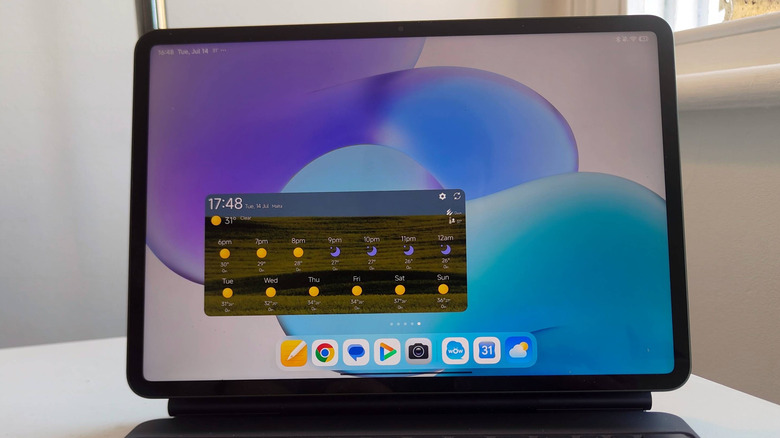
There are plenty of great weather apps you can download, but if you're looking for one that offers an in-depth weather widget, then Reddit recommendations generally point in one direction : Weawow Weather (also called Weather & Widget – Weawow on the Play Store). This Japanese weather app, the unique selling point of which is its emphasis on photos of the weather, is popular for the many in-depth Android home screen widgets it offers.
Weawow offers a wide range of widgets; there are 14, in a variety of shapes and sizes, and with different kinds of information on each. For example some have the weather where you are, with the time included as well, but others give you daily or weekly forecasts or in-depth up-to-date data. They're all paired with photos from the app to represent the information too. Described by one Redditor as being "elegant and very useful", these widgets give you far more information than rival apps', hence the constant recommendations. When I installed them, I was impressed with the range of options available, letting you create multiple applets for different data points, but found the biggest draw to be the accompanying photos, which made it easy to glean information at a glance.
Material Photo Widget, for making a photo gallery
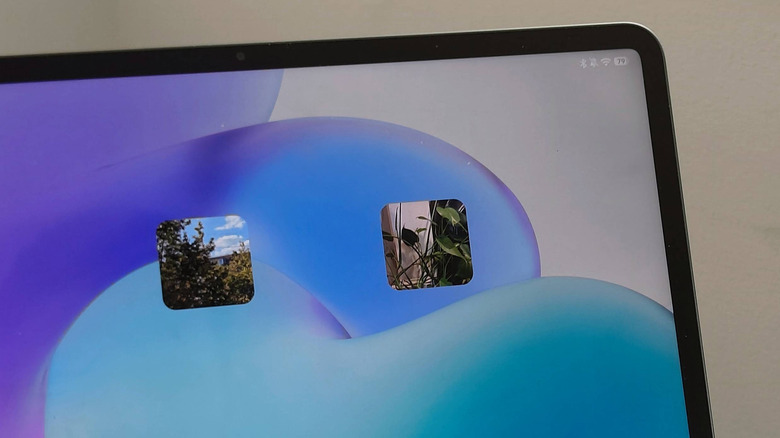
If you like displaying photos you've taken on your Android's home screen, then you've probably already installed the widget for your device's native Photos or Gallery app. However these can vary widely between phone manufacturer, and the Google Photos app is rather limited. That's why many Reddit users recommend the Material Photo Widget as an alternative way of displaying pictures on your home screen.
As the name implies, Material Photo Widget is an app that exists to offer a home screen applet. It lets you choose one or more photos, choose the shape of the widget (including borders), and add text under the picture. You can even choose an action, which occurs when you tap the widget; you can prompt it to scroll through different photos in a collection, open them up in full screen, share the picture, or another option from a list. You can also add an invisible widget, which carries out an action when you tap it — in effect, this lets you use your wallpaper photo as the image you need to tap for an action.
When I downloaded the widget to test out, I was blown away by the customization options on offer; it far surpasses pre-installed alternatives in a variety of ways. They're also incredibly functional if you use them right; you can set an image's tap action to open a link, file or folder, effectively giving you large home screen hyperlinks.
Duolingo, for keeping that streak going
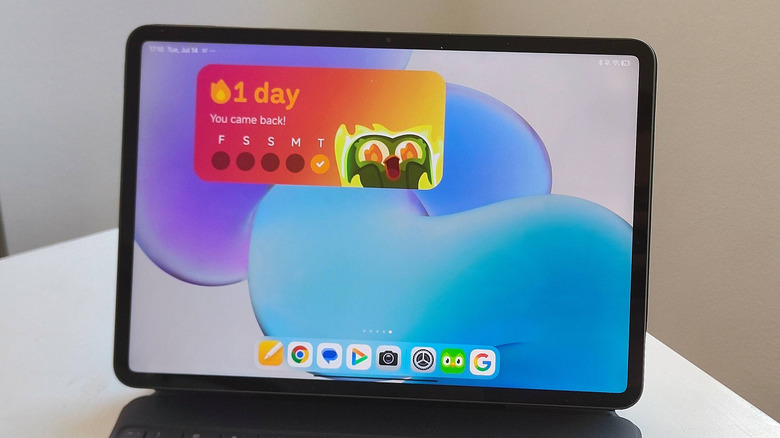
Duolingo needs no introduction; the bird-mascot language-learning app is a perfect way to make your morning commute fly by, and its estimated 50 million daily users often need a reminder to do their daily lessons and continue their streak. That's where Duolingo's Android widgets come in. There are two: a smaller one, which gives you a simple reminder of whether you've done your daily lesson or not, and a larger one, which tracks your streak over the course of a week. Both prominently feature Duo the owl, emoting strongly to your status.
For that reasons, Duolingo users often recommend the app's widget as a useful way to stay reminded of a streak — according to the brand, half of all widget owners maintain a streak of over 6 months. The smaller widget offers a wide variety of designs too, in its reminders to practice or commiserations at your absence, prompting some Redditors to document or 'collect' every one they've seen. I've used the widget before, and it's certainly an effective way to encourage you to jump in and start a lesson, especially since it's easy to simply tap on the applet and jump right in. You'll do it if only to placate the terrifying-looking Duo which will be staring out at you...
Chronus, for combination widgets
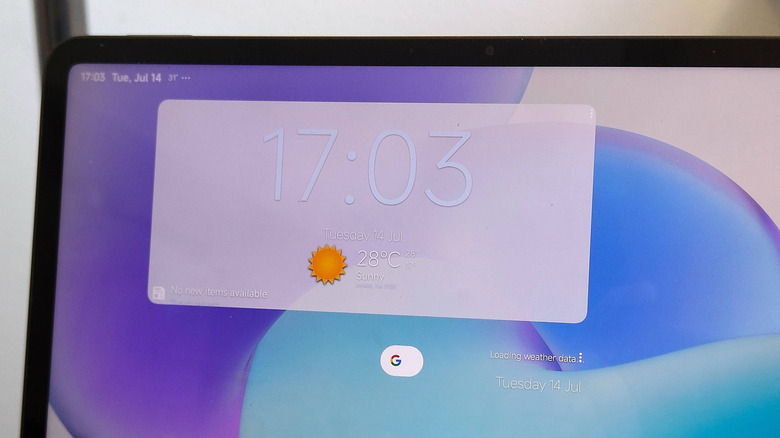
If you've been reading this article, downloading and installing a growing number of apps and widgets, you'll quickly find that space is running out on your home screen. That's where an app like Chronus comes in: its options let you combine multiple metrics in the same widget, saving space while you get all the information you need.
Reddit commenters often recommend Chronus as a popular widget, sharing recommendations pointing to which of its applets they save space for on their home screen. Examples include widgets which combine agenda, clock, and weather information all in one block. Other popular options available from Chronus include ones which show you two different calendar overviews, news and RSS feeds, and joint weather and clock versions.
One thing to know, which I discovered when playing around with this app, is that its Pro tier is well worth subscribing to if you want to unlock Chronus' best features. Paying a little money lets you unlock more widget features, like stocks and weather forecasts, and plenty of extra customization features like fonts, colors and customized tap options.
KWGT, for building your own widgets
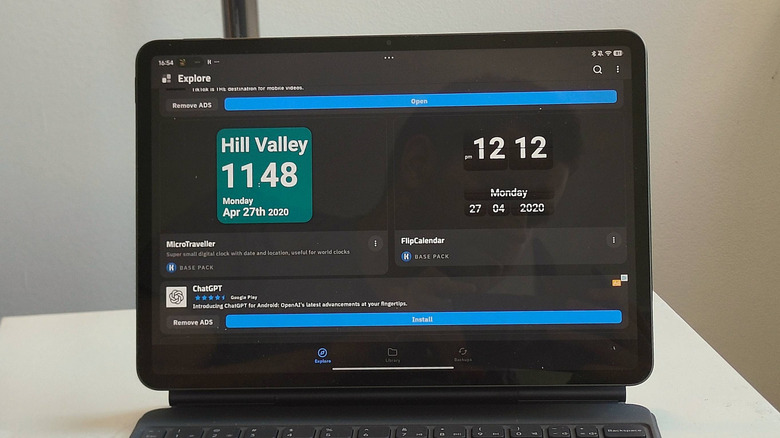
Most of the previous entries are Android apps with useful widgets; KWGT is slightly different. Instead, it's an app designed around a single purpose: creating widgets which you can customize and put on your home screen. You can design an applet which offers the combined functionality of ones we've already discussed in this article; you can create combination widgets of health, music, weather, and other details. You can also customize the size, color scheme, and look of the resulting widget, ensuring it fits into your home page both physically and aesthetically.
On Reddit threads, users were quick to mention KWGT, and there were barely any threads in which it wasn't recommended. Multiple commenters claimed that they only use KWGT widgets, even sharing screenshots to prove the point, so they're clearly useful additions to your home screen.
When I downloaded KWGT for the purposes of this article, I found it quite complicated: there are a lot of options and things to customize and change. And so it's only worth downloading the KWGT app if you're ready to put in some time, and work out exactly how it works. We've got an entire guide on how to make your own custom Android widgets if you want an advanced run-down of KWGT and its process.
Methodology
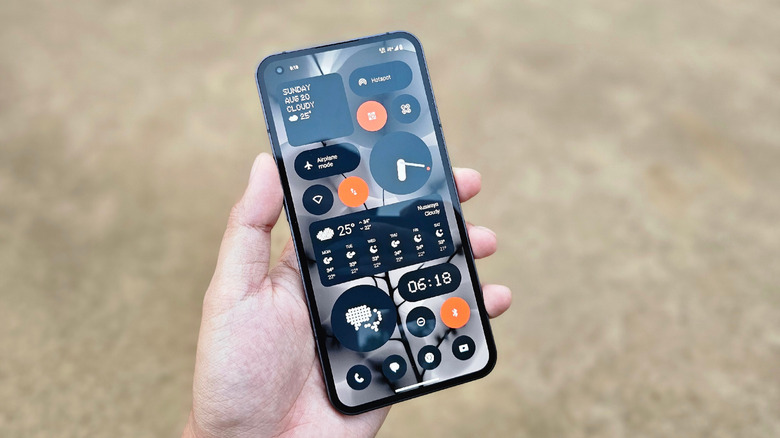
Each of the 10 app widgets you've just read about were discovered by browsing Reddit threads to find user recommendations, including subreddits dedicated to Android phones, and ones for specific communities or interests. In most cases, a widget received multiple recommendations in order to be added to the list, though on occasion a particularly compelling single recommendation was deemed enough. An effort was made to avoid too many overlapping or similar widgets, with the most popular recommended in those situations. Widgets that were mentioned but were exclusive to certain Android brands, like Samsung Health, were omitted to ensure that this list was accessible to the most users.
I have been writing about technology for the best part of a decade, and I have reviewed countless Android phones and tablets for major outlets. My opinions and experiences were used to inform about the specific widgets but not dictate their inclusion. All of the images used in this article (save for the Methodology one above) were taken by me on a Xiaomi tablet.