

7 Things You Need To Check Before Buying A Used PC
Unless you haven't looked at computer component prices in a few years (lucky you!), you're probably well aware that parts like RAM and SSDs have skyrocketed in price. Supply constraints caused by unprecedented demand from AI data centers have made it more expensive for regular people like us to afford a computer.
So it makes perfect sense to turn to the world of used PCs as a way to get a computer, or get a better one than you have at the moment. The good news is that computer performance improvement has slowed down significantly, so a PC that's a few years old may very well still be more than fast enough for your needs, and if you currently have a very old computer, the "new" one should still be a significant upgrade.
On the other hand, plenty of people are looking to make a buck selling their old machines, and competition for those used systems is also likely to be higher given the pricey market for new systems. That means you need to be extra diligent when going to inspect that Facebook Marketplace bargain. Buying a lemon can cost you a significant amount of money, so take your time and make sure you follow this checklist.
Make sure the parts match the description
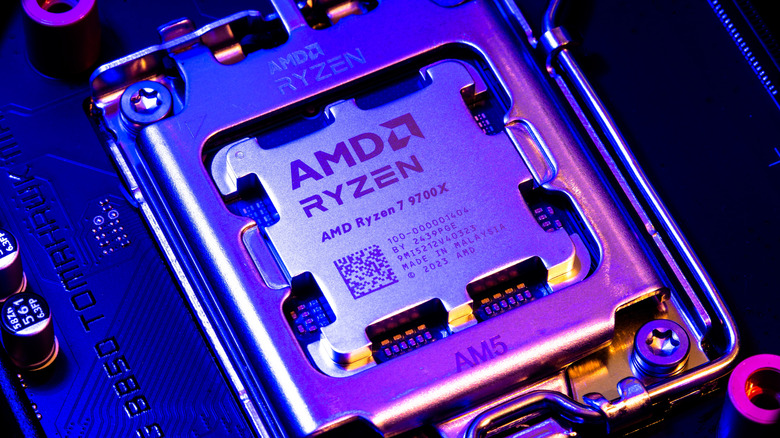
First, let's make one thing clear right upfront: It's generally not a good idea to buy a used desktop PC sight-unseen. Unless you're buying it as a refurbished model with some sort of return policy or limited warranty, it's just too risky, no matter how good the deal seems to be on paper. In particular, it might turn out that what the listing says is inside the computer doesn't match reality.
So it's crucial that you personally confirm that the hardware you're about to buy is actually what you think it is. Open the computer up and check whether the motherboard, RAM, GPU, and other components with visible model numbers and names match what you expect. Of course, this isn't conclusive, and unless you want to remove the CPU cooler and scrape off the thermal paste, you can't actually see the CPU with the naked eye in a working system.
You can also use software like CPU-Z and GPU-Z to read information directly from your hardware and, if these apps report the specs you expect, it's usually all good. With some advanced counterfeit components, though, the name of the component could be altered in the report, so check if the other specifications, such as core count and cache size, match what the manufacturer has on its spec sheet. If there is a mismatch, it's not always (or even often) a case of malice from the seller. Many people buy counterfeit components without knowing any better or just make an honest mistake in their listings.
Do a physical damage inspection
Unlike a laptop, there should be no expectation for a desktop computer to have any sort of visible damage from handling. It's a computer that's just supposed to stand in one place and get some maintenance from time to time.
So have a good look around the interior and exterior of the computer. The chassis should not have any dents or rust or be bent out of shape. In other words, there should be no sign that the computer was ever dropped or experienced a hard impact.
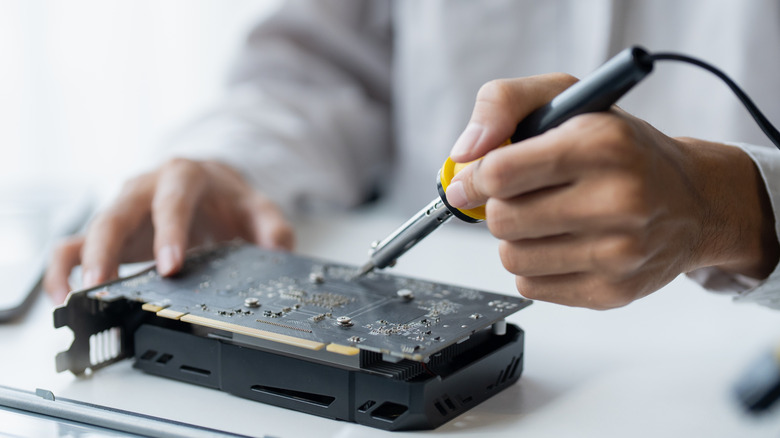
Check the inside the case for issues like swollen capacitors, which can be a key sign the motherboard is about to fail but also applies to any add-on card. Burn marks, broken or loose connectors, or anything that looks out of place should raise red flags. Perhaps the most important thing to look for is staining from liquid damage. Even if the computer is now using an air cooler, if it had a leaking liquid cooling system in the past, this could spell imminent trouble, since exposure to liquid can lead to corrosion (and part failure) over time even if the initial spill didn't destroy the component right away. Trust your gut here — if something doesn't look right, walk away from the deal.
Test the major components
Often when buying a used item from a private seller, there's time pressure involved that wouldn't be the case when buying a new system from a store. Yet, you're likely handing over a significant sum without the recourse of a warranty. This makes it sensible to actually test as much of the computer as you can before buying it. If the seller seems unwilling to let you do this, that's already a good sign that the deal isn't a good one.
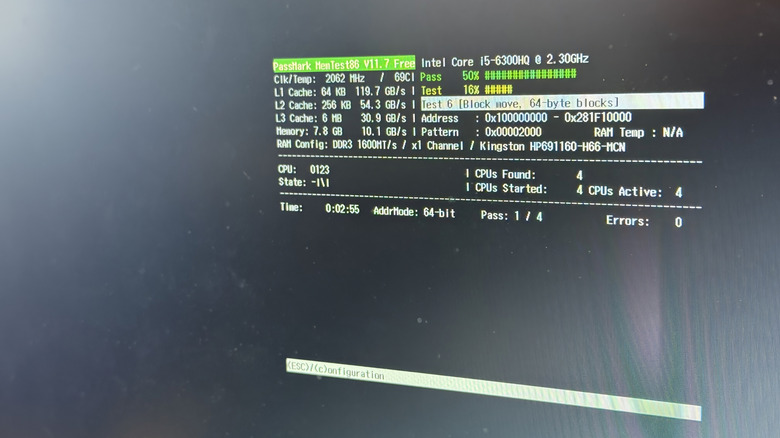
If you can take the opportunity to test the system, then check if all the major components are working correctly. Run the same stress tests you would if you were checking to see if your CPU was about to fail. Likewise, running a memory test, GPU stress test, and SSD stress test should all take around five or 10 minutes each. If the computer can complete them all without shutting down, freezing, or crashing, then you can be fairly confident that things are good to go.
Other easy things to test are the USB ports. Just plug a working flash drive or peripheral into each port and make sure that it works. Likewise, test the Bluetooth, Wi-Fi, and Ethernet. Video outputs on the GPU are a common failure point, and don't forget about the 3.5-millimeter audio jacks. Also, take a minute to open the Device Manager and see if there are any warnings, indicated by exclamation marks next to individual device entries.
Check the storage health
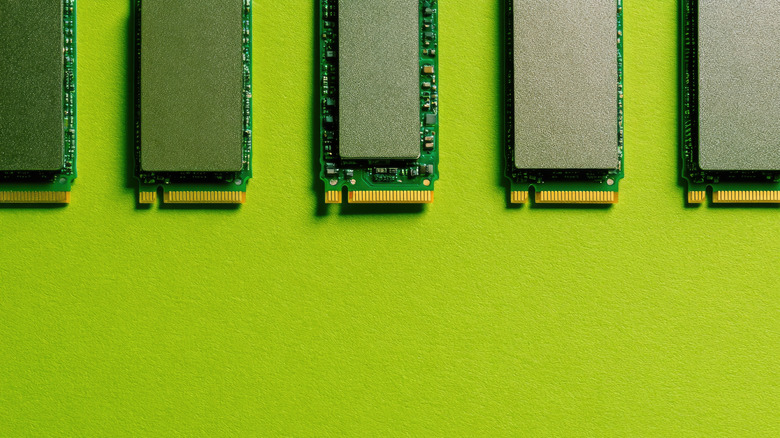
If the used computer you're buying is even slightly modern, then its primary storage drive is almost certainly a Solid State Drive (SSD) rather than a mechanical Hard Disk Drive (HDD) with spinning platters and whirring drive heads. That said, it's still common to use HDDs for mass storage as a secondary drive today. If the used PC you're considering has a mechanical hard drive, it's a good idea to review our guide on what you need to know when buying a used hard drive.
For SSDs, the main concern is that the drive has had too many write-erase cycles and is close to its end-of-life or that it's been exposed to higher than normal levels of heat, which can also shorten its lifespan. To check its status, use an app like CrystalDiskInfo, which will show you the estimated disk condition and expose S.M.A.R.T (Self-Monitoring, Analysis, and Reporting Technology) data. This software can also help with quick temperature checks. Each individual SSD model has a specific temperature range that it's rated for, but as a rule of thumb, you don't want to see anything over 70 degrees Celsius under a sustained load.
Finally, check the cooling in the physical installation site of the SSD. Is it exposed to airflow from a case fan? Does it have a heatsink? Heatsinks are optional if temperatures are otherwise controlled, but if the SSD is tucked away somewhere it can't be actively cooled by airflow, chances are higher that it's been baking and could therefore have a shorter remaining working life.
Confirm that the Windows license is legitimate
Unless you plan to use Linux for your PC instead of Windows, you'll want to ensure that the copy of Windows that comes with the system is legitimate. If the seller got Windows with the computer, it's an OEM (Original Equipment Manufacturer) edition, and the license is usually tied to the motherboard's unique hardware identifier. If they bought Windows as a retail copy, they should have the license key and documentation. Retail copies can be transferred between people and computers with relative ease. A Windows license purchased directly from Microsoft is tied to the buyer's Microsoft Account and cannot be transferred to a new account (though it should still run and can be transferred to another computer).
Also keep in mind that Windows 11 can be installed and works without a license. It just has a few minor limitations. However, if it's not activated with a license, you'll see a notice in the bottom right-hand corner of the desktop telling you that Windows needs ot be activated. The bottom line of all this is that you should establish what type of Windows license (if any) the computer currently has, and whether you'll have to pay for a new license or not. The additional cost of a Windows license may turn it into an unfavorable deal, or it could be a way to ask for a further discount.
It's also important to confirm what edition of Windows the computer comes with. Is it Windows 11 Home or Pro? The Home version is much less expensive, but Pro has several useful features and utilities that might make it worth having over the standard edition, depending on your needs.
Check to see if it uses proprietary parts
The beauty of desktop PCs compared to the other options is that, by and large, you'll be using industry-standard parts. You'll have a standard E-ATX, ATX, mATX, or M-ITX case, and then a motherboard that conforms to these standards to go with it. From there, you'll find GPUs and power supplies also designed to fit these common PC size norms.
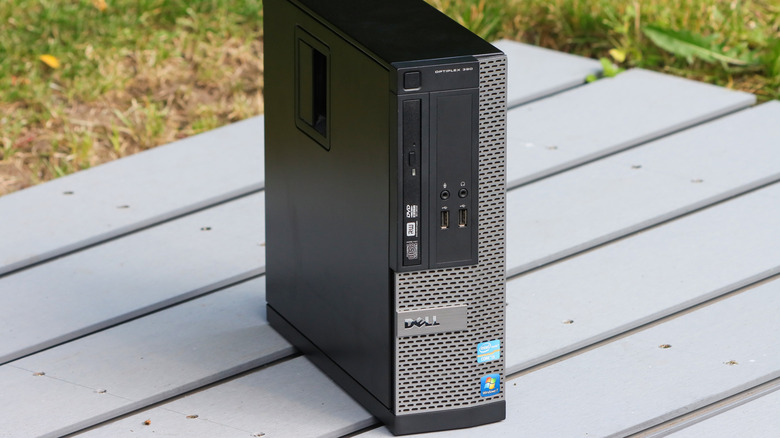
However, some computer manufacturers don't stick to these standards and choose to do their own thing. If you buy a mini gaming PC, there's a good chance its case is completely custom, as is the motherboard and cooling gear inside. In that case, your upgrade options may be limited to changing the RAM and SSD, and maybe the CPU if you're lucky.
If you look at the desktop PCs that outlets like Consumer Reports advise to avoid, they're almost all these custom slim systems that look great on your desk, but are effectively impossible to upgrade. If this isn't an issue for you, then by all means go ahead. Just be aware that choosing a computer with a proprietary motherboard and case design could cause additional costs for you down the line. The power supply unit is another point of potential concern. If it's a proprietary model designed to work with a specific motherboard and case, you might run into trouble finding a replacement if it fails or if you ever want to move your components over to a standard case.
Ask about the PC's history
Just like when you're looking for a prospective used car, it's important to know something about the history of the machine or its components when shopping for a secondhand PC. Of course, this depends on the seller being honest and well-informed, but it can't hurt to ask a few relevant questions about the history and provenance of the computer.
Was it an office computer at a company somewhere? It's not uncommon for these machines to filter through the used and refurbished market after doing a few years of duty in a nice, clean office. These are, however, more likely to have nonstandard cases, motherboards, and PSUs, with limited upgrade options. Even so, those PCs present an almost ideal ownership history.
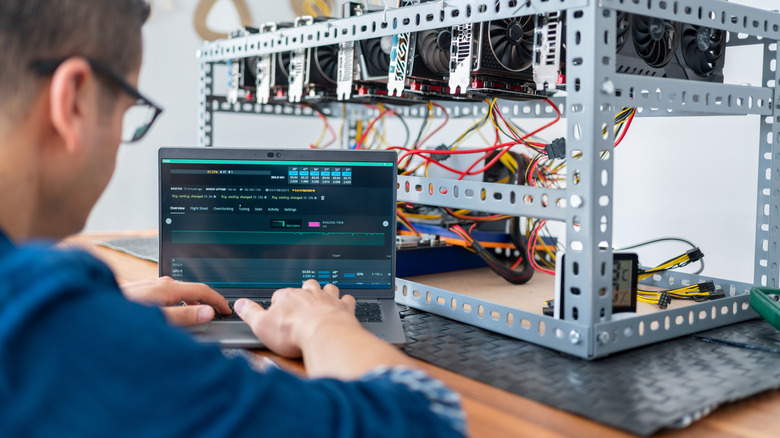
If the machine was used for cryptomining or in an industrial setting, that may be a fair reason to walk away. While it might not be a big deal in every situation, computers in those environments tend to run hot and constantly, and not always in clean surroundings with adequate maintenance. If the computer was someone's personal machine, it's still helpful to ask what they used it for. If it's a gaming PC that was overclocked and ran constantly, similar concerns could apply. If the person had a usage pattern closer to your own (assuming you're a gentle computer soul), there's probably still quite a few years of life left in the machine, and you don't have to be all that hesitant. That said, have a decent conversation to get a good feel for the computer before you finally hand over the cash.