

8 Lesser-Known Alexa Commands For Music Lovers

Many people are familiar with Amazon Alexa and the breadth of commands the virtual assistant can handle, but there are several lesser-known music-related Alexa commands that expand the smart assistant's functionality for media playback. If you're the type of person who always has music playing around the house, these commands can help make your day-to-day interactions with your music library more seamless and more enjoyable, whether you're listening on an older Amazon Echo device or another Alexa-compatible speaker, such as ones made by Sonos.
Alexa can be used with many music streaming services, including Spotify, Apple Music, Pandora, and — of course — Amazon Music. Just keep in mind that, without Amazon Music Unlimited, some of the Alexa voice command features here won't be available to you. If you're not an Amazon Music user, we also suggest assigning your default streaming service in the Alexa app to avoid having to specify it with each command.
You can use Alexa voice commands to control media playback, launch playlists, search for specific songs, and even adjust EQ settings. Additionally, Alexa+ can enhance the quality of your listening sessions by recommending new songs and reminding you of your old favorites, among other things. Since the upgraded Alexa+ is free with an Amazon Prime subscription, you'll be able to use Alexa+ commands if you're a Prime user — otherwise, Alexa+ costs $20 monthly. No matter which version of Alexa you use, though, it's worth earmarking this set of handy yet underutilized commands.
Alexa, set a music alarm
Alexa has a variety of alarm features to help you wake up on time, but with a couple of lesser-known voice commands, you can swiftly get it working like a clock radio, a classic piece of tech that many of us have known and loved before. With a few simple commands, the virtual assistant can help you start every day with your favorite music, which can be just about anything you specify.
If there's a particular song, artist, genre, or playlist that gets you energized in the morning, you can include those details in your voice commands to further customize your alarms. Additionally, since you can tell Alexa the days of the week on which you want your recurring alarms to be active, you can adjust your voice commands accordingly.
Say something like, "Alexa, wake me up at 8 a.m. to '9 to 5' by Dolly Parton," or "Alexa, wake me up to heavy metal music every Monday" — Alexa will implement those tailored morning alarms so you can hear whatever you want first thing in the morning. Even if you say, "Alexa, wake me up at [time] with music," Alexa will just play something you've recently heard from your preferred music service to wake you up.
Alexa, [increase/decrease] the [bass/mid-range/treble]
You can get the best audio out of your Amazon Echo or compatible Alexa-enabled devices by adjusting the equalizer (EQ) settings in the Alexa app. Simply put, EQ settings allow listeners to adjust the volume levels of different frequency ranges — namely the lows, the mids, and the highs — to help make different parts of a song stand out more. Depending on the type of music you listen to, you may prefer specific kinds of EQ profiles. There's a good chance you'd want to turn up the bass for pop and dance music but keep it subtler on classical or jazz tunes.
One lesser-known Alexa command allows you to adjust these settings without even touching an app. Simply ask Alexa to increase or decrease the bass, midrange, or treble, and she'll adjust accordingly. You don't even need to reach for the app to make more precise adjustments; you can ask Alexa to fine-tune each EQ range to a specific number. If you say, "Alexa, set the bass to plus five decibels," Alexa will boost the volume of the lowest-frequency sounds on compatible speakers by five decibels. The Alexa app allows you to set each EQ range to levels between minus six decibels (the quietest option) and plus six decibels (the loudest option).
Alexa, move music to [room]
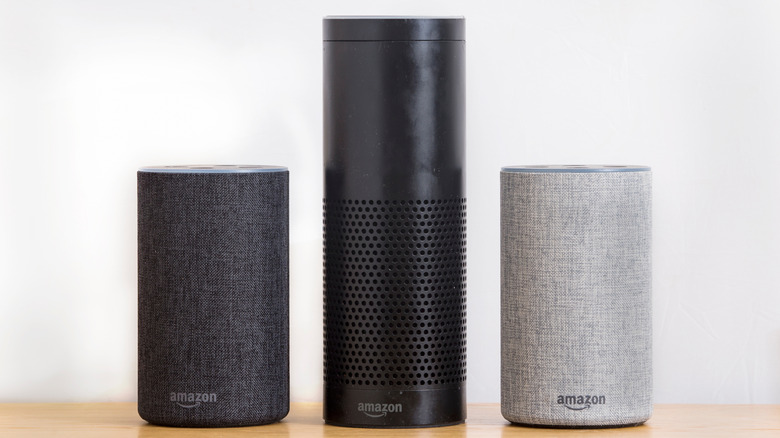
If you've got your whole house rigged up with multiple Alexa-enabled smart home devices, then you'll be able to shift your music as you move between rooms using a couple of handy Alexa voice commands. "Alexa, move my music to [device/group name]" will turn off the sound wherever your music is currently playing, then resume playback on the device (or device group) you specified. Try saying "Move my music here" to transfer the sound to the speaker that's closest to you.
In order to have this command work on multiple speakers simultaneously, you'll first need to add all your relevant smart home devices to the Alexa app and organize them into groups. This grouping utility extends well beyond music, too; you can use it to control many devices in your smart home at once, including lights and thermostats in specific rooms with a single voice command.
Alexa, recommend new music
It's common for users to ask Alexa to play specific songs, artists, or playlists, but fewer users are aware that Alexa can also suggest new music. On Amazon Music, the bot will play your Amazon Music recommendations if you say, "Alexa, recommend some music for me." If you use this command with an Amazon Echo Show (the model with a screen), it should display a playlist of song recommendations first; at that point, proceed by saying, "Alexa, play that."
If you have access to Alexa+, you can make your commands more granular and use natural language to ask for specific music. For instance, asking Alexa+ to play "'70s music by The Isley Brothers" or even "Harry Styles, but only the low-tempo songs" should work. Additionally, if you have access to Amazon Music Unlimited, the assistant can queue up some new music for you. If you say, "Alexa, play new hip-hop music," or "Alexa, play new songs by Olivia Rodrigo," the device will, respectively, queue up some recent hip-hop releases and songs off the latest Olivia Rodrigo record.
If you're in the mood for more informative material, the same Alexa+ command also works with podcasts. You can even pepper in a podcast genre or a subject area for more tailored recommendations by saying something like, "Alexa, recommend a true crime podcast," or "Alexa, suggest a podcast that talks about music production."
Alexa, play [mood/activity] music

With Alexa+, you can seek out tunes for particular activities or moods. You could say something like, "Alexa, play wake-up music," "Alexa, play some music for studying," or "Alexa, play relaxing music," and your smart speaker should then start playing a playlist that matches the criteria you defined. Alexa is familiar with several different moods and activity types, so you've got lots of options in that regard. Try testing it out by asking for music that matches whatever you're feeling or doing.
To take things even further, you can also mix and match activities, moods, genres, and artists in a single command to create the perfect playlist for whatever hyper-specific situation you find yourself in. So, yes, you can use voice commands like "Play upbeat Latin jazz by Tito Puente for cooking," "Play mellow country by John Denver to get better sleep," or "Play energetic pop by Billie Eilish for partying," and Alexa will cook up a playlist to match.
Alexa, follow this artist

Let's say you've recently used a command to discover some new music and ended up finding a new artist whose music you love. To make sure you stay on top of their new releases, use the command, "Alexa, follow this artist," or, alternatively, "Alexa, notify me when this artist releases a new album" while that specific artist's music is playing on your device. If there's another artist you know you want to be notified about, you can always say something like, "Alexa, follow Lil Baby," at any time.
Once you make these commands, Amazon Music will send you a notification whenever said artist releases a new album or single. Your Amazon Echo signals notifications with a blinking yellow light. When you see that yellow light, you can say, "Alexa, check my notifications," and the assistant will read out anything new that's come in — including the latest releases by artists you follow. As of this writing, though, this command only works with Amazon Music.
Alexa, play a song I haven't heard in a while

Sure, Alexa is good at recommending new music — but what if you're feeling nostalgic? Luckily, because it's able to track your listening history over time, Alexa+ is capable of helping you rediscover your old favorites. All you have to do is use the command, "Alexa, play a song I haven't heard in a while." This will play a song that you've previously listened to on Amazon Music but hasn't come up in your recent listening for one reason or another. The feature will work better the longer you've been using Amazon Music, of course, but it's great for reminding yourself of songs that aren't in your current rotation.
This feature is only available to those who have access to both Alexa+ and Amazon Music, since the streaming service's free tier doesn't allow users to select specific songs. By extension, this command won't work with Apple Music or Spotify on any tier, and it won't work on station-based music streaming services like Pandora, either.
Alexa, play the [song/station/playlist/artist] I was listening to on [date]
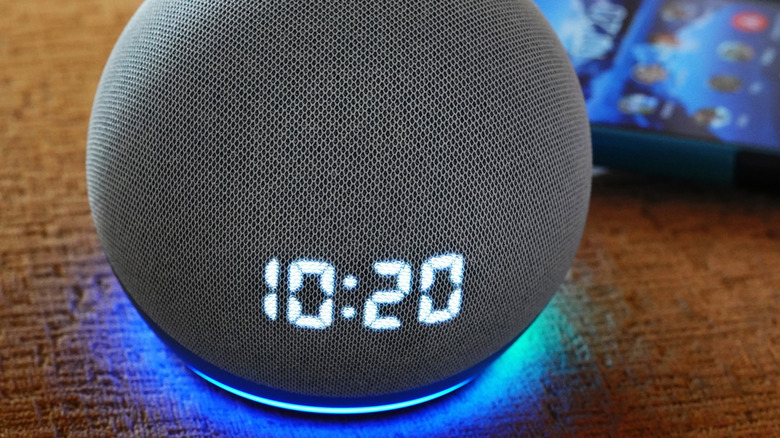
Let's say you're listening to some new-to-you music recommended by Alexa+ while you're in the middle of preparing dinner. You might catch a song you love but don't end up saving to your library. If it's stuck in your head the next morning, you can use the command, "Alexa, play the playlist I was listening to last night," at which point you'd be able to scrub through the songs you'd heard the night prior and pinpoint the one you want.
With this command, you can also find songs you've heard previously down to an exact date. If you happen to remember the day you first discovered a great song, you can have Alexa go back in time by saying, "Alexa, play that song that I listened to on August 14." If you recall the genre or artist name, including that information would definitely help you find the right song more easily. For example, if you're positive you'd heard a song by the Queen of Disco but didn't know which one, you can say, "Alexa, play the Donna Summer song I was listening to yesterday." Note that these commands are specific to Alexa+, which can keep track of your listening history over a 30-day period.
Once a song is on, though, saying "Alexa, what song is this?" or "Alexa, who is this?" will prompt the assistant to read out the song's title and the artist's name. Unlike the other time-based information retrieval commands, this particular command doesn't require Alexa+ and is known to work with Spotify.