

5 Common Mistakes That Might Be Ruining Your PC Audio
Getting quality audio from your PC doesn't take a degree in sound engineering, but some common mistakes may be ruining your listening experience. No matter the cost, you probably want your PC to sound its best while you enjoy media. This can be especially true if you're trying to get the most out of a new PC. If your audio doesn't perform the way you want, it may be due to a few common mistakes.
Common PC audio issues include not updating certain audio drivers; relying on faulty or incorrect sources (including choosing poor audio quality when streaming); having certain audio enhancement features enabled; or even having a bad wired or wireless connection. Though we'll focus mainly on Windows for examples, many of these solutions involve checking certain components or navigating to specific settings. However, some users may also want to consider an additional accessory if they're really trying to expand their sound.
Without sounding like a party-pooper, remember that one of the simplest solutions may be to just turn down the volume on your PC. If your audio distorts at louder volumes, this can help prevent the issue. However, if the issue goes beyond volume, the solutions below are a great place to start. For those who rely on them, it's also worth mentioning that several speaker mistakes may be ruining your audio quality.
Using a bad source
Something important to remember about PC audio is that the overall quality of the file you're listening to can affect how things sound. If you typically stream your music or podcasts, it may be worth researching which streaming service offers the best audio quality. However, most streaming services let you change the audio quality with a quick trip to your settings menu.
For example, Spotify Premium users have access to lossless audio, and changing audio quality is as simple as clicking your profile, selecting Settings, and then selecting Audio Quality. With Apple Music (which also supports Apple Lossless), you can find audio quality settings by tapping the three dots in the app and going to Settings > Playback > Audio Quality.
It's not just about streaming, of course, as the quality (bit rate) of an audio file also matters. For MP3s, 128 kbps is considered "Standard Quality," so anything lower may not sound its best. However, 192 or 320 kbps is ideal. In Windows, you can right-click a file, choose Properties, and then select Details to see an MP3's bit rate, though be aware of other audio formats as well. If you have physical media, consider transferring it to a digital format, and remember to only download music from reputable sources to ensure quality.
Not updating your drivers
If you're not familiar, many of your PC's accessories can require drivers. These are additional software that help your PC communicate with its peripherals. Just like your operating system, keeping these drivers updated can be crucial for audio. If you ignore them, you may run into audio distortion, speaker problems, or even completely missing audio. On the bright side, updating drivers isn't too difficult.
If you're using Windows 11, for example, Microsoft recommends updating audio drives through Windows Update. This is as simple as going to Start > Settings > Windows Update and selecting Check for updates. Your PC will restart after applying them. You can also update drivers manually through Device Manager.
Here are the steps:
-
Open the Start Menu.
-
Type Device Manager and then open it.
-
Choose Sound, video and game controllers.
-
Right-click the audio device and choose Update driver.
-
Choose Search automatically for drivers.
-
Follow the instructions on screen.
-
Restart your system.
If you think you're having driver issues, you can also reinstall an audio driver by selecting Uninstall device instead of Update driver. This will delete the driver and then reinstall it upon startup. Depending on your sound card, you may also need to visit the manufacturer's website for updates and installation instructions. Other operating systems may require additional research (though we can help you get the best audio out of a MacBook Pro if you need it).
Running audio enhancements
An app that promises to boost your bass or offer other "audio enhancements" may not do what you expect. If you downloaded any additional apps that promise to improve your audio quality, try disabling them to see whether that yields a more pleasurable result. Be aware, however, that some operating systems may also include their own audio enhancement features. Windows 11 is a great example.
If you're unfamiliar, Windows 11 defaults to audio enhancements being enabled. This default setting may work for some, but it may also cause incompatibility issues with other software or drivers you're trying to run. You may also prefer to keep these features disabled. As long as you have administrative access, the process is usually easy. However, whether or not you have this setting may depend on your drivers and sound card.
Here's the steps:
-
Open Windows Settings.
-
Choose System.
-
Select Sound.
-
Under Output, select the Choose where to play sound dropdown and choose your audio source.
-
Select Off from the Audio enhancements dropdown.
Of course, you may like these enhancements, so you can always repeat the steps above and choose On or Device default effects, depending on the situation. Additionally, disabling these features can reduce your CPU load, which may make your machine faster (as can disabling other Windows 11 features).
Relying on a bad connection
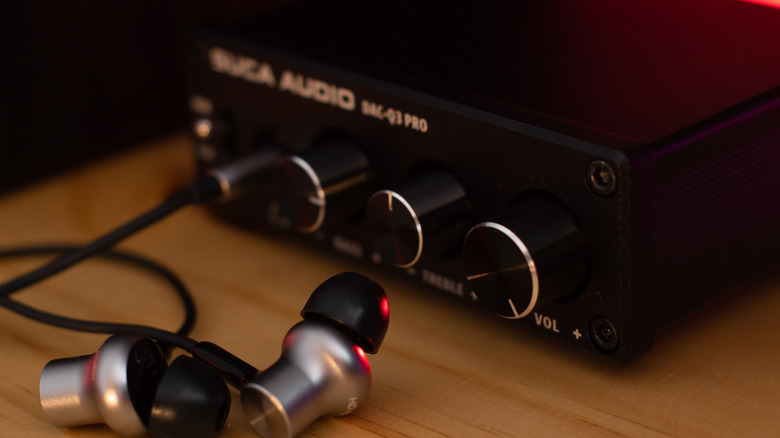
If you're using wired headphones or speakers, the issue may be the cable itself. First, inspect the audio cable to make sure it isn't damaged. If you can, try connecting the headphones or speakers to another audio source to see how they work with a different system. If your audio source has a wireless option, try connecting with Bluetooth to see if that changes anything.
If you're keeping your speakers or headphones connected to your PC through the headphone jack on the front of the machine, this may also be affecting your audio quality. If you have a headphone jack on the back of your PC, try making your connection there. Remember the information about audio drivers mentioned above. It's also a good idea to inspect any ports to ensure they're clean and functioning.
Finally, it may also be time to consider a digital-to-analog converter (DAC), which may solve potential issues with audio jacks. Essentially, a DAC can help take digital information and send it through a system as an analogue audio signal. Although a PC is likely to have its own DAC built in, the one included with your system may no longer be enough for your needs. After all, an external DAC is one reason audiophiles choose wired headphones over Bluetooth.
Not fixing Bluetooth problems
Fixing a common Bluetooth problem may be routine for some PC users, but problems specific to wireless headphones or speakers can be a different animal entirely. Along with checking your Bluetooth settings and disconnecting any devices that may have connected automatically (Settings > Bluetooth & devices > Devices in Windows 11), it can also help to disconnect your Bluetooth audio peripheral and then reconnect it.
If you're using Windows 10 or Windows 11, it includes an automated Bluetooth troubleshooter in the Get Help app. This troubleshooter can scan for potential issues and try to fix them. You can also click the Sound icon in the Windows taskbar to make sure your chosen Bluetooth device is the active audio output. Another option is to go to Start > Settings > Devices > Bluetooth & other devices, disable Bluetooth, wait 10 seconds, then turn it back on.
From this Bluetooth & other devices menu, you can also click Devices, choose your Bluetooth audio device, and then select Advanced sound properties (if using Windows 11). Make sure 2 channels, 16-bit, 48000Hz (DVD Quality) is selected under Output settings to ensure you're running at the highest quality. In Windows 10, you can find this option by right-clicking the Sound icon on the taskbar, then going to Sounds > Playback > Properties > Advanced > Default Format. It can also help to update your Bluetooth drivers in Device Manager or update your operating system in general.