

What Do The Symbols On Your SD Card Actually Mean?
We may receive a commission on purchases made from links.
If you're looking to buy an SD or microSD card — to get more storage for your Android phone, or to have extra memory cards for your camera, or even to install more games on your Nintendo Switch 2 — you're probably faced with a lot of options showing off different signs and symbols. Whether you prefer the cheapest possible option on Amazon or would rather stick to SD card brands that photographers swear by, it's still a good idea to understand the labels printed on these cards.
These logos and icons aren't just brand marks, they all have a meaning that tells the customer the kind of memory card they're buying and its capabilities. Even though SD and microSD cards have the same shape, they do not have the same specs. If you choose a memory card solely based on its price and don't take its capabilities into consideration, you might end up frustrated because you'll suddenly find your gadget not performing as intended.
So, we're listing the various symbols that you'll find on these memory cards, plus what they actually mean. It's important to remember, however, that even if you get the memory card with the best specifications based on these symbols, you still must match it with what your device can handle to avoid bottlenecks.
SD Card Type
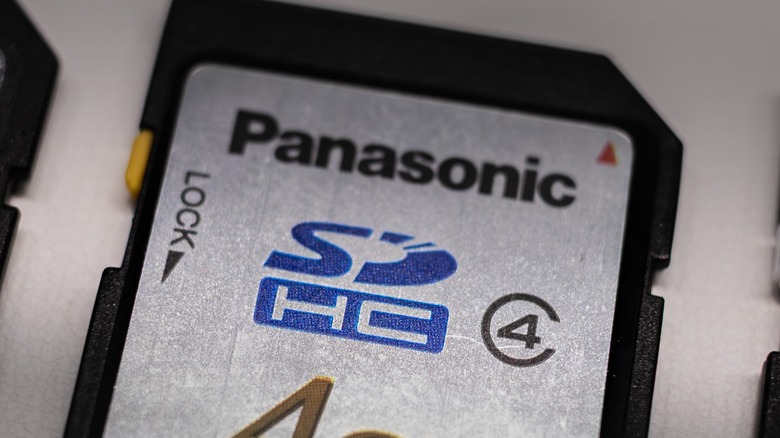
SD, which means Secure Digital, is a type of memory card that comes in two physical forms — the standard SD card and the smaller microSD card. Even though one is physically larger than the other, it still doesn't tell the actual capacity range of that specific card. Instead, you have to look at the four card types to know how much data they can store. These are SD, SDHC, SDXC, and SDUC, or microSD, microSDHC, microSDXC, and microSDUC for the smaller form factor, with their corresponding icons usually printed front and center on the memory card.
The original SD or microSD has a designed capacity of 2GB or less, while SDHC or microSDHC, which stands for High Capacity, can carry more than 2GB and up to 32GB of data. SDXC/microSDXC, with XC meaning Extended Capacity, will have a capacity greater than 32GB but only up to 2TB. The latest addition to the SD family, SDUC or microSDUC, with UC standing for Ultra Capacity, is designed for memory cards over 2TB but not exceeding 128TB. However, these are just volume ranges, not the exact storage space available on these memory cards.
These standards are backward compatible, but not forward compatible, so the newest devices can read and write on all four card types, but older devices designed for SD or SDHC cards will not even be able to detect newer SDXC or SDUC cards.
Actual Capacity
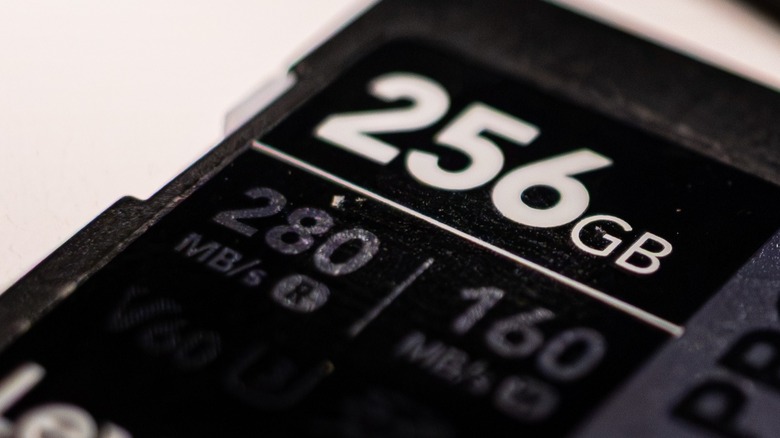
This is the actual amount of data that a particular SD or microSD card can store, and it's usually printed in large numbers on the card, followed by MB, GB, or TB. This is a pretty straightforward number that says the available storage on the card when it's empty. However, some users might get confused as to why Windows will show a smaller number compared to what's marked on the memory card.
For example, if you plug a 1TB SD card into your computer, the Microsoft operating system will only show 931GB. This is not a sign that memory manufacturers are cheating you — instead, it's a weird quirk on how the OS reads storage. As you see, manufacturers use the decimal (SI) system but Microsoft Windows reports storage using binary-based measurements. So, even though a memory card may be 1TB (or 10^12 bytes), Windows converts this to its binary-based equivalent of just 931GB. You won't notice this if you use macOS, though, as it reports storage using the decimal system, which should count as one of the perks of switching to a MacBook.
Maximum Read/Write Speeds
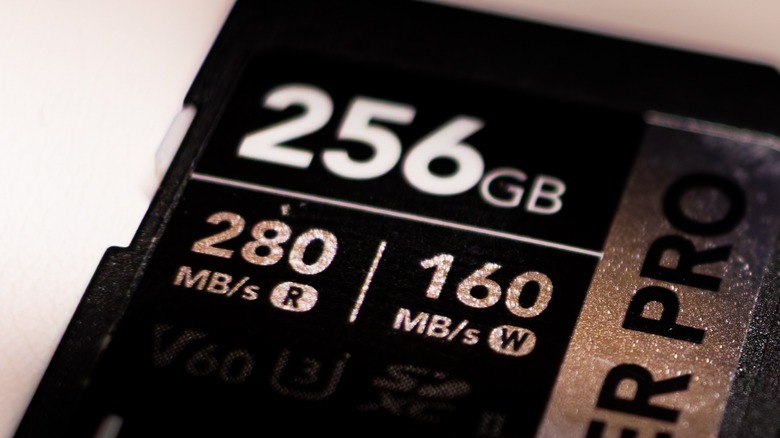
As the name suggests, the maximum read/write speed indicates how fast an SD card can process your data. Not all manufacturers indicate these numbers, but some SD cards like the Lexar Armor Silver Pro and SanDisk Extreme Pro have them printed on the face to show what customers can expect out of them.
If you're out shopping for a card, you'd pretty much want to get the fastest speeds you can afford. Higher numbers mean your camera or device can store and read data much more quickly on the SD card. This is useful in situations where you're dealing with large amounts of data, like when you're recording 4K video or loading a game. If the SD card you installed is too slow, your camera might stop shooting or you'll experience lag on your favorite games.
Faster cards are generally more expensive, though, and you need to ensure that your device is compatible with the faster speed. Otherwise, you're spending more than necessary for your storage.
Bus Interface
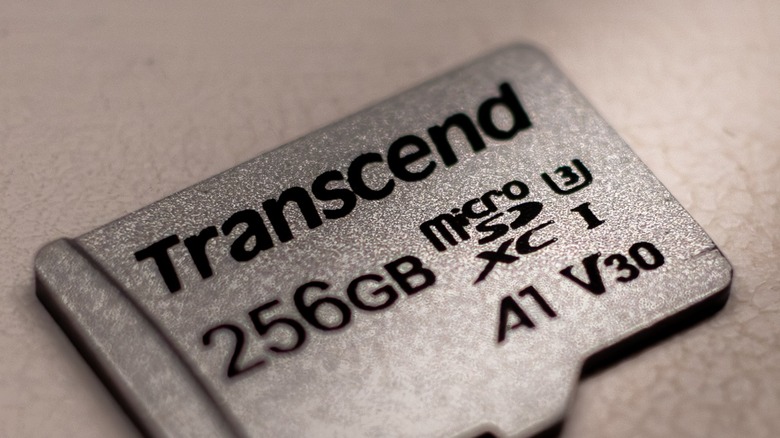
A bus interface is the communication system that the SD Association built to allow the SD card and the gadget to talk to each other. This doesn't actually describe how fast the card itself is, though. Instead, it shows the fastest theoretical bandwidth of the connection between the card and gadget.
These are six bus interface standards — Default Speed, High Speed, UHS-I, UHS-II, UHS-III and SD Express — but only four logos. I, II, III, and EX, which correspond to UHS-I, UHS-II, UHS-III and SD Express. Default Speed has a limit of 12.5MB/sec, while High Speed doubles this to 25MB/sec. UHS-I goes higher at 104MB/sec, UHS-II triples this to 312MB/sec. UHS-III is six times faster than UHS-I at 624MB/sec, while SD Express has a much higher 3,940MB/sec limit.
Most cards on the market available today are UHS-I or UHS-II, as UHS-III is not widely used. On the other hand, SD Express cards, which use some of the same technologies found in modern SSDs, have recently found widespread use with the Nintendo Switch 2, which is why microSD cards designed for the handheld console are so expensive.
Speed Class
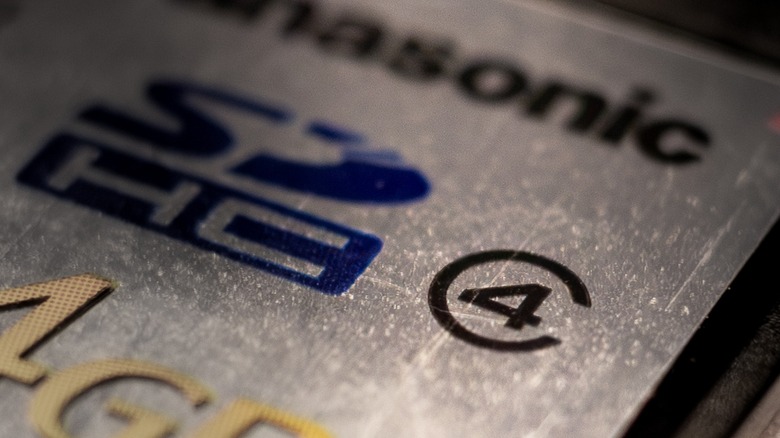
The Speed Class marks a card's minimum sequential write speed, which is how fast it could write one large file continuously. The SD Association created four of these classes: C2, C4, C6, and C10 — with 2 equal to 2MB/sec, 4 equal to 4MB/sec, 6 equal to 6MB/sec, and 10 equal to 10MB/sec — and marked it on the card by enclosing the number in the letter C.
These speeds might seem slow for modern devices, but they were good enough when they were introduced by the SD Association during the early days of digital cameras and MP3 players. C2 is good enough for standard 640 x 480 resolution video while C4 can accommodate 720p HD video recording. C6 is fast enough for 1080p Full HD, while C10 is recommended for burst photography.
You can still easily find C10 on many SD cards today, like the PNY Elite C10 U1 V10 SDXC flash memory card. However, C6 and slower speed classes are harder to find these days because they would struggle to handle the amount of data that modern devices produce.
UHS Speed Class
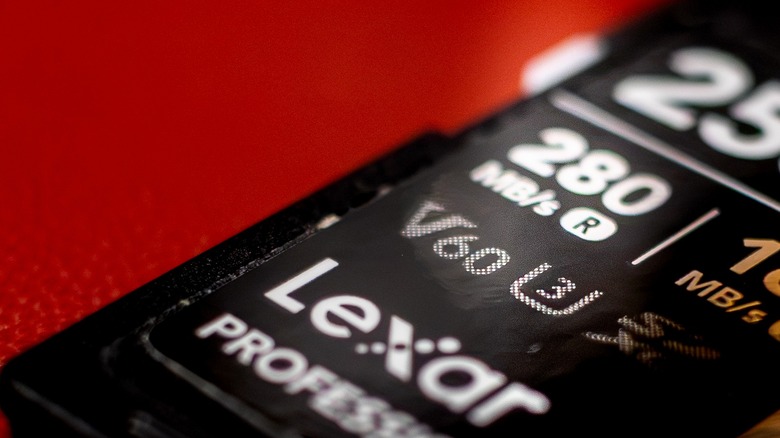
The arrival of the UHS bus interface in 2010 also saw the introduction of UHS Speed Classes. These new standards helped the SD Association keep up with demand as cameras and other gadgets became more capable of reading and writing larger amounts of data per second.
UHS only has two ratings — U1 and U3 — and they're denoted by either number inscribed in the letter U. U1 offers a 10MB/sec minimum sequential write speed, which makes it equivalent to C10. This is why you'll often find memory cards with these ratings sporting both logos, like this SanDisk Ultra SDXC UHS-I SD card. On the other hand, U3 triples the minimum speed to 30MB/sec. Note that both numbers only denote the lowest speed the memory card must deliver, so a U3 card could have much higher performance, like the 256GB Lexar Silver Pro SD card pictured above.
Since most gadgets today are significantly faster, you'll rarely find lower C speed classes on new SD and microSD cards, with the UHS Speed Class generally taking its place. The SD Association recommends U1 for Full HD video recording, but if you want to record 4K video, you should at least go up to U3.
Video Speed Class
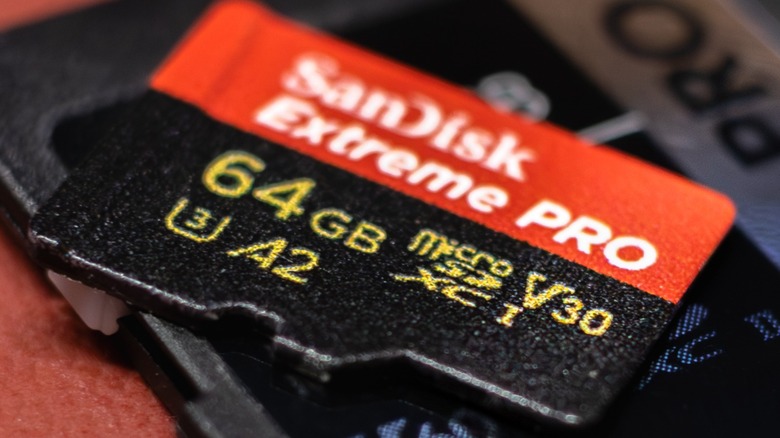
By 2016, cameras that could capture 8K resolution at 60 fps or higher were on the horizon. So, to ensure that people would have an SD or microSD card to handle massive amounts of data the SD Association introduced the Video Speed Class.
This standard has five classes — V6, V10, V30, V60, and V90 — and they're marked on the surface of the cards exactly like that. The numbers after the letter V denote the card's minimum sequential write speed in MB/sec. This essentially makes V6 the same as C6, while V10 corresponds to C10 and U1, while V30 has the same minimum performance as U3. V60 and V90 are significantly faster, though, offering minimum speeds of 60 MB/sec and 90 MB/sec, respectively. This makes them suitable for recording 8K video at frame rates of up to 120 fps.
The Video Speed Class standard overlaps with older standards such as Speed Class and UHS Speed Class. However, the SD Association decided to introduce it as SD cards used newer technologies which didn't exist when the old classes were created.
SD Express Speed Class
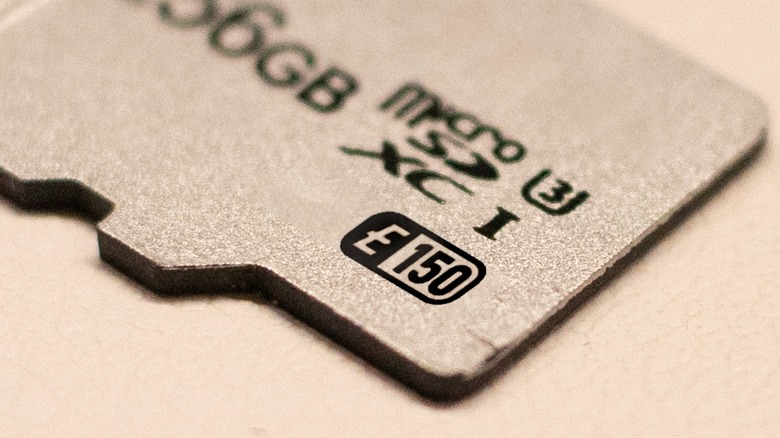
Even though the SD Express interface has been around since 2018, the SD Association waited until 2023 to introduce SD Express Speed Classes to define performance levels, instead of just relying on a single EX logo. These categories were organized in order to further help consumers decide which card was appropriate for them.
The SD Association set four speed classes for SD Express Cards — E150, E300, E450, and E600 — with the number corresponding to the minimum sequential write speed in MB/sec. To mark which SD Express Speed Class a particular SD card belongs to, relevant cards show a stylized letter E on a black background next to the appropriate number with a white background inscribed in a rounded rectangle with black borders.
SD Express Speed Classes haven't received wide adoption yet. The Samsung microSD Express card for the Nintendo Switch 2 only shows the EX icon.
Application Performance Class
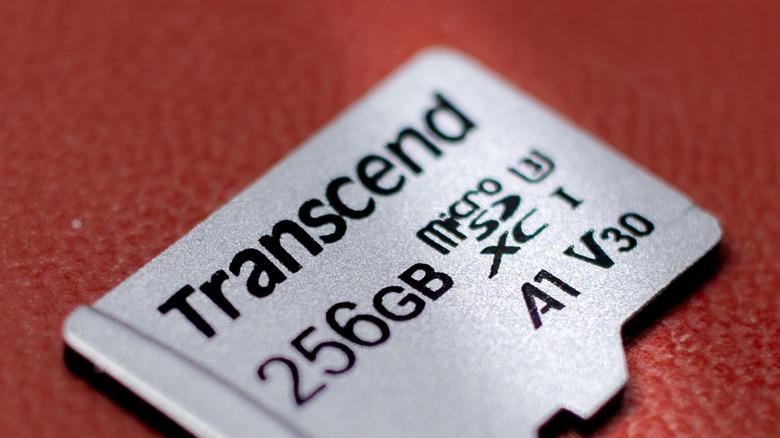
Many smartphone models had expandable memory back in 2016, which is why the SD Association introduced the App Performance Class. Unlike the earlier speed classes we've covered which focus on minimum sequential write speed, this standard specifies a memory card's minimum random read and write speeds. This helps consumers understand how a card will perform when working with many small files, which is important if you install apps and save files directly on the memory card.
There are two ratings: A1, which has a guaranteed minimum random read speed of 1,500 IOPS (input/output operations per second, or the number of read and write tasks a memory card can handle) and a minimum random write speed of 500 IOPS, and A2, which increases the random read speed to 4,000 IOPS and the random write speed to 2,000 IOPS.
Both ratings also require a minimum sequential write speed of 10MB/sec. So, if you're looking for a microSD card to expand the storage on your smartphone, tablet, or laptop to install more apps and games, the A1 or A2 rating is often more important than the UHS or Video Speed Class rating that you might see marked on the card.
Endurance
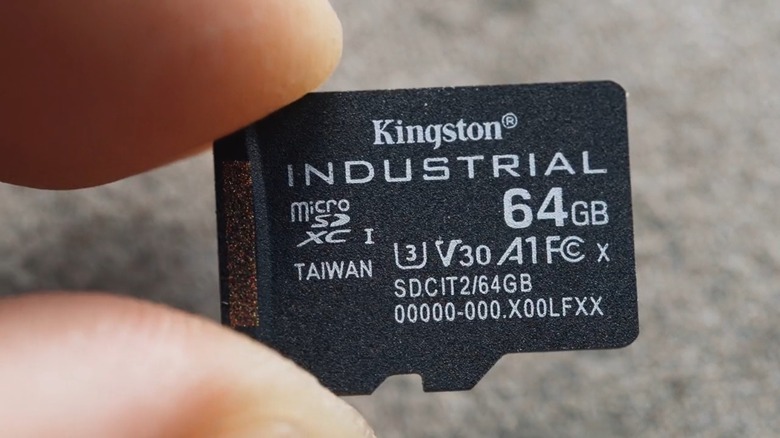
This metric isn't a standard published by the SD Association, but various manufacturers create labels that tell their customers what their cards are designed for. The Great MicroSD Card Survey has been stress testing microSD cards from various manufacturers and found that they're often broken down into three main categories — Industrial Grade, High Endurance, and Consumer Grade. The first two categories are often marketed as such, as they're often more expensive than the regular consumer cards that most people buy.
Industrial Grade cards are built with reliability in mind, so they're expected to last longer and work in harsh conditions. Most manufacturers include more specifications for these products, including their operating temperature range and durability, as we can see on the product page for this SanDisk Industrial MLC microSD card. Meanwhile, High Endurance cards such as the Samsung Pro Endurance microSDXC memory card are designed for near constant use: think security cameras or dash cams. While they may not be as tough as Industrial Grade cards, they are designed to withstand more write cycles before failing.
Which SD Card Should You Get?
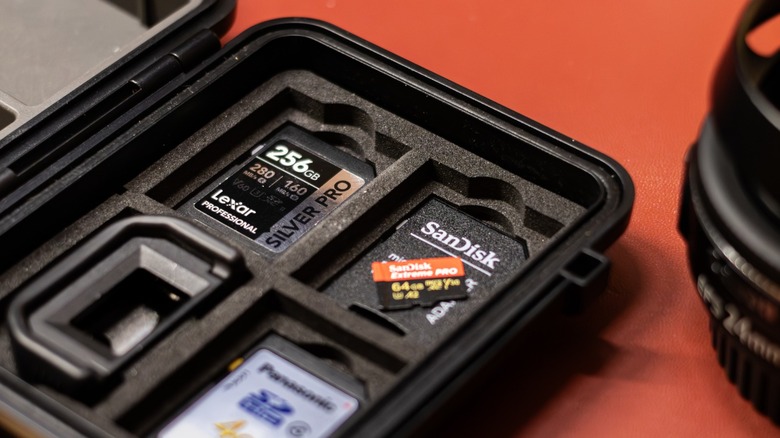
If you have an unlimited budget, you probably want the fastest memory card with the largest capacity available to help "future-proof" your storage needs. However, most people would have to stick to a budget, so you'll likely have to consider your use cases before spending your hard-earned cash. Because of that, you should choose an SD or microSD card that will match your needs.
The main thing you should look at is the gadget that you'll use the memory card with. Devices with an SD or microSD card slot are designed to a specific standard — for example, to use the Nintendo Switch 2 at its optimal speed, you need a microSD Express card. If you're getting into photography and just bought one of the best digital cameras on Amazon, you'll likely want a memory card that can record raw images in quick succession, like one with at least a U3 rating. If you want to record 4K or 8K video professionally, it's best that you stick with V90 SD cards.
It's also a good idea to stick with SD and microSD cards from a reputable company like SanDisk, Lexar, or ProGrade. Even though they may be more expensive, you don't want to risk losing your precious pictures, videos, and other data just to save a few dollars on a one-off purchase.