

5 Free Linux Apps That Keep You Productive Without Windows

A computer is only as useful as the software that runs on it. If you want to be productive on a Linux desktop computer after switching from a traditional PC, then it can be challenging to find software that replaces the common office and productivity tools for Windows you might have gotten used to. Some software like Slack, Microsoft Teams, and Zoom already offer Linux-native app downloads, but others you have to find replacements for. Some can optimize your workflow in ways you didn't think possible.
All of the following recommendations are apps that I personally have been using on a regular basis on my Linux desktop computers since I switched from Windows years ago. They're free and open source software that's actively maintained by dedicated teams of volunteers or, in some cases, paid developers. You can find them in the software repositories of most popular Linux distributions, or at least as distribution-agnostic Flatpaks via Flathub.
Deskflow
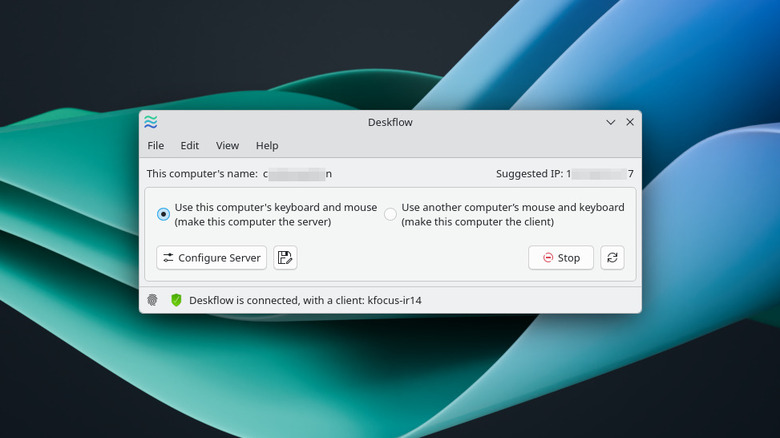
If you have multiple computers at your desk, then you might be able to avoid paying for a KVM switch by just downloading Deskflow. It's an open-source clone of Logitech's Flow software that lets you drag your mouse cursor from one computer's monitor to the next and click and type on it as if the two computers were one. It works across the local network with a secure connection so you don't have to worry about network monitoring. Deskflow is cross-platform, so you can even use the app with a Windows or Mac computer, and it can also share clipboard contents between devices (though the feature is broken on certain Linux desktops at the time of writing).
This app lets me dock my Linux laptop next to my desktop computer and continue using it while working primarily on my desktop. It feels almost like the Linux machine is a second monitor, but it's its own computer with its own hardware, meaning I can take advantage of the combined resources of both computers thanks to Deskflow.
KDE Connect
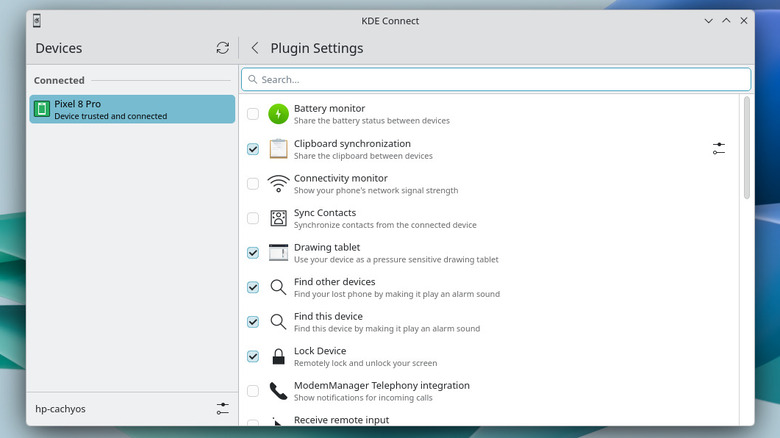
So, if Deskflow lets you connect remotely to another computer at your desk, then what can you use if you want to connect to your smartphone? The answer is KDE Connect. You first need to install this app on both your Linux desktop and your Android or iPhone, and then you can do everything from sharing files wirelessly to replacing your mouse and keyboard with your phone. KDE Connect has earned notoriety as a Swiss Army Knife app, and for good reason. It has dozens of plugins that each give you a unique functionality, and you can toggle off all the ones you don't use.
Personally, I use the clipboard and file sharing plugins the most. When I want to open a website I have open on my phone, I can share it directly to my Linux desktop, where it will pop up immediately in Firefox. Thanks to KDE Connect, I don't have to rely on cloud services to get important files shared between devices.
LibreOffice Writer
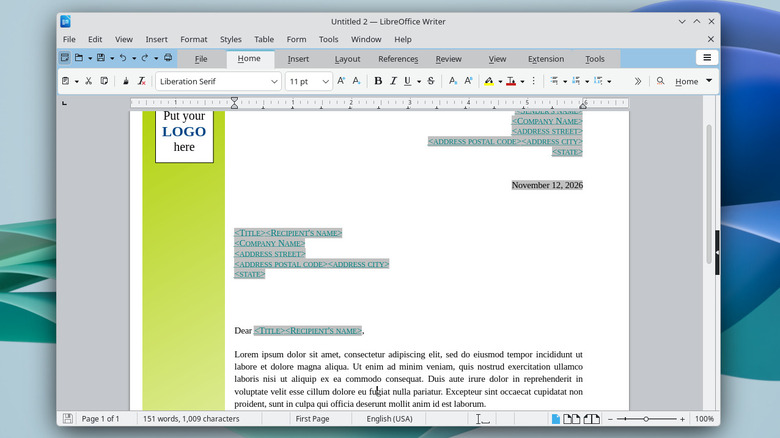
It's easy to find articles online explaining how to keep using Microsoft 365 after switching to Linux. Running on emulation layers, installing virtual machines, and downgrading to the web app version are all options, but you can also just leave Microsoft products in the dust by switching to LibreOffice's suite of office productivity products. It's able to open, edit, and convert DOC, DOCX, XLSX, and other Microsoft 365 files, so you can essentially pick up where you left off.
I use the LibreOffice Writer program in particular for creating resumes and cover letters when I'm applying to jobs. By default, Writer has no AI writing assistant, which I appreciate because I find Copilot and its ilk to be annoying at best. As a consequence, LibreOffice feels like a calm and simplified writing and document formatting environment compared to much of what you find on computers these days, while still offering a ton of powerful built-in features.
SSH Pilot
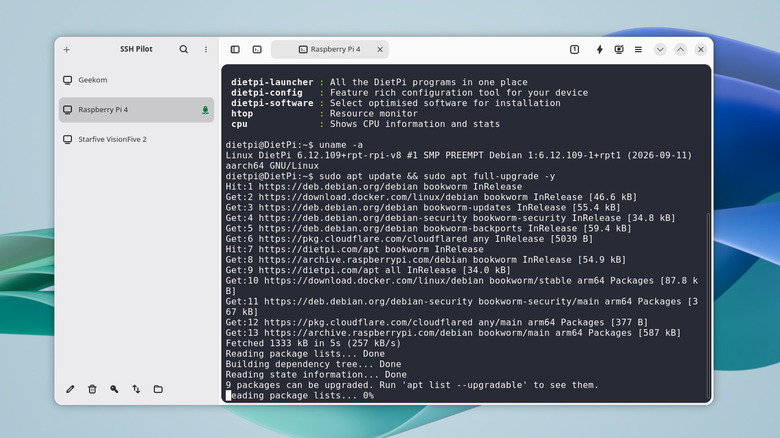
If you have multiple servers running on Raspberry Pi devices or other locations, then you know how cumbersome it can be to reconnect to each one via Secure Shell (SSH) commands in a terminal. That's where SSH Pilot comes in. Built to fit into the GNOME desktop environment, it gives you a graphical interface to save and manage multiple SSH connections to your remote and home servers. If you're familiar with PuTTY, SSH Pilot offers similar functionality, but it's built for modern Linux desktops.
Even if you have just one server, SSH Pilot can give you a productivity boost. It's able to poll your server for resource usage, giving you a graphical system monitor for a headless server. There's graphical file browsing, too, saving you from having to use cd, cp, and other file management commands. You also have organizational features like groups and pins, you get a customizable library of command snippets for commands you regularly send, and you can easily manage authentication keys with SSH Pilot.
Standard Notes
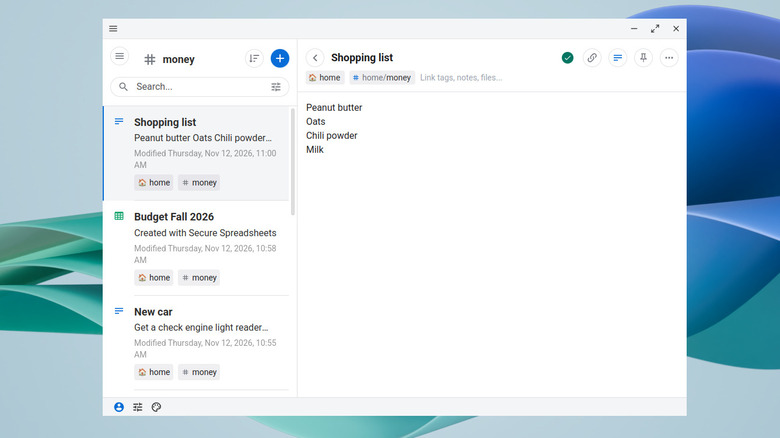
Do you like to keep track of your work and your life in a notes app, but you don't want to be limited to a basic, offline app? While it isn't a one-to-one replacement for Microsoft OneNote, Standard Notes does serve the purpose of getting you private notes that are synced across devices, including on Android and iPhone. That way, you can hop between devices and pick up where you left off in your notes, so long as your Linux PC and other devices are connected to the internet.
Standard Notes is a freemium service, meaning that advanced features are paywalled. You're limited to plaintext notes only with a free account, but you still get cross-device syncing secured with two-factor authentication, an important tool for keeping hackers at bay. You also can self-host Standard Notes to make it completely private to your own computer, including via a super simple Home Server setting. If you're up for a technical challenge, though, you can fully self-host it, and the premium subscription is discounted for self-hosted servers.