

5 Hidden Features To Get The Best Audio Out Of Your Galaxy Buds 4 Pro
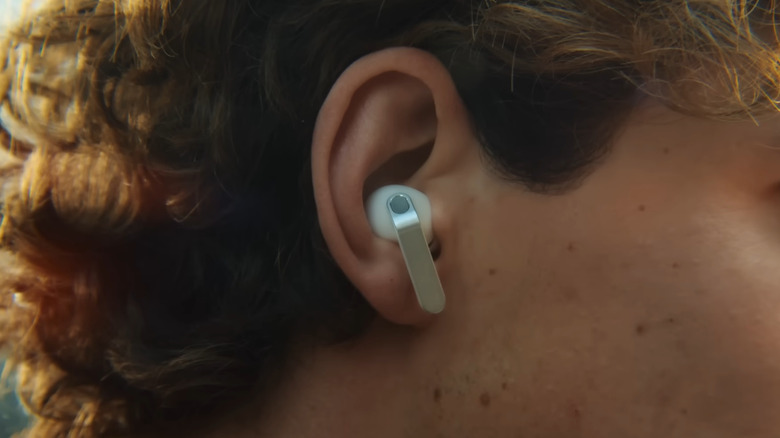
The Samsung Galaxy Buds 4 Pro are loaded with new features like improved audio and updated noise canceling. There are plenty of obvious changes, like the sleek new look, brushed-metal stems, and redesigned charging case — however, Samsung left a few surprises for users to discover on their own.
The Galaxy Buds 4 Pro have several hidden features that might fly under the average user's radar. Some of these functions provide extra utility. For instance, the earbuds work seamlessly with a power sharing feature on many Android phones that lets you recharge them by wirelessly siphoning some of your phone's battery — something that could come in handy since the Galaxy Buds 4 Pro don't have the absolute best battery life on the market. However, most hidden features can improve the earbuds' audio or at least how you experience the audio.
These capabilities might be hidden under layers of menus and tabs (some of which are accessed through unintuitive means), while others might be waiting to be discovered since Samsung didn't include them in its marketing materials. Below, we'll discuss five such features that will help you get the most out of your Samsung Galaxy Buds 4 Pro.
Gestures galore

Gestures are a common aspect of modern earbuds. Who wants to pull out their phone to pause music when you can just tap or squeeze the side of the earbuds? Many earbuds ship with hidden gestures that aren't obvious from the get-go. Apple's AirPods have plenty of hidden gestures, and so do the Galaxy Buds 4 Pro.
Many of the Galaxy Buds' gestures revolve around pinching and swiping a strip on the side (not the metallic bit, as much as it is tempting to do so). Pinch once to play music and accept calls, double pinch to skip forward on a song, and so on. The buds also include a pinch-and-hold function that switches between active noise canceling and ambient noise modes, but you can customize this particular gesture to activate apps or features. Simply open the Settings menu on your Galaxy phone (or the Galaxy Wearable app on non-Samsung Android devices), then select your earbuds near the top of the menu. From there, scroll down to Earbud controls, select Left or Right, then tap the app or function you want. Yes, you can make each bud perform a different action. You can also customize which audio modes it controls by using the same instructions as above, only this time selecting Switch noise controls from the Left or Right tabs.
If you're using a Galaxy phone with your Buds 4 Pro, you can also try motion-controlled gesture functions, but they're turned off by default. To activate them, open the Settings app on your Galaxy phone, tap on your buds toward the top, then enable the Head gestures toggle. Now you can nod your head to accept phone calls and shake your head to decline them ... or tap on the option to customize these gestures.
Earbud fit test

Some earbud manufacturers subscribe to a "one size fits all" mentality. However, no two ears are shaped the same, so no single earbud can fit everyone comfortably. That is why many modern earbuds include multiple inner-ear tips — but how do you know which one is right for you?
The most efficient way to find the right earbud tip for your Galaxy Buds 4 Pro is to use the earbud fit test functionality, which tells you if the tips you are using aren't suited for your ears. If you ever used the Apple AirPods' fit test function, you probably know how this works. Start by opening the Settings menu on your Galaxy phone (or the Galaxy Wearable app on a non-Samsung Android device), then select your earbuds near the top of the list. Scroll down to Sound quality and effects, then select Earbud fit test near the bottom of the menu. Follow the on-screen instructions and let the function play various sounds through the earbuds. If one of the icons is red and reads "Poor fit," swap the tips for another size. Don't be afraid to mix and match tips if needed — the human body is rarely symmetrical.
If you need to change earbud tips, Samsung has provided easy-to-follow instructions. Start by rolling the cap inside out, then grip its base where it goes over the earbud proper. Gently pull to remove the tip — if you're not careful, you could rip it. After picking a new earbud tip, align the notch on the inside with the grooves on the earbud, then push the tip and earbud together until you hear a soft click. Now repeat the earbud fit test and see if any of the icons turn red.
Protect your ears and safety

Playing music or listening to your favorite podcast is a great way to keep the adrenaline pumping while exercising, but it can also be dangerous. You can't exactly hear cars approaching when listening to "Eye of the Tiger," but earbuds like the Galaxy Buds 4 Pro have built-in — albeit hidden — workarounds.
If you like to wear earbuds in public, you should activate Auto switch to ambient sound. This feature will let you listen to whatever you want under normal circumstances, but if the Galaxy Buds 4 Pro detects certain loud noises — including sirens, car horns, or people talking to you — they will activate Ambient mode so you can hear them better. To find this feature, open the Settings menu on a Galaxy device or the Galaxy Wearable app on a non-Samsung Android phone, then select your buds from the list. Next, choose Auto switch to ambient sound, then enable either Voice detection or Siren detection, depending on your preferences. You can also activate Use Ambient sound during calls if you don't mind these external noises interrupting you when you're on the phone.
The Galaxy Buds 4 Pro also have a setting that helps prevent unwanted volume spikes — think annoyingly loud ads while you're watching a YouTube video. While it helps keep things from getting too loud suddenly, it also does the opposite and makes unusually quiet parts of media a bit easier to hear. To activate this feature on a Samsung phone, open the Settings app and tap on your earbuds toward the top — or on a non-Samsung phone, open the Galaxy Wearable app and select the earbuds. From there, select Sound Quality and Effects, then enable Loudness normalization. Now you don't have to worry about these sounds damaging your hearing or startling you.
Adapt sounds to your age and needs

No two people have the same hearing quality. If we did, there would be no need for hearing aids. Furthermore, our hearing deteriorates as we age, again to varying levels. But many earbud manufacturers thought of this and added settings that help users hear the world around them more easily.
The Adapt sound function on a pair of Galaxy Buds 4 Pro is designed to provide users different listening profiles based on their age — not to be confused with the Apple AirPod's Adaptive Sound feature, which has more in common with Samsung's "Auto switch" capabilities. Your Galaxy Buds can tweak different settings based on your selection. For instance, if you're under 30, the buds boost high-frequency sounds, whereas the option for users over 60 increases all frequencies. You can also create and customize your own setting to suit your needs. Perfect if you have some form of hearing loss or some other auditory issue.
To activate Adapt sound, open the Settings menu on your Galaxy phone or the Galaxy Wearable app on your non-Samsung Android device, then select your buds. From there, tap Sound Quality and effects, then enable the toggle next to Adapt sound. Finally, tap the Adapt sound text itself to open a submenu where you can choose a sound profile based on your age. If you want a custom profile, select Add personalized sound profile and follow the on-screen instructions. Once you tap the Start button, your phone and the Galaxy Buds 4 Pro will run a custom ear test to create a unique sound profile. While this feature can help you, if you suspect you have hearing loss, the Galaxy Buds 4 Pro are not a replacement for a proper visit with an audiologist.
Superior audio quality
Once the headphone-specific settings are out of the way, there are more features on the phone end of the connection to explore. We'll highlight two audio-focused features here: One is exclusive to Samsung Galaxy phones, but the other will work when your Buds 4 Pro are paired with most Android devices.
If you have a Samsung phone like the Galaxy S26, there are several options in your phone's settings that can improve your audio experience. For instance, if you want lossless audio, open your phone's Settings app, then tap on the name you gave your buds. Next, tap Sound quality and effects, followed by Advanced quality options, then enable Ultra high quality (UHQ) audio. However, while this setting provides the best audio the Galaxy Buds 4 Pro can deliver, note that it can result in audio lag.
Another phone feature worth activating to boost audio on your Galaxy Buds 4 Pro is Dolby Atmos — yes, Dolby Atmos is available on Bluetooth headphones and speakers. To activate it on a Galaxy phone, head to Settings > Sounds and vibration > Sound quality and effects and enable the Dolby Atmos option. The process is similar for other Android phones, but if you can't find the option, search your Settings menu for the word "Atmos."
You can also add a Quick Settings tile on Galaxy phones to quickly toggle Dolby Atmos on and off, and you can press and hold this tile to bring up different sound profile settings. Furthermore, if you press and hold on the volume control Quick Settings tile on a Galaxy phone, you can tweak settings such as Ambient sound volume and audio mode. The Galaxy Buds 4 Pro will remember your selections for each app so you don't have to constantly adjust the settings.