

5 Common Problems With Amazon Fire TVs
We may receive a commission on purchases made from links.
Regardless of how much you paid for a device, it's always frustrating when it starts misbehaving — and it's even worse if you don't have a solution. Considering a device like the Amazon Fire TV can be your source of entertainment after a long day, having a quick answer to a common problem can be the difference between spending all night reading online support forums or hopping back into your favorite streaming content. Fortunately, we can help with some common problems a Fire TV may experience.
We're taking a look at some of the more general difficulties a Fire TV user may experience and what can be done about them. You won't need any extra accessories to accomplish most of these solutions, though make sure to keep your Fire TV remote nearby — and it always helps to remember these Fire TV remote shortcuts. We also have a last resort option available if your issue becomes a little too overwhelming.
Before continuing to some common problems, remember that you can always restart your Fire TV by navigating to its Settings menu, selecting My Fire TV, and choosing Restart. Restarting your Fire TV doesn't guarantee a problem will disappear, but it may clear away small software bugs, potentially giving you issues. You may also want to check out these Fire TV accessories if you're looking to expand your media viewing experience.
Device won't update
Even on a smart TV, running the latest software is important. Updates can be great for accessing new content, but they can also contain vital security updates and bug patches. Additionally, if an update fails to complete, this may also create problems, including not being able to use the display. If you find that a software update is giving you issues on a Fire TV, there's a number of things you can do.
If you think connectivity issues may be causing the issue, one of the first things you can do is restart your modem and router. You may want to double-check your manuals for these devices, but most of the time, unplugging them, waiting 30 seconds, and plugging them back in will do the trick. You should also check that the Fire TV is connected to the internet. From the TV, navigate to Settings, select Network, then hit the Play/Pause button on your remote to perform a connection test.
You also need to ensure your device has the storage space for the update. We dive more into storage in the solution below, but you can always check available space on your TV by navigating to Settings, selecting Device & Software or My Fire TV, choosing About, and then selecting Storage. You can also check for an update from the About section by selecting Check for System Update. Remember that Amazon recommends at least 500MB of free space for a system update.
Low Storage Warning
Storage issues can be a common smart TV problem in general, though usually they can be mitigated. Though it may be due to the number of apps you have installed, one of the first things to check is the device's cache for apps — which is essentially an app's temporary files. It's an app's way to quickly load data and content, though you may need to clear the cache if you're having storage issues.
To clear the app cache:
-
From your Fire TV menu, select Settings.
-
Choose Applications.
-
Select Manage Installed Applications.
-
If you want to clear the cache for all your apps, select Clear all Application Caches and hit confirm.
-
For specific apps, choose the app in which the cache needs to be cleared, select Clear Cache, then choose Clear Data.
Be aware that Fire TVs have a storage optimization feature that automatically clears app cache should the app not see use for 30 days. Users are not able to disable this feature. Additionally, you may also want to uninstall apps to save space, or you can uninstall or reinstall any problematic apps to see if that alleviates your issue.
Here are the steps:
-
Navigate to Fire TV Settings.
-
Choose Applications.
-
Select Manage Installed Applications.
-
Choose an app you want to uninstall and then select Uninstall.
-
Follow the on-screen instructions.
You can then redownload apps by using the Find icon on the main menu. Freeing up some storage may eliminate the low storage warnings, and you may even notice the operating system moving more smoothly.
No Wi-Fi Connection
A Fire TV performs best when it's receiving a proper internet connection. After all, streaming media content isn't so easy if you accidentally make a common Wi-Fi mistake. If you're having internet troubles on your Fire TV, you may receive an Unable to Connect error message. Selecting Network Diagnostics when you receive this error may provide more details, and you may also have the option to Run Speed Test or to look at Advanced data.
If you continue to experience issues, Amazon recommends restarting the Fire TV and resetting your wireless connection. Unplug the TV, wait 10 seconds, and then plug it back in to see if this works. You should also unplug your router, wait a minute, and plug it back in.
From here, reset your Wi-Fi connection on the TV:
-
Open Settings on your Fire TV.
-
Choose Network.
-
Select Wi-Fi, then turn it off and back on.
Should this not work, you may want to forget the network entirely and have your Fire TV reconnect to it. Make sure you know your Wi-Fi password before disconnecting.
Here are the steps:
-
Open Fire TV Settings.
-
Select Network.
-
Choose your Network.
-
Press the Menu button on your remote (three horizontal lines), then select OK or the Select button. This will have the Fire TV forget the network.
-
Reconnect to your network by selecting it and entering the password.
Additionally, Amazon also recommends that you ensure the Fire TV is close enough to your router. You should also ensure that there currently isn't an internet outage in your area.
TV has video but not audio
One common problem that can be maddening is having working video yet no audio. Though there may be some settings you can look at if you're experiencing an audio delay on a smart TV, seeing things move on your screen without the accompanying sound can be far more frustrating. Along with checking to make sure the TV isn't muted by pressing the Volume Up button on your remote, you can also attempt to resolve this issue from the Settings menu on your Fire TV.
To check the settings:
-
Navigate to Settings.
-
Choose Display & Sounds.
-
Select Audio Output.
-
Ensure the TV Speakers option is set to On.
If you're using external speakers, there are three different settings you'll want to check when you're in the Audio Output menu. Ensure that the TV Speakers option is set to Off, whereas ARC Mode and Digital Audio Format both need to be set to Auto. It's also worth noting that Amazon Fire TVs can choose a specific surround sound mode automatically, and you may want to manually change it.
To change surround sound modes:
-
Go to your Fire TV Settings.
-
Select Display & Audio.
-
Choose Audio.
-
Select Surround Sound and choose your best option.
If you continue having issues, Amazon recommends restarting your Fire TV. Along with unplugging the TV, waiting 30 seconds, and then plugging it back in, you can also restart the TV from your remote. Simply hold the Play/Pause button as well as the select button for three to five seconds.
Issues with Fire TV remote
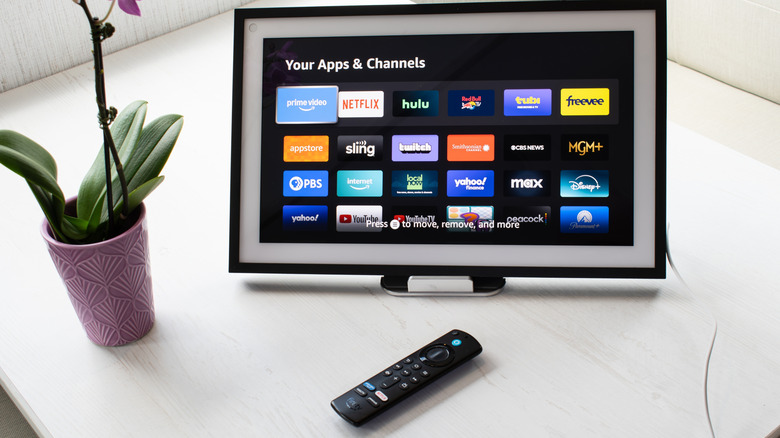
It's likely we don't need to stress the importance of having a working, connected remote for your Fire TV. The accessory is a great friend when it comes to not having to get up to switch media. A remote disconnecting can be a common problem, though you can try reconnecting the remote or even resetting the remote entirely to see if that restores your connection. Just remember that a Fire TV typically allows you to pair up to seven remotes to a device.
Here's how to reconnect the remote:
-
Make sure your remote is at least 10 feet from the Fire TV.
-
Unplug the Fire TV and wait 60 seconds
-
Remove the remote's batteries
-
Plug your TV back in and wait until you see an error message about remote detection on the screen.
-
Press and hold the Home button on the Fire TV remote for 10 seconds.
If you need to reset a Fire TV remote, how you go about doing it largely depends on the type of remote you have. On Amazon's Reset Your Fire TV remote support page, the company provides instructions for repairing virtually any of its remotes, including the Basic Edition remote and the first-generation Alexa Voice remote. Just be aware that you will likely need to unplug your Fire TV and remove any connected HDMI cables to reset the accessory. Of course, it may be time to consider buying a universal remote, and we know some of the best.
A last resort solution
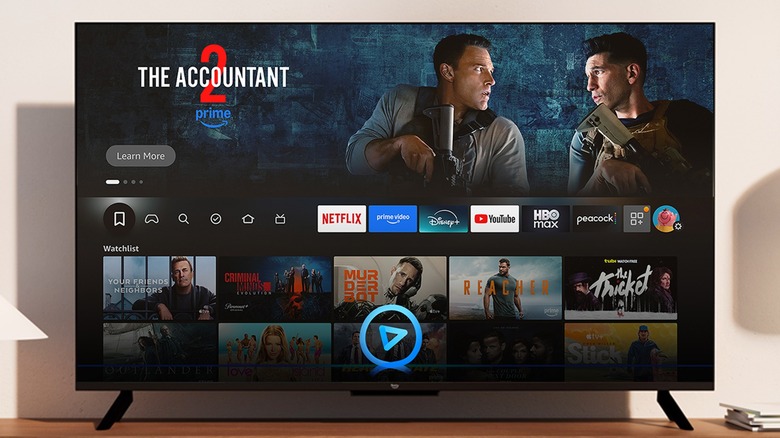
We're putting the option to reset your Fire TV at the end of the list, because you should save it for when your Fire TV is truly acting bonkers. While this may clear away any issues you're experiencing on the device, it comes at the cost of wiping all the data from your Fire TV. So while problems such as low storage issues or Wi-Fi connection problems may disappear, so is all of your information. This means redownloading content and signing back into services.
Here are the steps using your remote:
-
If you have one connected, remove any expandable storage you have connected.
-
From your Fire TV remote, press and hold the Back button as well as the right side of the navigation circle.
-
Hold both buttons for 10 seconds.
There's also the option to reset the Fire TV from the Settings menu:
-
Open Settings on the Fire TV.
-
Choose My Fire TV.
-
Select Reset to Factory Defaults.
-
Confirm your decision.
Either option will work, reverting your Fire TV back to the way it was when it left the factory. Once the TV finishes the reset, you will see instructions on the screen to pair your Fire TV remote to it again. Remember that this is the nuclear option for your TV, and Amazon does recommend visiting its Fire TV forums if you continue experiencing issues. It may also be a good time to remember that there are plenty of cheap smart TVs that can last you years.