

5 Things You Probably Didn't Know Your OnePlus Phone Could Do

When you go shopping for smartphones, you have plenty of brand options. Some people prefer Google or Samsung on the Android side, while others gravitate toward Apple on the iOS side. OnePlus is another viable option, especially for people who prefer high-end Android phones with strong performance and long-lasting batteries.
While OnePlus phones are full of features that people love, you're probably already aware of most of the functionality OnePlus advertises. For instance, the Mind Space app that comes with the OnePlus 15 is touted as a robust AI-powered tool that helps you organize any information you screenshot. However, some features and capabilities aren't as famous as others. Some of these functions are hidden behind a labyrinth of menus, while others are so situational that you might use them only a few times a year. But OnePlus implemented these capabilities all the same.
Here are some of the most useful OnePlus functions you probably aren't using because you might not know they even exist. These are only a sampling of the obscure and unique functions of your OnePlus phone, and they're in no particular order.
Create a second copy of an app for separate logins

Depending on your job, your employer might provide a dedicated phone for work use only — but sometimes, you have to use your personal phone for work. Android devices have dedicated work profiles to help separate your work life from your private life, and while OnePlus includes that feature, it takes things a step further with the ability to clone apps.
Cloning apps can be helpful if you don't want to set up an entire work profile on your personal phone just to make sure your work and personal accounts stay separated. For instance, you could clone WhatsApp and register one instance with your personal phone number and the other with your work phone number. And while many apps have built-in functionality for multiple accounts these days, keeping a cloned copy helps "sandbox" the accounts, so to speak — you get separate launcher icons, notification settings, and app options for each instance.
To clone an app on your OnePlus phone, open the Settings app from your app drawer, select Apps from the main list, then tap App Cloner. Select or search for the app you want, then tap the Create app clone button. You can then give the cloned app a custom name or leave the pre-populated one (app name with the word "Clone" added) intact. The cloned app's icon will be similar to the original, but with a small badge added in the lower-right corner to distinguish it.
Make life easier with AI

While many people are rightfully worried that AI is replacing workers, the tools it provides can help make you more productive if used properly. For instance, Google Drive has an AI feature that helps organize your files, and OnePlus' Mind Space fills that same niche. But helping you stay organized isn't your OnePlus phone's only AI capability.
While some Android devices let you easily record calls, you often have to use separate apps to transcribe the conversations — or do it yourself. However, OnePlus includes an AI-powered function called "AI VoiceScribe" that can automatically turn anything it records, from lectures to calls, into processed text. But first you must enable an option or two. Depending on your OS version, you can enable AI VoiceScribe from Settings > Accessibility & convenience > AI VoiceScribe (OxygenOS 15) or Settings > OnePlus AI > AI VoiceScribe (OxygenOS 16 or higher). After that, make sure the "Smart Sidebar" pop-up overlay is enabled under Settings > Accessibility & convenience > Smart Sidebar. Now, when you're in a supported call or video chat app, you can open the Smart Sidebar and select AI VoiceScribe to use the feature.
If you would rather use AI to help ensure other people can clearly understand you during calls, OnePlus has you covered with "Clear Voice." This feature smartly removes background noises from conversations, and can be enabled under Settings > Sound & vibration > Microphone mode > Clear Voice. Enabling the feature helps ensure people can understand you when you can't find a nice quiet corner to make calls. Think of this function as an "any port in a storm" option when you need to make a call but can't find safe harbor.
Improve performance in the great outdoors
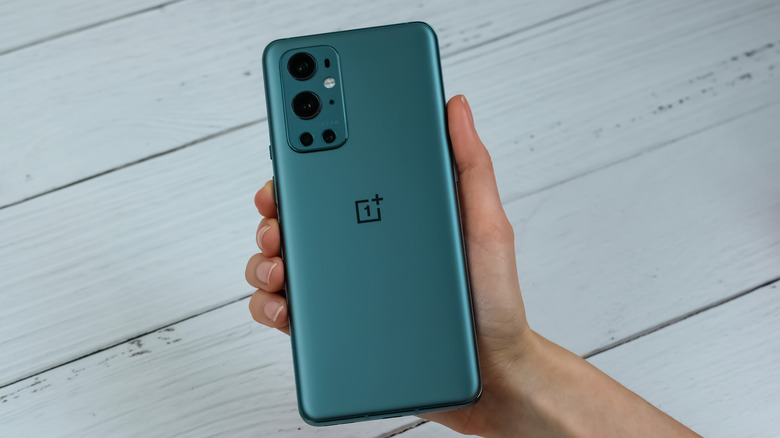
Since smartphones require a constant connection to cell towers or Wi-Fi to function at their fullest, these devices are best used in cities or suburban settings. We wouldn't exactly consider a smartphone a crucial camping gadget — especially compared to lanterns, binoculars, and hand warmers — but OnePlus begs to differ. Sort of.
OnePlus phones have a special mode called "Outdoor mode." When activated, this feature prioritizes internet speed to provide "more accurate location services" and improved "app stability." Outdoor mode has several additional benefits, such as increasing screen brightness so you can more easily read while in direct sunlight. While Outdoor mode can't magically connect you to the internet when there's no signal, it will at least optimize how your phone uses whatever connection it can find. Just be sure to pack an additional battery or three.
Activating Outdoor mode is quite simple. From the Settings app, scroll down to and select Accessibility & convenience, then tap Outdoor mode. Toggle the feature on, and you're good to go. From there, you can customize your Outdoor mode experience by adding a widget to your home screen or enabling options like "Enhanced call sound," which automatically activates Clear Voice and turns speaker volume up to the maximum when making phone calls.
Quickly launch your favorite apps

When you put your phone to sleep while it is running an app, the device will pick up where it left off once you wake it up (although you will have to press a play button if you were in the middle of a YouTube video). But what if you want to use a different app? Usually, you have to close out of the current program, then navigate to the new one. OnePlus has a solution, but only if you are willing to use biometrics.
OnePlus phones feature a function called "Quick Launch" that lets you go straight from a sleeping phone to your favorite apps. All you have to do is unlock your phone using your fingerprint, but instead of taking your finger off the screen, leave it there for a second until the app icons pop up. Then just move your finger over to the icon and let go to launch the program. Easy ... so long as you are on the "fingerprint" side of the "Face ID versus fingerprints" biometrics argument.
Obviously, you can only use Quick Launch if your phone is set to unlock using your fingerprint under Settings > Security & privacy > Device unlock > Face & Fingerprint Unlock > Fingerprint. In that same menu, you can toggle on the Quick Launch option, then press the Edit button next to "Current menu" to pick your favorite apps. You can only choose five apps or shortcuts at a time, but you can arrange them however you like.
Use your phone without specialized gloves

While the touchscreens of smartphones let app designers program a wide variety of custom functions, the component has one fatal flaw: It isn't very receptive to gestures made with gloves. This drawback also carries over to touchscreen computer monitors, but OnePlus has one potential solution.
OnePlus phones have a dedicated "Gloves mode" that increases the phone's sensitivity while you are wearing gloves. Unlike other functions in this article, Gloves mode is quite self-explanatory and straightforward — just activate it when you're out in the cold, and you won't have to take your gloves off just to turn on GPS or start playing a podcast.
To turn on Gloves mode, simply open the Settings app, select Accessibility & convenience, then enable the Gloves mode toggle. Just keep in mind that while the setting boosts sensitivity, it has a built-in limit and doesn't work with very thick gloves. Also, as the mode says in its description, Gloves mode doesn't support video games, so don't think you can use it to finally go out and play "Pokémon GO" when it's snowing. Other than that, Gloves mode is extraordinarily useful.