

10 Ways You've Been Using Google One Wrong
Google Drive is one of the most useful pieces of software in existence. It can do all sorts of things, and Google has tons of features that folks might not use. The big perk is that it's entirely free to use, and that grants you 15GB of free storage, an entire suite of office tools, and extra perks like collaboration and file sharing. Opting to pay for a Google One subscription can increase the utility by a lot, giving you more storage and other features. Sometimes, you can even score a Google One subscription on the cheap when Google feels like tossing up a sale.
The thing is, the most well-known Google One subscription feature is the additional storage. The base plan adds 100GB for just a couple of dollars, and there are 400GB, 2TB, and 5TB plans as well. That's all well and good, but there are some things to take into consideration. Many people may not be using the service as efficiently as they could be, and three of the four Google One plans offer a whole lot more than just a storage bump.
So, it's possible that many people aren't using Google Drive and Google One to their fullest potential. After all, it's something you're paying every month to use, so you might as well get as much out of it as you possibly can.
Treating Google Drive like it's only for documents and photos
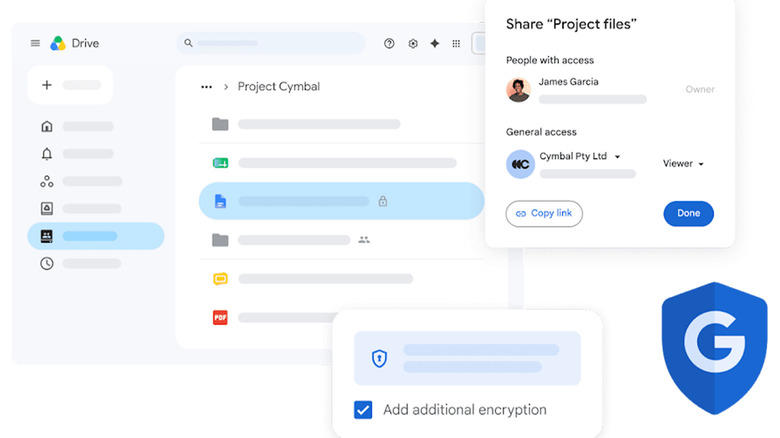
If you look around online or ask your friends, you'll learn that almost everyone uses Google Drive for documents; either personal documents, work files, or even something simple like a group project for school. Google Photos also backs up photos to your Google Drive storage by default. This pretty much sums up the experience that many have with Google Drive, but it doesn't have to. Google One adds a minimum of 100GB of storage and upwards of 5TB, and since Google Drive can hold basically any file type you can think of, there are pretty good odds that you can use it to store other stuff and just haven't thought of it.
I can speak from experience here. My friend once uploaded an entire Minecraft server to his Google Drive account so that I could download it and run it locally on my PC. I also have a few CDs from local bands who no longer exist (and never uploaded their music to Spotify). I ripped those CDs to MP3s and store those on my Google Drive as well so that I don't lose them.
Many apps also have direct Google Drive support for backups. The recipes app I use, called CookMate, does this: When I go to swap phones, I'll upload my recipes to Google Drive and download them on the new device. Google Drive has never suffered a site-wide breach in its history, so your files are safe. It's very unlikely that Google Drive is going down anytime soon, so you won't have to worry about what happens when a cloud storage service shuts down.
Leaving all your files unorganized
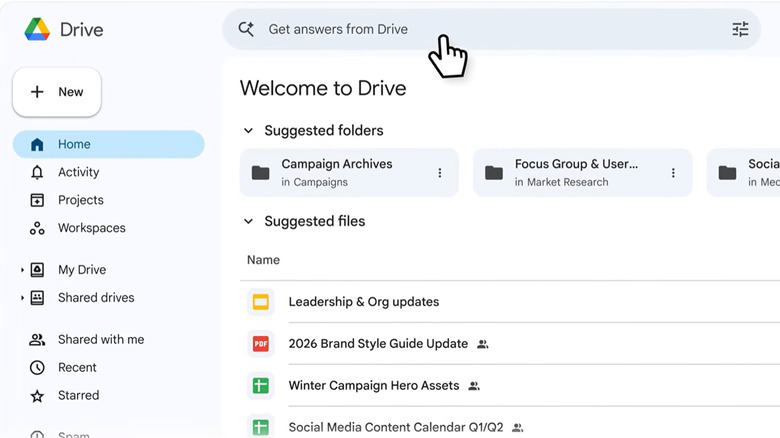
Once you upload your files, putting them in spaces where you can find them again is very important. Google Drive will hold whatever you put in there, but it doesn't organize those files for you. Lazily dumping entire folders of files into Google Drive can add up to a very unpleasant experience very quickly. Finding files becomes a task, especially if they're not named very well since that makes the search function virtually unusable. In short, it's pretty easy to lose track of your Google Drive files, and the longer it goes, the longer it takes to sort out.
Google Drive has about as many organizational tools as the operating system on your computer, and if you're using a Google One account with all that extra storage, you should definitely take advantage of all of those tools. That includes making folders, color-coding your files, renaming everything, and using the native move function to quickly put things where they need to go. It can take a while to do, but being able to find whatever you want at the drop of a hat is worth the effort.
Google also released a new AI-powered tool that helps organize your files for you if you prefer to go that route. The feature organizes your stuff into existing folders, suggests new folders, and helps you move things where they need to go.
Not using Google Drive's wealth of tools and capabilities
The Google Drive and Google One experience mainly centers around the storage capacity of your Google Drive, which is already very helpful for keeping a cloud backup of all your most important stuff. That starts with native, free features like Google Docs, Sheets, and Slides, and includes things like Drive's PDF viewer, Gmail, and Google Photos. Getting a Google One subscription gives you more space to use all of those functions, and so if you're not using them yet, now is a great time to start.
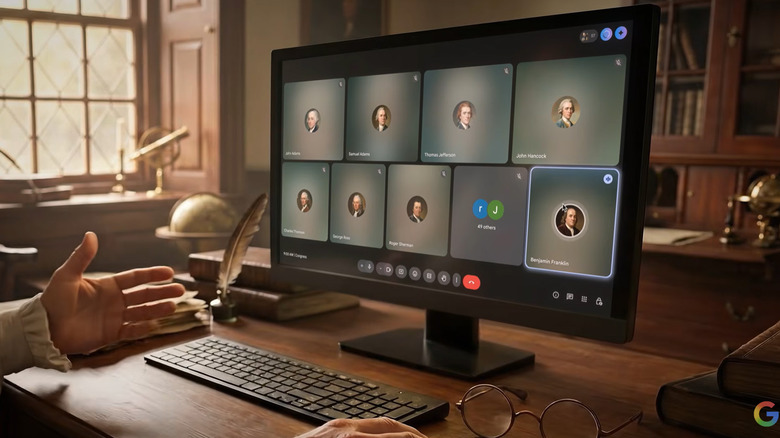
The 400GB tier of Google One adds Gemini to Gmail. This lets you send, write, polish up, and summarize emails, organize your inbox, and offers more precise search results from the normal Gmail search. Gemini in Gmail isn't a perfect feature, but it can do a lot to help, and you're already paying for it, so you might as well. Moving up the Google One tier list adds Gemini to Google Docs, Slides, Google Meet, and Google Vids, giving you AI-powered functionality just about everywhere across the Google Drive ecosystem.
Even if you don't engage with that stuff, Docs, Sheets, and Slides are powerful enough all on their own. For example, Google Docs can handle .docx files (used with Microsoft Office programs), which is nice to have if you need to deal with such a file, but don't have Microsoft Word. Plus, you have the Google Keep app for taking notes, and the ability to share and collaborate on basically any office file adds extra dimensions of functionality.
Ignoring Google One's built-in storage manager
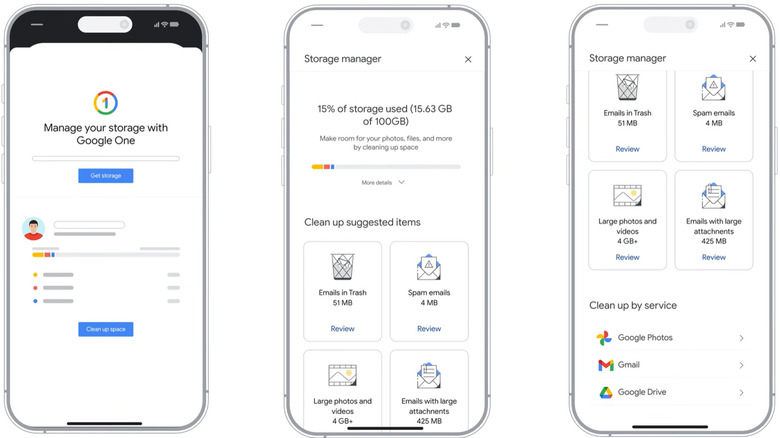
Even with expanded storage, it's not impossible to run low, or even run out of storage in a hurry. Free Google Drive users have to go through the effort of running through their Drive, Gmail, and Photos to find some free space to keep using it, but Google One helps in two ways. The first is the aforementioned storage bump: It's a problem if you're using 20GB of your 15GB of free storage, but 20GB of 100GB is much easier to manage. The other way is Google One's exclusive storage manager, which helps you find and delete errant files that may be taking up too much space.
It functions a little bit like some file browsers on Android by showing you how much storage is in your trash, tracking down and separating your absolute largest files, and you can check Drive, Gmail, and Google Photos to see where all your space went. With a few flicks of the finger (or mouse), you can identify and delete all sorts of useless old junk to free up some storage and giving you more time to really drill down and get rid of the things eating up all of your storage.
You can access your Google One Storage Manager online or in the Google One app on Android and iOS. You need a Google One subscription to use it, and even if you aren't almost out of space, it's worth a look to see what you have anyway.
Using too much space by not using Google Photos' Storage Saver Mode
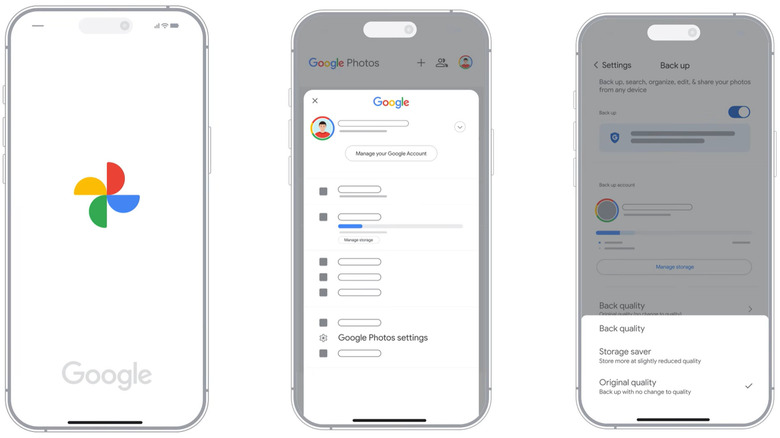
Google Photos is one of the biggest services offered by Google. It celebrated its 10-year Google Photos anniversary in 2025 with a host of new features, some of which we'll talk about a little later. However, its core functionality is still arguably the best part about it. The service uploads your photos (and optionally, videos) to Google Drive for long-term storage, letting you recall old photos even if you lose or trade in your phone. Photos can take up a lot of space, though, and if you're not careful, you can fill you Drive even with a Google One subscription.
Since this app is a set-it-and-forget-it type of app, you may not even know if you're using Google Photos' most valuable feature for free or paid users, which is Storage Saver Mode. This function reduces the quality of your images to a set rate before uploading them, thereby letting you store your photos without using as much space. This Google Photos setting isn't great for videos, but most comparisons show a nearly negligible amount of quality loss for photos while reducing file sizes by up to 75%. That means you could upload four photos in the space of a single photo under ideal compression.
This feature isn't part of Google One specifically, but if you plan on using Drive for long term storage, you'll save yourself a huge headache later by making sure your photos aren't eating up all of your storage right now.
Never touching Magic Editor in Google Photos
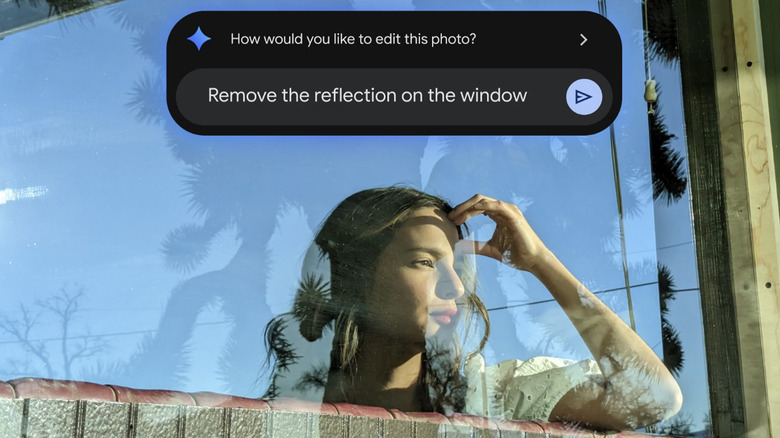
Magic Editor started life as a Pixel-exclusive AI feature before being rolled into the Google One experience. Pixel owners can still use this feature for free, at least as of this writing, but Google now grants other Android phone owners the opportunity to use it as well. To get it, you have to subscribe to the 2TB tier of Google One at least, and then your Samsung or OnePlus phone will be able to use it as well.
Magic Editor has its detractors, and rightfully so thanks to the proliferation of AI slop on social media. But when used responsibility, Magic Editor can do some nice, simple edits to clean up photos. For example, you can deblur photos so that everyone's face is sharp, remove errant objects, improve bokeh, and improve basic stuff like lighting, saturation, and more. Most of this stuff are things you've been able to do in Photoshop or Lightroom for a generation without AI, but this solution makes it endlessly more accessible to non-photographers.
Since it's baked into Google Photos, you'll also want to use that to back up your photos, and since it all goes to your Google Drive storage, it makes sense that Google wants you to use Google One for the entire package. You get storage, a photo editor, and photo storage all in one go, and 2TB takes a long time to fill up if you're using storage saver.
Keeping the subscription all to yourself
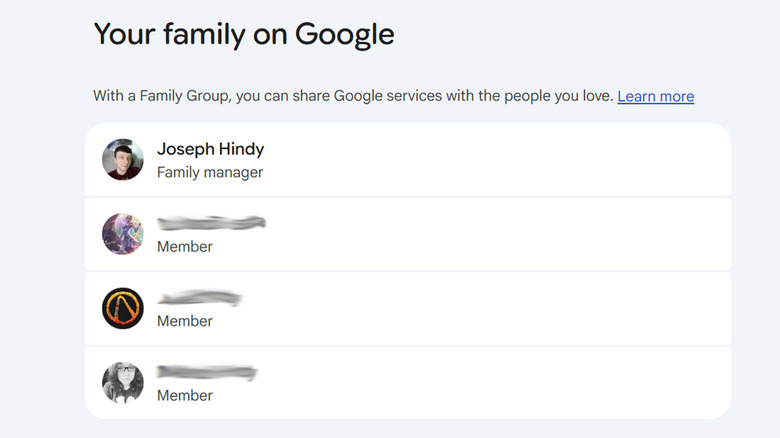
One of the most valuable things you can do with your Google One subscription is to give it to your family members. Google lets you do this for free, and it's as easy as setting up a Family Group on Google. Once done, your family members will share in some of the features from your plan, including expanded storage, some of the AI features, and things like Google Store discounts. Google has a list of things not shared with a Family Group here if you want to see the full list for yourself.
The biggest benefit is arguably the shared storage space. It works by divvying up your storage space on an as-needed basis. For example, if you use 25GB, you'll get your 15GB for free and then 10GB will come out of the pool of extra storage, but if your significant other uses 50GB, they'll be using 35GB of the shared pool. Storage space not used is storage space wasted, so it's good to let someone else use the space you're not using.
This is especially effective if you have something like a Metro by T-Mobile plan, which gives the account holder an Amazon Prime and Google One account. You can share those both with your family, and everyone gets a little extra storage if they need it.
Sidestepping your Google Gemini benefits
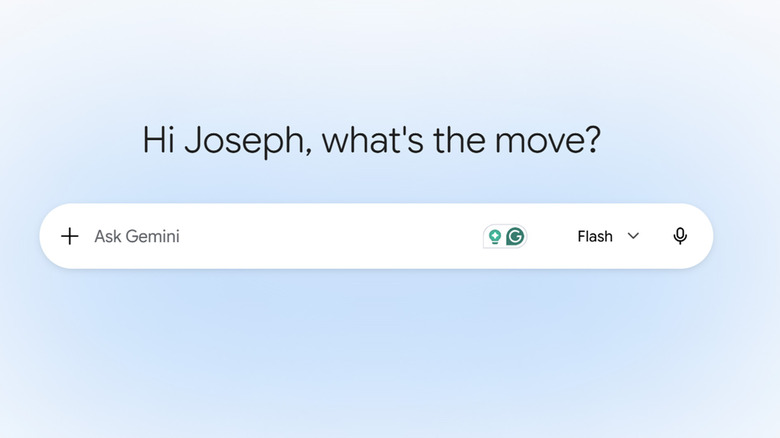
Earlier, we mentioned that you get Gemini in a host of places with Google One, including Docs, Sheets, Slides, and Gmail. Depending on your Google One tier, you get additional access to just plain old Google Gemini. Google uses a usage-based limit on free accounts, and you get an increase in Gemini usage when you subscribe to Google One. It also scales up based on which subscription you go for. The 400GB plan doubles the usage from free accounts, the 2TB increases it to four times the amount of usage for free accounts, and the 5TB plan goes up to 20 times the amount.
This gives you access to do all sorts of stuff, like asking Gemini questions, asking it for help writing code, summarizing whatever PDF or file you pop into it, making images in Nano Banana, and things like that. You can use this benefit directly in the Google Gemini app or on the web, you just need to make sure you're logged in with the account that has the Google One subscription and you're off to the races. Google adds stuff to Gemini pretty regularly as well, so you have new stuff to check out periodically.
We only recommend that you be a little careful. Google does use information you share with Gemini to train the model's future iterations, so make sure not to share anything too sensitive, especially work documents, to avoid getting into trouble.
Forgetting NotebookLM and its excellent research features
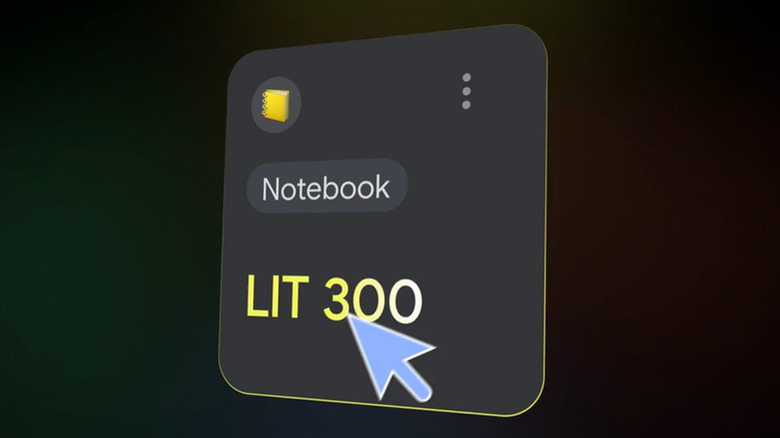
In addition to Gemini features, you also get improved NotebookLM access, which is arguably better than any of the other AI features in terms of real-world usefulness. NotebookLM is a note-t aking platform that heavily integrates AI, which allows to act as a multi-purpose platform. You create a notebook, drop a bunch of source material in there, and the AI helps you summarize and work with that information. The deep research capabilities is the main feature for use in academics or work, but there's a host of other really cool NotebookLM features you can use too.
Your Google One subscription increases the number of features and also increases the limits on what NotebookLM can do. Free accounts get three audio overviews per day, 100 notebooks, and 10 reports per day. With the Ultra subscription, those numbers increase to 500 notebooks, 200 audio overviews, and a thousand reports per day. You also get more flashcards, quizzes, slides, and video overviews as well. The number of features and limitations are pretty huge, so here's Google's support page to show you all of them.
This is especially helpful if you're in college, although you should be sure to follow your school's AI rules appropriately. The ability to dump a huge number of PDFs and other source files in there and immediately start working on them is a boon for a lot of potential use cases.
Paying for AI products you may not know you had
NotebookLM and Google Gemini are arguably the two biggest wins, but depending on your Google One subscription, you can get access to a lot more of Google's AI features. This is how you get to use the kinds of things you may have heard about at Google I/O, like Google's Antigravity, which is its agentic AI development platform that famously built an entire operating system that ran Doom at Google I/O 2026.
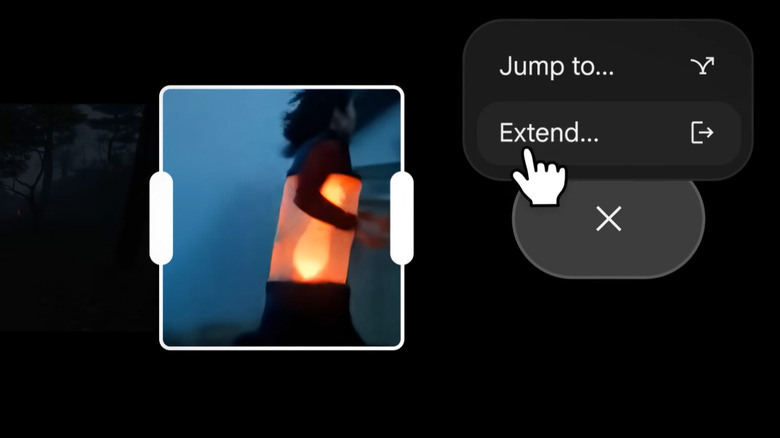
Google Flow and Google Flow Music are generative AI creation platforms that let you make video content and music content, respectively, and you get access to those if your Google One subscription is high enough. You also get access to AI Studio Project Genie, Dreambeans, and essentially any other AI tool or project that Google has out whenever you're reading this. Each of those could probably be their own article in terms of capability and features, but if you have a high enough Google One subscription, it largely doesn't matter, you have access to all of them.
Google One pays for these tools, so even if you're not the biggest fan of AI, you might as well at least give them a shot. We don't think you should be making songs on Google Flow Music and uploading it to YouTube or anything, but depending on your hobbies, habits, work life, or academic situations, these tools may help you with all sorts of stuff, or you can just make some stuff for fun. The sky's the limit, after all, you paid for it.