

5 Easy Ways To Extend The Lifespan Of Your Roku TV
We may receive a commission on purchases made from links.
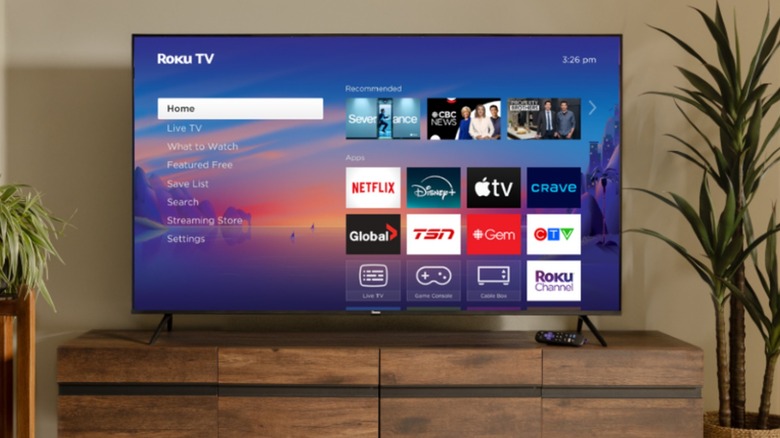
Regardless of what electronic device it is, you'll want it to last as long as possible, and a Roku TV is no exception. There are plenty of benefits that a Roku TV brings, and getting several years out of even the lower-end models is a rather fair expectation to have. Considering the importance of having a display that offers streaming options nowadays, we've rounded up some easy ways to extend the life of your Roku TV.
Even if the price of televisions has gone down over the years, it's likely that you still spent good money on your current display. Knowing this, small things like using a certain protective accessory or performing some simple routine maintenance can really go a long way when it comes to preservation. Things like software updates or just changing some settings on the TV can all be a big help in keeping things going.
Something to remember is that not all electronics last forever, and there may be some warning signs that it's time for a new smart TV. To give some quick examples, if apps stop working properly, peculiar spots begin to appear on the display, connectivity issues become constant, or performance degrades significantly, it might be time to consider other options. Before getting to this point, however, there are some common Roku TV issues you can address that may help.
Use a surge protector
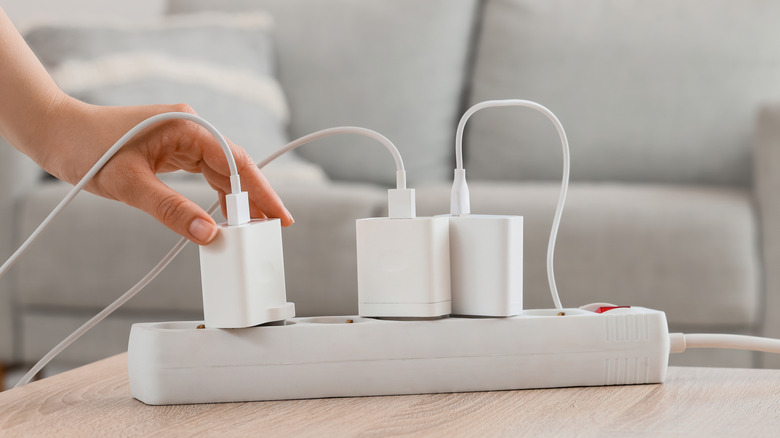
A good surge protector is a fine way to protect your devices from power outages, and this includes a Roku TV. A surge protector can be superior to a wall outlet or regular power strip in that it offers additional safeguards for protecting your devices from power surges that may occur during storms or if power lines are experiencing issues. In an ideal world, you're not plugging your Roku TV directly into the wall.
For a television, having a surge protector with a protection rating of at least 1,000 joules can ensure the safety of your display. Should you have a full theater setup surrounding your TV, something rated for 2,000 joules or higher is even better. Fortunately, surge protectors can be found at a variety of retailers such as Amazon or Walmart, and even ones with high protection ratings can be had for relatively cheap. At least, they're certainly less expensive than replacing your Roku TV.
Some things to remember about these devices is that they don't last forever, and there are clear signs your surge protector has gone bad. Eventually, the surge protector will need to be replaced due to its internal components no longer being able to absorb the additional power. Using one for about three to five years before replacing it can be the smart move, though this may also depend on how often your region experiences events like extreme weather that impact power. It's also good to remember that surge protectors may not protect against extreme voltage changes, such as those experienced during blackouts, brownouts, or direct lightning strikes.
Stay cool
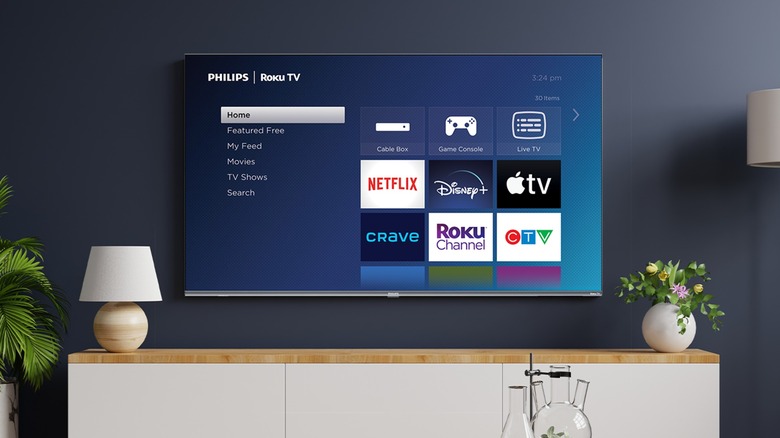
Like other electronic devices, heat is rarely a friend to your Roku TV. Ideally, it would be best if the display were kept at around 72 degrees Fahrenheit, or at the very least, between 32 and 95 degrees Fahrenheit. In theory, keeping a TV at these temperatures can be straightforward, but an important thing to remember is that displays generate a fair amount of heat on their own. Fortunately, there are things you can do to keep your Roku TV cool.
A cool display is a happy display, and one important measure to take in achieving this is ensuring that your TV has plenty of space for its vents to allow heat to escape. This means picking a location that can give the device room to breathe, so try to avoid stuffing the display inside a restricted area, including tight cabinets. Be especially sure that the TV has room at the sides and back of the device, and try to keep the room it's in properly ventilated as well. You should also consider what risks direct sunlight may pose to your TV.
As a final word on heat, it's also a good idea to ensure other devices are not left underneath the TV, as this also may contribute to potential issues (remember, hot air rises). Air is just one element in the equation, though, as liquid can also play a role in shortening the lifespan of your Roku TV. Any condensation or moisture can also have a significant impact, including dew or humidity. You may want to consider a dehumidifier for rooms that are particularly moist.
Keep it clean
Dust buildup can be another source of heat, as it can block vents — but keeping a display clean is important in other ways as well. Due to the electromagnetic waves TVs produce, they're unfortunately great at attracting small dust particles. One way grime or dust can pose a threat aside from overheating is by potentially causing weaker connections with the display's inputs. Of course, dust can also be a source of interference when it comes to your viewing experience.
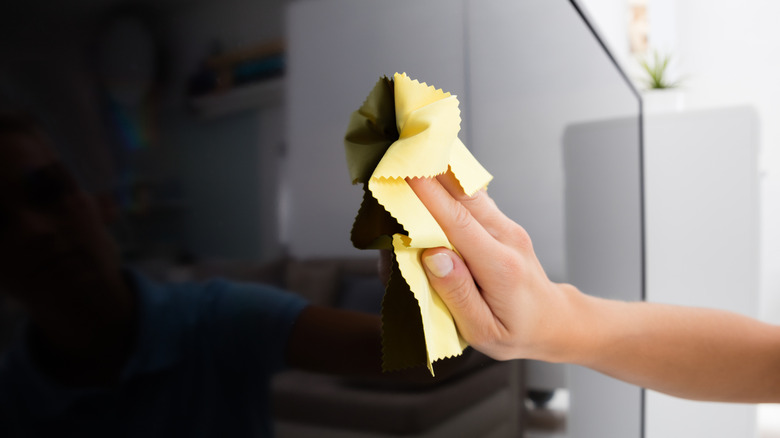
This doesn't mean you have to clean your TV every day, but some regular maintenance can do wonders. Sticking to a routine TV cleaning schedule can avoid the buildup of dust, and users may find they're seeing their display better in return. Should you decide that it's time for a cleaning, remembering a few basic principles can also go a long way. As you clean the screen of your television, remember that the display panel can be sensitive, so avoid applying pressure to the screen as you wipe.
Choosing the right materials is also important. A clean microfiber cloth will be acceptable (avoid paper towels), but even then, certain types of microfiber cloths are better for cleaning a TV than others. Using a bit of water directly on the cloth is okay, but don't apply anything wet to the display itself. Avoid using cleaners such as bleach, isopropyl alcohol, or window-cleaning solutions. For inputs, use a tool with a soft tip. A small amount of disinfecting ethanol may be acceptable for harsher stains, but again, only apply it to the cloth and not the display.
Dim the lights
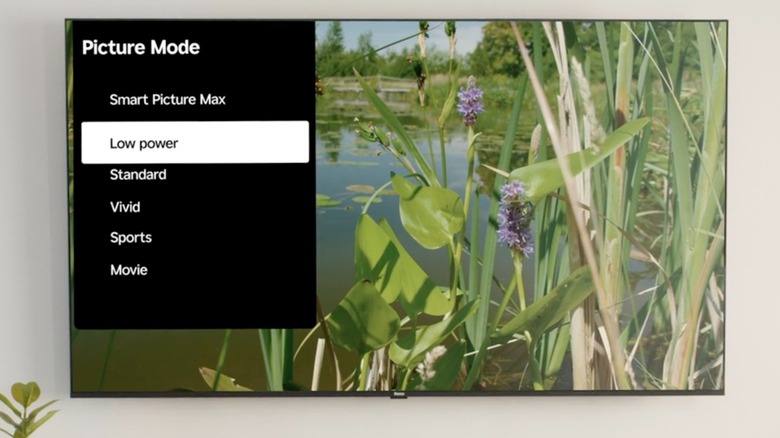
Wanting the brightest and best display can be pretty reasonable. After all, it makes sense — you paid for a vivid display, so naturally you want to use it as much as possible. Unfortunately, running a display at its peak brightness all the time can be a great way to shorten its lifespan. Maximizing the brightness poses the risk of higher power consumption along with accumulating additional heat.
One of the easiest ways to avoid running your screen too bright is by adjusting the picture modes available on your Roku TV. Though it's likely set to Low Power out of the box for conserving energy, there are also Standard, Sports, Movie, and Automatic modes. Vivid may provide the brightest display, but it may also contribute more to shortening the TV's lifespan relative to the other options. You can always change the mode when you're watching media by pressing the Star button on your Roku remote, and then navigating to Picture Settings > Picture Mode. Try experimenting with something that isn't so bright.
For what it's worth, there are some other smart TV settings you may want to change immediately, but the important thing is to try and keep your display running at about 80% brightness or lower. You may also find that lowering the brightness may improve the colors, as keeping the brightness too high can wash out images. It's also a good idea to not leave the TV running if no one is using it. Users may prefer to keep it bright, but your TV will thank you if you turn things down a notch.
Software matters
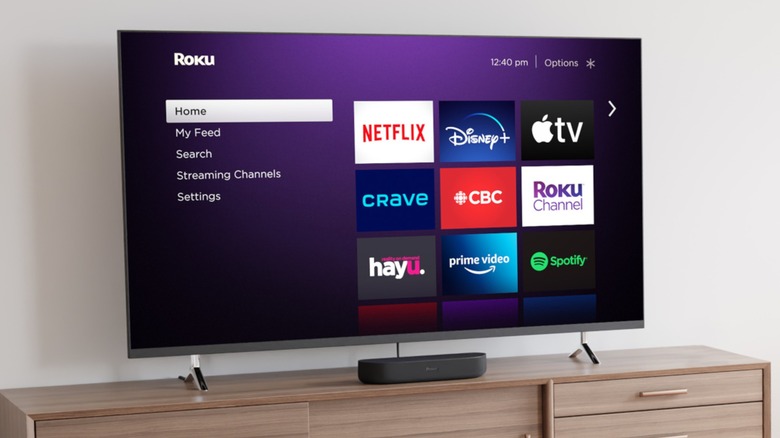
A simple way to keep a smart TV performing and acting at its best is by ensuring it stays up to date on software. System updates are a good way to guarantee your display has access to the latest security patches, and software updates can bring new features to your Roku TV. A Roku is meant to consistently check for and apply updates, but you can always check for them yourself by hitting the Home button on your remote and navigating to Settings > System > Software Update > Check Now.
Along with keeping the OS updated, it's also a good idea to remove any app you're not using — especially if you're running an older or lower-end model. An abundance of apps can contribute to storage issues or even have the display behaving sluggishly. To remove an app, just press the Home button on your remote, move to the right and highlight an app, then press the Star button your remote and select Remove channel. Confirm your decision, and remember to cancel any associated subscriptions, if applicable.
Another important aspect for software is clearing your cache periodically. Cache is essentially temporary files that are meant to help load things quickly, but a buildup of these files can ultimately bog down your display. Fortunately, a simple restart can clear the cache — just navigate to Settings > System > Power > System restart. Doing this about once a week can be good for system maintenance. Remember that sometimes, it's the little things that can go a long way.