

10 Things To Stop Doing If You Have A Mini PC
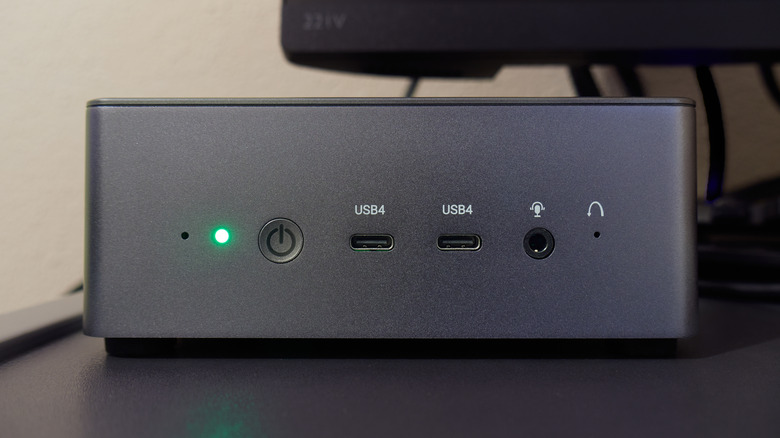
If you've been watching the state of the computer world, with rising hardware prices and scarcer components, you may have seen mini PCs starting to become the norm. These tiny computers are basically laptops with the laptop bits removed, and with a smidge more upgradability in some cases. As integrated computer systems, they're often cheaper than a similarly-specced desktop, and there's also a great used market for them. Which means there's a good chance that you've either picked one up already or you're planning to shortly.
If you've already taken the plunge, you're probably aware that there are many perks when switching to a mini PC, like their excellent value for money, their versatility, and how portable they are thanks to their small form factor. However, there are some things those coming from laptops or desktop to the world of mini PCs might do that either isn't good for your mini PC, or prevents you from enjoying the full benefits of these tiny titans.
Since these computers are neither fish, nor fowl, nor Raspberry Pi, they do need some measure of special consideration. Not everyone will be equally guilty of every faux pas, but odds are you're likely to commit one of these.
Blocking airflow
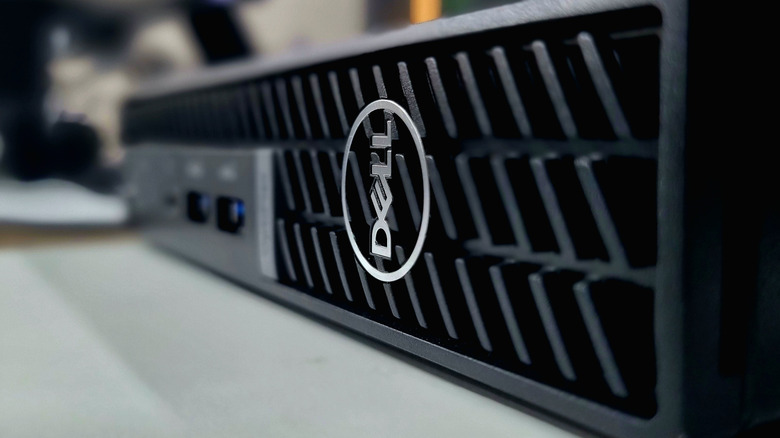
Most mini PCs are generally low-wattage, cool-running computers that will keep on trucking even when their internal cooling isn't the best. However, there are mini PCs that can draw hundreds of watts under peak load, and even ones that "only" pull numbers like 45W or 65W need to do something about the heat generated by that amount of power.
If your mini PC has one or more fans, it tries to draw in fresh cool air through one or more intakes, and after that air moves over hot components, it ejects it from another vent. Because these computers have such small internal volumes, they need as much ventilation as they can get. If the vents are blocked by dust, it doesn't matter how fast (or loud) the fan gets — there won't be enough air to cart the heat away.
You're unlikely to run your mini PC on a vent-blocking blanket the way some people do with laptops. That being said, there are some contexts where a mini PC seems like a good fit, but you're starving it of fresh air. For example, a mini PC can absolutely replace streaming devices, but you should not put your mini PC inside a poorly-ventilated entertainment cabinet. A fanless, low-power Apple TV will be fine, but a mini PC is still a PC, and needs cool, active airflow. Likewise, if you use a mini PC for self-hosting, it's not a great idea to suffocate it in a dusty cupboard.
Using Wi-Fi instead of Ethernet
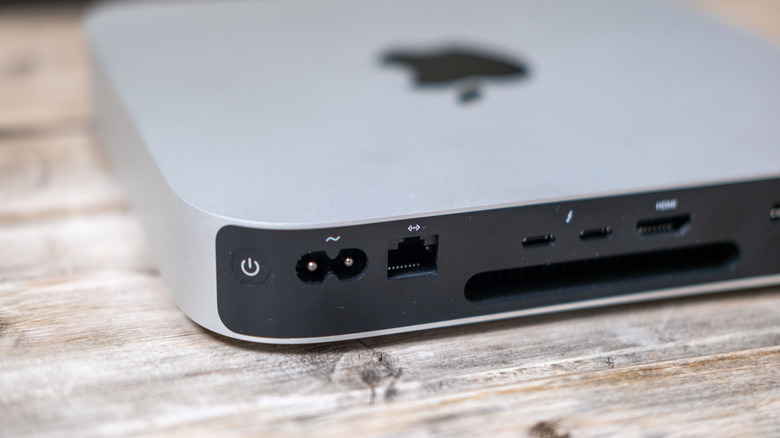
If you've used desktop PCs before, you'll know that Wi-Fi connectivity isn't a given. After all, desktop PCs aren't generally moved around much like a laptop, so Wi-Fi makes sense as an optional extra. The preferred way to connect a desktop PC to your home network is via Ethernet. If that really isn't an option, you can always add a PCI or USB Wi-Fi card later.
On the other hand, mini PCs do tend to come with both Wi-Fi and Ethernet as standard. Since they are designed to be placed just about anywhere, there's a good chance you'll need Wi-Fi connectivity in some situations. However, this can incentivize you to simply set up a Wi-Fi connection for your mini PC and call it a day. However, that would be a mistake! One of the major pros of using Ethernet cables is significantly better stability, latency, and (likely) speed.
This is especially true if you have an older mini PC, like the one that I use as my Plex server. It has a Gigabit Ethernet port, but came with a slow, older-generation Wi-Fi card. By using an Ethernet cable, I get rock-solid streaming performance and fast local network file transfers when I remotely move new media files to its hard drive. It doesn't have to be hard either. There are many ways to get wired internet at home without installing Ethernet cables through the use of specialized adapters.
Transporting it recklessly
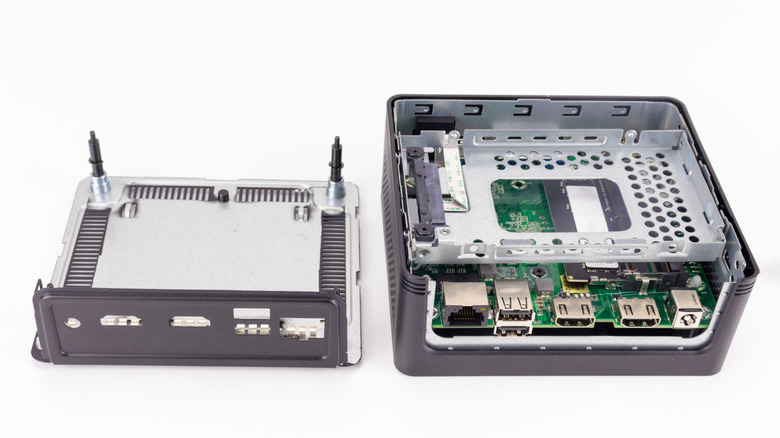
By virtue of their small size, mini PCs are eminently portable. However, unlike laptop computers, they were not designed to travel. That's an important distinction, because no one is drop-testing consumer mini PCs or building them to military spec. There are special ruggedized business and enterprise mini PCs that are designed to survive in all types of environments, but if you had one of those, you'd know about it; it would be a key marketing talking point.
The good news is that modern mini PCs are solid-state for the most part. The only moving component should be the cooling fan if it has one. The storage is likely an SSD rather than a spinning mechanical drive, and so overall things should be durable. However, slotted RAM and SSDs can come undone through rough handling, wireless antennas can break, and exposure to moisture and dust is never good.
If you want to use a mini PC as part of a field kit or a computer that has to be moved from one tough environment to the next, you're better off buying something like the GEEKOM IT13 MAX Mini PC, which is rated "industrial grade" and is designed for deployment in sweaty server rooms or on-site setups. If you want to travel with the mini PC you already have, consider a foam carry case, and pop it open now and then to check all removable parts are still seated correctly.
Using the wrong USB port
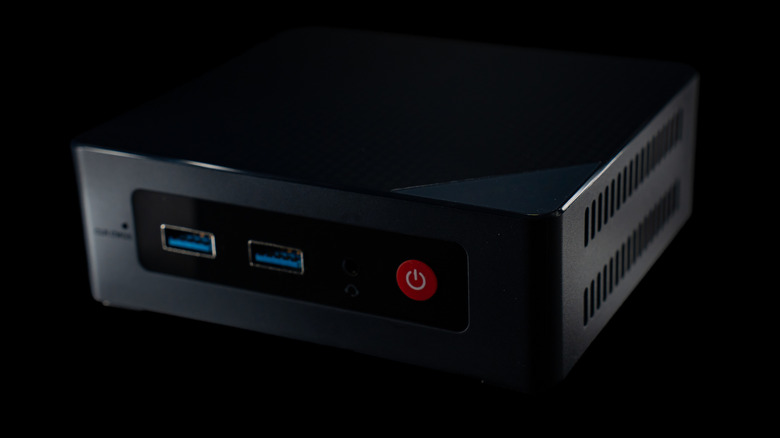
This is not the fault of mini PCs specifically. However, it's an unfortunate fact that mini PCs are especially reliant on USB peripherals, since there are few internal upgrades you can make. So if you want to add more storage or use an external GPU, you're likely going to have to plug something in. The problem is that USB standards are a complete mess. A typical modern mini PC comes with a bevy of USB ports, but they're all likely to have different specifications and capabilities.
You might be surprised to see that many modern computers, and that includes laptops and mini PCs, still have a USB 2.0 port. This ancient USB standard dating from April 2000 is generally color-coded with a black port interior and is limited to 480Mbps.
Why? Well USB 2.0 is cheap to add, is perfectly fine for peripherals like mice, keyboards, and Bluetooth dongles, and acts as a fallback if you ever run into compatibility issues. Which does happen with newer USB devices and the insanity of USB standards. A blue port is USB 3.0, but these have been rebranded as USB 3.1 Gen 1 or Gen 2, with either 5Gbps or 10Gbps speeds. USB-C ports are more common on mini PCs than desktops, and that makes it easy to expand your port selection with dongles, but USB-C is the worst when it comes to figuring out what you're looking at. Is it 40Gbps? is it Thunderbolt? Does it have DisplayPort Alt mode? Time to read the manual!
Letting it sit on your desk
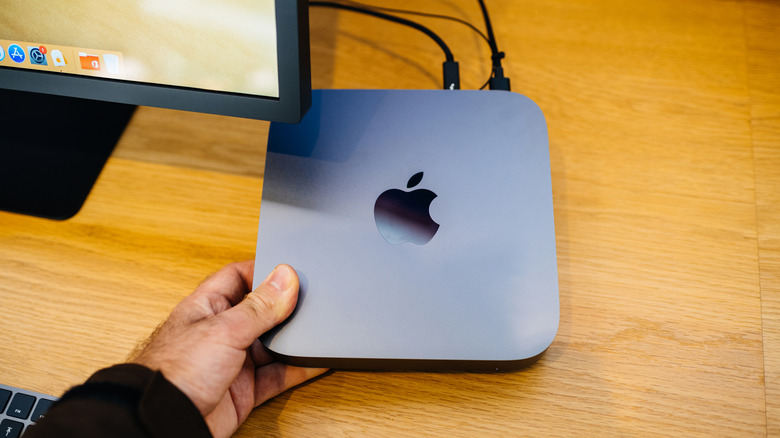
One of the key reasons to even use a mini PC is to save space and have a cleaner work environment. It takes up far less space than a laptop on your desk, and a tiny fraction of the room a hulking PC desktop tower would need. However, if you just plop your mini PC onto your desk, it's still potentially a bit of an eyesore, and the room it takes up isn't zero, no matter how small it may be.
The good news is that there are a number of clever ways you can hide that mini PC out of sight and really have the most minimal setup you can imagine. One popular solution is to make use of your monitor's VESA mounting holes. Often it's best to get a model-specific solution, such as the HumanCentric VESA Mount for Lenovo ThinkCentre mini PCs. Of course, if your monitor is already mounted on an arm and the VESA mount is therefore occupied, you may need to look for an alternative solution. An adapter plate to allow for both could be one way around this, but mounting solutions like the HumanCentric we just mentioned can also be used for under-desk mounting.
Usually all it takes are a few self-tapping wood screws and you can have your PC out of sight but close by. In either case, you'll want to use some sort of minimal USB hub so that you can still plug in devices like USB flash drives.
Using Windows when Linux might be better
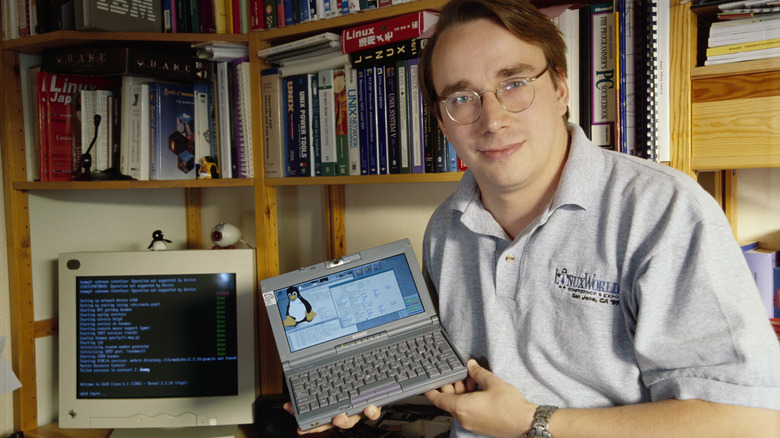
Linux Vs. Windows: which Is better for your PC? It's an age-old question at this point, but with every year that passes the things Windows can do that Linux can't shrinks. Linux is a free and open-source operating system that runs the majority of the world's servers and scientific computing projects. Likewise, Android devices are derived from Linux, and plenty of embedded systems use the Linux kernel. So you're already using Linux regularly without knowing it.
The only place where Linux doesn't dominate yet is in the desktop operating system market, but the share is growing. Desktop Linux distros like Mint, Elementary OS, and Zorin OS are designed to be drop-in replacements for Windows and macOS. They aren't any harder to use, cost nothing, and offer quite a few benefits.
For mini PC users, Linux generally means a lower base system requirement compared to Windows. At a time where RAM and SSD storage has become extremely expensive, that can make a big difference to your budget without losing any practical performance. Most people use browser-based software, which means it doesn't make a lot of difference whether you're using Linux or Windows. More and more software now comes with a native Linux version, and when they don't there's usually a workaround. Most importantly, older mini PCs can be saved with Linux if they don't support Windows 11. This opens up a wider range of PCs to choose from, and more potential savings.
Turning it off
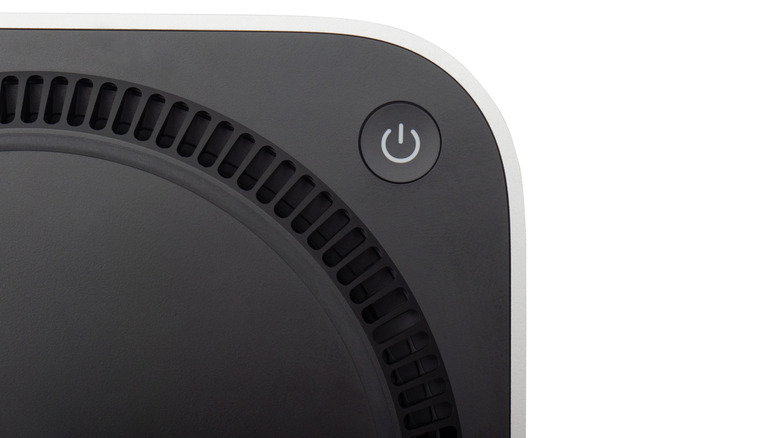
We've all been conditioned to save power, and that's not a bad thing. So most people probably put their computers in sleep mode or shut them down completely when they are done for the day and ready to go. However, mini PCs, especially when idling or doing low-intensity tasks, don't actually use very much power.
At the same time, your mini PC could be doing something useful even when you're not around. The options truly seem endless, but common use cases include running Plex or Jellyfin servers so you can stream your own media library to all the devices in your home. You could also turn one of your hard drives into a local network share, or set up the self-hosted Google Photos clone Immich using docker.
If all you do on your mini PC are normal day-to-day light productivity tasks, then you're probably not using its full potential even when you're sitting right in front of it. So, depending on your specs, it might make no difference to its perceived performance to have a few useful services running in the background. It's also worth leaving your mini PC on so that it can update the OS and all of your applications automatically overnight. Chances are that the mini PC you have is the cheapest computer to run in your home from a power consumption perspective, so if there's something you need a computer to do for you 24/7, this might be the most elegant solution.
Using the internal SSD for everything
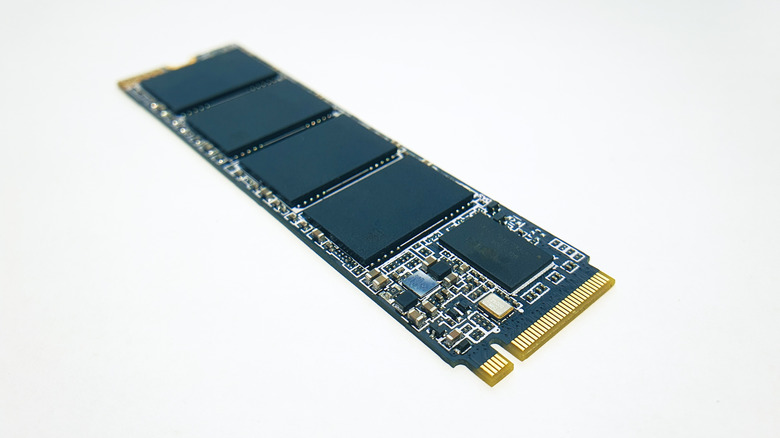
Like most modern computers, mini PCs use SSDs (Solid-State Drives) for primary storage. This can be in the form of a removable, upgradable SSD or the drive can be soldered directly to the logic board, as is the case with most modern Apple Mac Mini models.
These drives are generally robust, but SSDs have two primary vulnerabilities: Excessive heat can shorten the life of a drive, and excessive write-erase cycles will also wear the drive down. Even so, a good quality SSD will last many years, likely longer than the useful life of the computer itself. However, if you have an SSD that can't be replaced, why tempt fate? It's best to use your primary SSD for your operating system and key applications, but you'll want to use external drives or a secondary SSD (if the PC can take one) for big, frequent file transfers or for caches, scratch drives, and other notable SSD-killers.
If you have a mini PC with the latest USB4 or Thunderbolt 5 connectivity, you can connect external storage that's more than fast enough for anything you'd reasonably want to do, and if those drives die it's an easy (albeit extremely expensive) problem to solve. Don't forget about mechanical hard drives either. They might be quite slow, but they're an excellent cost-effective way to archive project files, or host media like video and audio, instead of wasting precious SSD storage for those use cases.
Ignoring its gaming potential

You might have heard of the Valve Steam Machine, which is a custom mini PC designed for gaming. It's got roughly the same performance as a Sony PlayStation 5, but in a smaller package. Of course, you can always just build your own Steam Machine, but it's that tiny form-factor that people find so appealing. The thing is, the Steam Machine isn't the only mini PC with gaming chops.
There are many mini gaming PCs that don't compromise on performance, and like the Steam Machine they are designed with the components and cooling for gaming from the ground up. However, PC gaming isn't locked to computers that are designed for video games. As long as your mini PC meets or exceeds the minimum specifications of a game, it is a gaming system as far as that title is concerned.
PC gaming has such a vast and long history that there's no end of amazing titles that will run on just about any mini PC you can imagine. However, if you later decide you want more, mini PCs that support eGPUs can be connected to more powerful hardware for better game performance. Some mini PCs even have proprietary PCIe connection options that let you use a GPU externally without the usual compromises in bandwidth and performance. If you already own a bunch of games on platforms like Steam or GOG, there's no harm in loading a few of them to see how your mini PC handles it.
Connecting just one monitor

Your mini PC, if it's a modern model, probably only has a single HDMI port to connect a monitor. Which means you may assume that you only have the option of using a single screen. However, if you have a mini PC that has USB-C DisplayPort Alt Mode, then you can add more displays.
In many cases, USB-C ports that support the ability to send DisplayPort signals over a USB cable will have a small picture of a monitor next to them, but it's not a given. So if you aren't sure, you can check your computer's manual or use a USB-C to DP adapter to check. Generally, you can attach one monitor to each USB-C port, but if your USB-C port supports DisplayPort Multi-Stream Transport, you can buy a USB-C DisplayPort splitter, which allows for two displays from a single port. Splitters with more ports exist, but the total bandwidth is limited. So the more screens you add, the lower the resolution or refresh rates you can achieve on each.
You don't have to give up functionality either, since these adapters come in versions that also have USB ports, so you can still use other peripherals. Therefore, your mini PC might actually be a multitasking productivity monster — you just need to give it a chance to shine.