

10 Things That Are Ruining Your Sound Quality On Spotify
In 2025, Spotify added lossless streaming for Premium users, allowing those with the right audio gear to enjoy the best quality audio currently available to consumers. However, just because Spotify can sound amazing doesn't mean that what you're hearing at the moment is the best the service can offer.
By default, Spotify is set up rather conservatively. This saves you (and Spotify) quite a bit on bandwidth, but it might not be what you want when it comes to enjoying your music. It's not just the settings and behavior of Spotify itself that can be a problem, though. Sometimes, external hardware or software interacts with Spotify in such a way that your audio quality is affected. If you've never heard what Spotify is supposed to sound like with the quality turned up, you might not even know that something's wrong.
To ensure you're getting the audio quality you're paying for, we've gathered the most common reasons Spotify might be sounding muddier than you'd like. Take care of these areas, and your streaming content will sound as good as it possibly can.
You're using Spotify Free
Perhaps the first problem is that you are actually getting the sound quality you're paying for, but what you're paying is nothing. As we just mentioned, high-resolution and lossless music quality are only available at the Spotify Premium service level.
The Spotify web player is limited to Advanced Audio Coding (AAC) 128 kilobits per second (Kbps), compared to 256 Kbps using Spotify Premium. Desktop and mobile apps top out at 160 Kbps, whereas Premium users get twice that, with a further upgrade available to access lossless audio equivalent to 24-bit/44.1-kilohertz Free Lossless Audio Codec (FLAC).
That's a huge gulf in sound quality, and it's not like the cost of Premium only gets you high-quality audio — you also get perks like ad-free listening and downloads — so Premium delivers a lot for the asking price. However, if you simply aren't willing to pay, there are cheaper alternatives to Spotify Premium that could offer better audio quality than the free version of Spotify. You might also consider YouTube Premium, which includes YouTube Music in the price and offers twice the audio quality of Spotify Free.
You left the streaming quality on Automatic
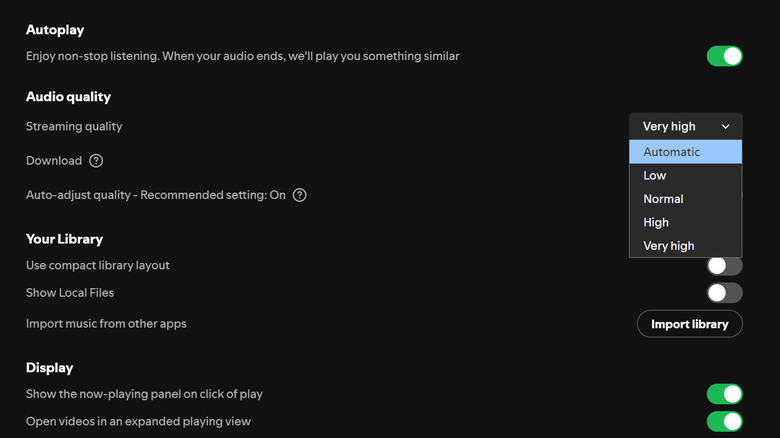
By default, the audio quality in Spotify is set to Automatic. In this mode, the software prioritizes keeping the music going and avoiding buffering and stutter over all else. At least, that's what Spotify's documentation says it does.
Whether this automatic setting is too aggressive or conservative is up for debate, but if you're on a high-speed connection such as home fiber, there's no real reason to ever expect bandwidth to be an issue unless there's something wrong with your connection. In that case, it's usually safe to set the streaming quality to its highest level. To do this, go to the settings in your Spotify app, then use the dropdown next to Audio quality to select the level you want. (If you're using a cellular connection that varies in strength as you move about, though, the Automatic setting might be useful.)
By picking a constant quality level, you'll not only ensure that your songs remain at the same quality throughout playback, but you also avoid any issues with Spotify's algorithm and when it decides the quality needs to be lowered. Ultimately, consistency can be just as important to your listening experience as absolute fidelity.
Your Wi-Fi and cellular quality settings don't match
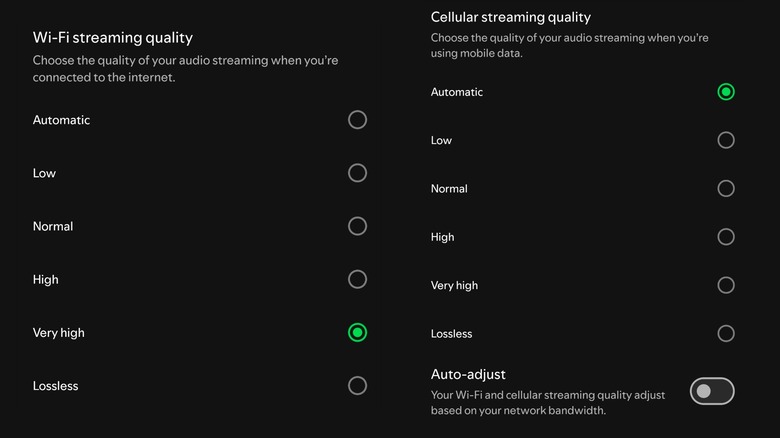
Spotify doesn't have one universal set quality selector but instead lets you pick your quality level depending on how you're connected to the media. That means it's quite likely you'll notice a difference between music streamed using cellular data, music you've downloaded, and music streamed over Wi-Fi.
That's not necessarily a bad thing when you're driving in your car and using CarPlay or Android Auto. You're less likely to notice that the streaming bitrate has gone down to a lower level because a car is a noisier environment than listening at home, and that masks quality issues. On the other hand, skipping or buffering is always noticeable. But when you're wearing noise-canceling headphones, it's trivial for your ears to discern fidelity differences.
We recommend leaving cellular on Automatic and manually maxing out the Wi-Fi quality level, but if you're really struggling with cellular streaming quality during your day, and you have Spotify Premium, then you should probably download your favorite playlists to your local device. That said, Spotify's offline backup feature helps maintain the quality of music that you've listened to before automatically. So if you're in a dead zone or connectivity is weak, only music you're listening to for the first time should really be affected.
Spotify's Data Saver mode is enabled
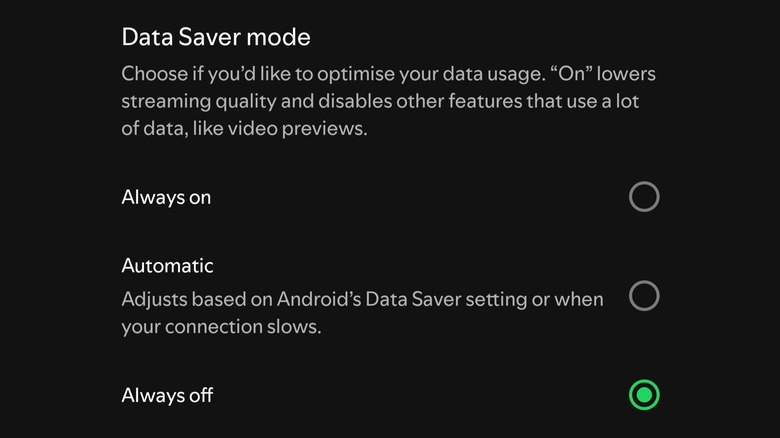
While so-called unlimited data plans seem like a fire-and-forget solution, the truth is that they often have soft data caps where your speed is throttled to levels lower than even music streaming can comfortably work with. So whether you're on a fixed data cap or an unlimited plan, it's worth keeping an eye on your data consumption when using cellular streaming.
To this end, Spotify provides a Data Saver mode. According to Spotify, this reduces the data usage of the mobile app across the board. Part of the way it does this is by downloading less metadata, like album covers, band photos, and video clips. However, when Data Saver mode is enabled, the app also purposefully reduces the audio quality with an eye on making that per-hour data usage figure lower.
By default, this setting is on Automatic, where it will only activate when your network conditions are pretty dire. However, you might have turned it on manually, and then simply forgot to turn it off again. Definitely worth checking if you're not getting the sound quality you think you should be.
Your downloaded music is using an old quality setting
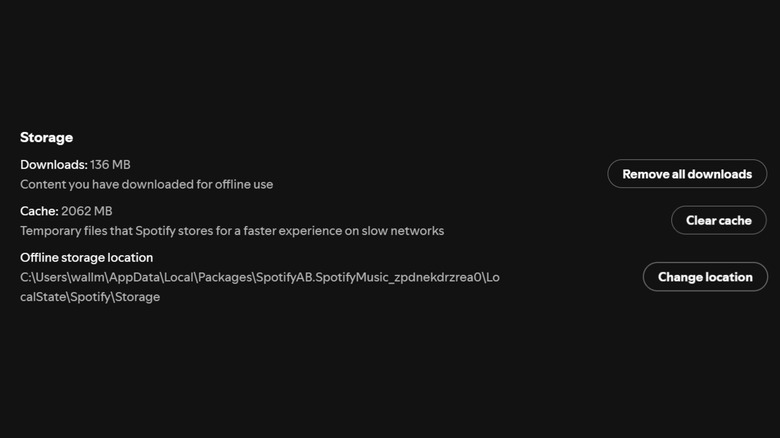
Unless you've been filling up your phone storage, it's always a good idea to download your favorite playlists before you leave your home Wi-Fi connection. Not only does this save you heaps of data, but you don't have to worry about connectivity issues at all.
However, there is a catch here when it comes to the quality of downloaded files. As we mentioned earlier, downloads have their own separate sound quality setting, which lets you control how much space your downloads take up. However, if your download quality setting is lower than your quality setting for streaming, you might not get the higher-quality song when you listen to your music in some cases.
That's because Spotify will check its cache of downloaded files first before streaming a song when you request it. So if you've downloaded a song at a lower quality in the past and then try to stream that song again, you'll get the lower-res download version. If you want your downloads to be a higher quality, you need to change the setting and then redownload the files. If you switch to lossless quality, you will be prompted to update your downloads. If you don't, their quality remains unchanged.
Your connection can't sustain the selected quality
This is probably the most obvious reason you might be having trouble with your sound quality on Spotify. The whole reason the Automatic quality setting exists is to ensure you get some form of uninterrupted playback, even when your bandwidth evaporates.
The requirements for even the highest lossless audio quality level are quite modest, however. Spotify indicates that you need at least two megabits per second (Mbps) of bandwidth to enjoy the highest level of audio quality available. If you're in a situation where your cellular or home Wi-Fi connection can't provide that level of bandwidth, there's almost certainly something wrong with your service or connection setup. Unless the problem is due to factors outside of your control, you might be able to do something about it.
There are several things you can try to improve a slow internet connection, and it might just be that you've made a common Wi-Fi mistake. If it turns out the lack of bandwidth is due to something you can't change, then your only options are to use a different connection or wait until the issues are resolved.
You're using lossy Bluetooth headphones or earbuds
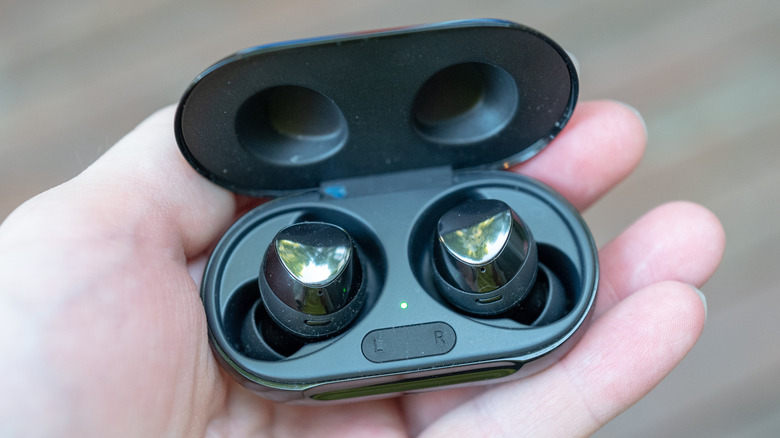
So you're paying for a Premium tier that includes lossless quality, you've duly set all the quality settings to maximum, and now you're hearing music as good as it can possibly be, right? Well ... if you're using Bluetooth headphones or earbuds, that's probably not the case.
Lossless audio means the compression method used to encode the audio retains all of the detail found in the original digital recording. That's as opposed to lossy encoding methods that throw away some audio data, under the assumption that we humans can't hear it anyway. This is why most people probably can't tell the difference between hi-res and lossless audio, but there's no denying that technically one has less detail than the other.
Most Bluetooth codecs are lossy, with the only lossless option (as of this writing) being aptX Lossless. That means you aren't getting lossless quality with Bluetooth headphones or earbuds unless you're using that specific codec. It's also a big reason audiophiles choose wired headphones over Bluetooth. So unless you're using the right setup, you might as well turn the quality down one notch, because you're just wasting bandwidth. Or, you know, you could switch to a wired listening device.
Another app is activating your headset microphone

This really only applies to Microsoft Windows, but you might have noticed that when you hop on a call while wearing Bluetooth headphones, the quality of the audio you hear changes. This is because there are multiple Bluetooth Audio profiles in Windows, and when a voice chat app activates, the profile might switch from the high-quality Advanced Audio Distribution Profile (A2DP) that you're usually using (as when listening to music) to the hands-free profile.
That hands-free mode uses a very compressed level of audio, perfect for ensuring clear vocals and low-bandwidth performance, but any other audio you have playing back will be pushed through that same filter. Most people aren't listening to music while talking with others on a call, so this hardly matters.
However, an open voice chat program in the background might have triggered this profile switch, and closing or restarting it can reset your audio quality. Failing that, disconnecting and reconnecting your headset should also do the trick.
Volume normalization is set to Loud
Spotify Premium has a feature called volume normalization, which can be quite useful depending on what type of music you listen to. All it does is balance the average volume between loud and soft songs, so that you don't go from a chill ballad to a shrieking electronic dance tune with no warning.
There are three presets for volume normalization in Spotify: Quiet, Normal, and Loud. Normal is the default and offers moderate normalization, but Spotify's documentation says that the Loud preset (designed for loud environments) results in "less dynamic levels."
In practice, that means the difference between the loudest and softest parts of a song will be reduced. This range is a hallmark of perceived quality, with a wider range generally being associated with better quality. One of the main reasons CD audio sounds so much better than vinyl (to many people, at least) is thanks to an expanded dynamic range. If you've forgotten that you turned volume normalization to Loud and just left it there, you'll be losing some of that range.
An equalizer is altering the frequency response
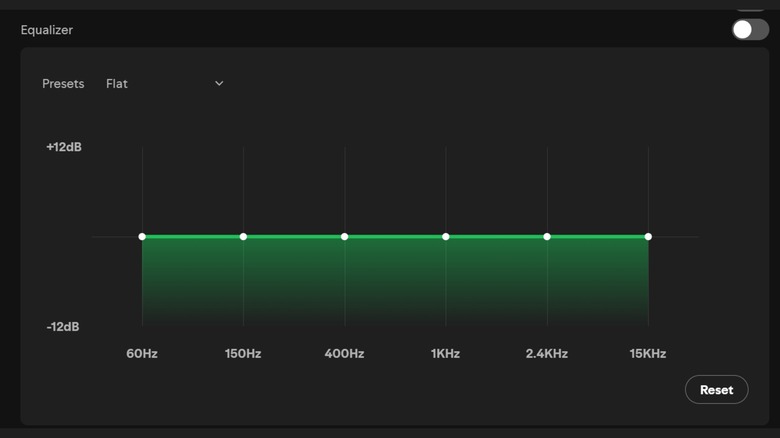
Your audio equalizer (EQ) is so important that we've called it "the one setting that's holding back your Android music." That might seem like hyperbole when it comes to a simple sound adjuster, but if you tune it right, the change can be transformative. An equalizer is a hardware or software filter that increases or reduces the prominence of specific frequencies in your music. It can be a simple one that just lets you adjust the level of bass, mids, and treble, or a full multiband equalizer that lets you fine-tune every frequency to suit your taste.
But an equalizer is a double-edged sword. If you adjust it incorrectly, your music can sound terrible. Even worse, if you stack two equalizers on top of each other, you can degrade your music quality even further. Spotify has a built-in equalizer feature, and if your phone or computer is also using a system-wide EQ, we suggest you adjust that one instead. Only use the Spotify EQ if your system's EQ is off.