

10 Reasons You Might Regret Buying An OLED Monitor
We may receive a commission on purchases made from links.
OLED (Organic Light-Emitting Diode) display technology is widely considered to be the premium way to paint a picture on a screen. Thanks to its self-emissive nature, OLEDs boast perfect black levels, incredible contrast, and nearly instant pixel response times.
Unfortunately, OLED technology has been expensive for most of its existence. At first, you'd mainly find OLED tech in small devices like flagship smartphones, but as production methods improved, larger panels became practical. Today, you can buy a 55" entry-level OLED TV for around $1,000. That's still a lot of money, but it certainly puts OLED technology within reach of many more people. OLED panels have also started finding their way into laptops and tablet computers.
However, it's taken a little longer for OLED desktop monitors to gain steam. Pricing was an issue for years, but now you can pick up a 27" OLED gaming monitor for well under $400. That can be mighty tempting, given all the perks of switching to an OLED display. However, if you do end up taking the plunge and purchase an OLED monitor, there's a chance you'll end up regretting it down the line. Here are the reasons that could happen.
Static desktop elements can eventually burn in
One of the classic, primary disadvantages of OLED technology is permanent image retention, commonly known as burn-in. This happens because static elements on the screen can cause a long-term voltage differential between OLED pixels, causing some to degrade faster than others over time. OLEDs lose brightness with age, so if they aren't run at the same rate on average, visible image elements can appear.
Thankfully, this area has been a major focus of continued development. In the early days of OLED TVs, burn-in happened with alarming ease, and people who used these TVs as PC monitors soon realized that elements like the Windows Taskbar could leave a permanent mark. Of course, it's fair to ask if modern OLEDs still suffer from burn-in, and the short answer is yes, they do. However, there are now many mitigations in place. These include advancements like a compensation cycle, where pixels have their voltage adjusted to compensate for uneven brightness. OLEDs may also have auto-dimming or pixel-shifting.
A new generation of OLEDs, called tandem OLEDs, stack multiple OLED layers and run each one at a lower individual brightness level. This setup may be more resistant to burn-in, but only time will tell. PC monitor use is a worst-case scenario for OLED technology since so much of a computer desktop is static for long periods of time, so you need to take as many precautions to prevent burn-in as possible, or your pricey monitor may fall victim to it in the long run.
You may feel compelled to baby an expensive monitor
This ties in somewhat with the burn-in issue, but depending on your sensibilities, you might feel compelled to walk on eggshells when it comes to using your OLED monitor, for the same reasons that people stick screen protectors and cases on their expensive flagship smartphones. So, in an effort to make your OLED last as long as possible, you might use it sparingly and run it at low brightness to minimize the chances of burn-in.
Likewise, you might shorten the screen sleep timer, set your Windows Taskbar to auto-hide, use a blank black wallpaper, and any of the many other mitigations that are passed around on forums by OLED owners. There's nothing inherently wrong with taking these steps, but all that tiptoeing around does somewhat undermine the basic concept of buying a premium product to get as much enjoyment from it as you can. It's like buying a Ferrari and then only driving it on Sundays and never on a track. In that case, you might as well have just saved yourself the money and bought a Honda instead.
If you're not going to have the confidence to use your OLED to its full potential and spend all your time worrying that you might be shortening its life, then you might also feel sorry you ever bought an OLED monitor in the first place. You'll definitely never get the full experience from your expensive display if you avoid opening it up and letting it roar.
OLED-protection features can interfere with normal use
The main reason that OLED makers feel confident their panels can now be used as computer monitors stems from the many different automatic protection systems that are built into modern versions of the devices. For example, some OLED monitors can detect static elements like logos and taskbars. The screen then selectively dims those detected elements to reduce the odds of burn-in. Since each OLED pixel is self-emissive, this is a smart trick because it only affects the parts of the image with those elements. You probably don't care if a logo or taskbar is dimmer than the rest of the image, but it can make things look inconsistent, which might bother some users.
We briefly mentioned the compensation cycle earlier, and this is another OLED protection feature that can be annoying depending on your usage pattern. Normally, the cycle, designed to automatically recalibrate your screen and even out wear patterns, runs overnight while the monitor is on standby. If you turn the display off completely, though, it will have to perform the cycle the next time you turn it on.
There are short cycles, which happen every few hours and run for a few minutes, and long cycles, which happen at intervals of hundreds or thousands of hours and can run for about an hour. So at some point your monitor will be doing serious maintenance on itself, and that can negatively affect your usage. Pixel shifting (where the image is shifted one pixel in any of the four directions) happens every two minutes or so, and some people claim they can see it happening. However, it's such a small shift in the image that most users probably won't notice it.
Full-screen brightness can be disappointing
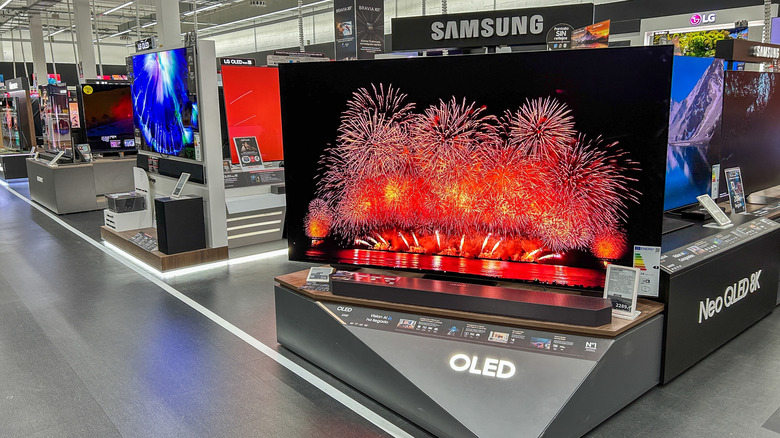
While OLEDs are known for their excellent color vibrance and extreme contrast, one area where these screens tend to fall short is total sustained brightness. Remember, an OLED's pixels each have to generate their own light, and there's no separate backlight to rely on. That's the secret to OLED image quality, but it's also why they can't get as bright as other screen technologies. This is one of the key areas where mini LED beats OLED. As mentioned before, tandem OLED panels somewhat help reduce this brightness deficit. However, tandem OLEDs are still a new technology and carry significantly more cost.
Most PC OLED monitors are not particularly bright, either, but since these displays are largely aimed at gamers and users who consume media like movies, it's not the biggest problem. These are activities that tend to take place in low-light environments, in which case a regular OLED should be fine. Quantum Dot (QD-OLED) and White Organic LED (WOLED) technologies both address the brightness issue to some degree, though QD-OLEDs can have blacks that look purple with too much ambient light. Meanwhile, WOLEDs can suffer from less saturated colors at higher brightness levels thanks to the addition of a dedicated white light subpixel. It can be a tough choice, so be sure to check out our guide on the pros and cons of WOLED and QD-OLED.
Brightness may change when you resize a window

We mentioned potentially annoying protection systems already, but one of them is so significant that it deserves to be singled out. It's called ABL, or Automatic Brightness Limiting, which essentially causes the TV or monitor to reduce its overall brightness level as you increase the area of a bright object on the screen. A white window is a good example. At a small size, it might appear quite bright against the rest of the image, but as you bump up the size, it becomes conspicuously dimmer and dimmer.
Now, any type of TV can have ABL, but aggressive ABL is typical of OLEDs. It might not be as noticeable when you're playing a video game or watching a movie, but it's a different story on a computer. If you're using an OLED monitor to do typical desktop work, the act of resizing a bright window is extremely common, which means you might see constant brightness fluctuation as you go about your business.
One way to cut down on this is to use your operating system and apps in dark mode where possible. It's a useful setting to reduce eye strain anyway, so perhaps it might turn out to be a good change for you regardless. However, if you prefer your windows and apps to be an eye-searing white, then an OLED might be something you end up regretting.
Text may not look as clean as it does on an LCD

When users first moved from CRT monitors to LCD displays, there was an immediate issue with how text looked. Specifically, it often appeared odd and fuzzy. This is why Microsoft invented ClearType, which allows the OS to access an LCD screen's subpixels directly, paving the way for much sharper and more readable text. We bring this up because it's a great example of how the underlying technology of a screen can affect how text looks, as well as its readability.
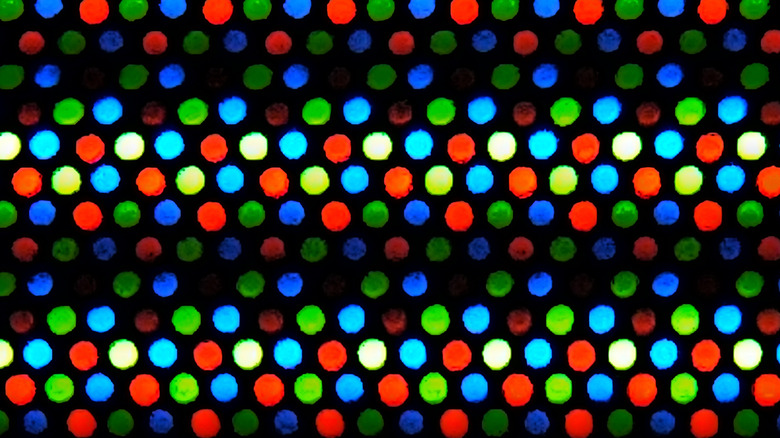
That brings us to the issue of OLED fringing. When this happens, text can show a colored halo around its high-contrast parts. The type of OLED and its subpixel design influence what fringing looks like. QD-OLEDs, for example, have a triangular subpixel layout which tends to produce magenta and green halos around the edges of text and some UI elements. WOLED panels, on the other hand, can show yellow fringing thanks to that extra white subpixel we talked about earlier.
Not all OLEDs have visible fringing. Generally speaking, the higher the pixel density, the less visible the halo effect. Likewise, some OLEDs have subpixel arrangements that mitigate fringing. So if you haven't bought an OLED monitor yet, you might want to look up how bad the fringing is on any models you might be considering as part of your research. If you already have an OLED monitor and you're using Windows, you can run the ClearType Text Tuner to try and reduce fringing, though you will likely never eliminate it completely this way.
Variable-refresh-rate flicker can spoil dark games
You might have heard gamers discussing OLED monitors and TVs refer to an issue known as OLED flicker. However, this is a problem that goes beyond OLED alone, and OLED flicker is actually just VRR flicker. What is VRR? Modern TVs and monitors often feature VRR, or Variable Refresh Rate technology. This is a gaming-specific feature where the display can change its refresh rate on the fly to match whatever the game is outputting. By doing that, the screen smooths out motion artifacts. On a non-VRR display, if a game dips from 60 frames per second (fps) to 55 fps and back again, you'll experience this as a lurching sensation in game smoothness. With VRR, you probably won't notice it at all — but frequent changes in frame rate can also lead to frequent changes in brightness and gamma (the transition between black and white tones).
So if VRR flicker can happen to any type of VRR display, why are OLEDs singled out? The short answer is that it seems to affect OLEDs and LCD VA panels the most. Rapid or large refresh rate changes in some OLEDs cause fluctuations in the black levels, so it looks like the screen is rapidly pulsing.
Unfortunately, if you have an OLED that's prone to VRR flicker, your options to address it are limited. Some monitors have an anti-flicker feature, but if yours doesn't, you might notice that flickering only happens in a certain frame-rate range. In that case, you might be able to tune your game settings to keep your frame rate in the flicker-free window. Failing that, you can always turn VRR off, but it's a major benefit of having a modern monitor in the first place.
Shadow detail can get lost in perfect blacks

OLEDs can achieve perfect black levels because each pixel can switch itself off, emit no light, and therefore look completely black. This is maybe the biggest selling point of the technology, but what if you need that pixel to be not-quite black? It turns out that some OLEDs have a bit of a "black crush" problem. This happens when a screen has trouble showing subtle details within dark areas of a scene. So in a dark movie or game, all of the near-black detail gets crushed into a sort of dark smudge.
To be clear, black crush is not an issue that's limited to OLEDs. Any display can have a black crush problem. It's just that you might have bought into OLED technology because of those so-called perfect blacks under the assumption that this means all of these screens can handle detail in dark areas well. Some OLEDs certainly can, but if you didn't look for this issue before purchase, you might end up with an OLED that doesn't offer the dark scene image quality you were expecting.
This is also another issue that you can't really completely fix through monitor calibration. OLED manufacturers are the ones that need to do the under-the-hood work to ensure that their panels can differentiate the subtle levels of near-black that dark movie and game scenes have, so it makes sense to do your homework before making a purchase.
Instant response times can make low-frame-rate video look choppy

LCDs work by physically changing the orientation of microscopic crystals, thereby altering the light passing through them from the backlight. If the crystals can't respond quickly enough, the transition isn't finished in time for the next screen refresh. This causes motion blur on the screen as you see intermediate states of the pixels.
LCD technology has improved a great deal over the years, and so this pixel response time is now quite snappy. Good LCDs have a response time usually between one and five milliseconds, so blur is present but minimized. OLED technology blows that out of the water, with pixel response times measured in fractions of a millisecond. So as far as your eyeballs and brain are concerned, the change from one frame to the next is instant.
That may sound like a good thing, but it means low frame-rate content, such as movies at 24 fps, can stutter during certain types of camera motion, including panning shots. Technically, this is because the OLED actually shows you the 24 frames each second properly separated without them being smeared together, but to your eye it looks like the motion is skipping. You're now seeing the actual gaps between the frames. This is true at every frame rate, but for content like 60-fps video games, those motion gaps are too small to see. A low level of motion-smoothing can help without spoiling that cinematic look, and you miss out on that with low-fps video on an OLED monitor.
Burn-in warranty coverage is not a given

What if the worst happens, and your OLED monitor starts having serious burn-in? Surely, if you're still under warranty, then you'll be covered, right? Not so fast! The exact terms of the monitor's warranty need to include image retention as something that's specifically covered if you want burn-in relief.
Some manufacturers, like ASUS and MSI, have added specific coverage for burn-in to their respective warranties, separate from other types of failure that would usually be covered. The warranty situation is a little reminiscent of the early days of LCD monitors and dead pixels. Today, dead pixels are considered a sign your LED LCD is failing, but years ago, dead pixel warranty policies would specify that you were only eligible for a replacement or repair when your screen had more than a certain number of dead pixels, or dead areas near the center of the screen. As the manufacturing technology improved, zero-tolerance policies became more common.
OLED image retention is a slightly different beast, however, since it can be caused by user error, which might explain why OLED makers have been reluctant to offer buyer protection. However, as protection technologies and OLED design itself have improved, newer models seem to instill enough confidence for at least some manufacturers to include a few years of burn-in protection.