

5 AMD Adrenalin Settings GPU Owners Should Change Right Away
If you are a gamer or work in an industry that requires heavy-duty computer graphics rendering hardware, odds are you own a PC or laptop with a dedicated GPU. Most people spring for Nvidia, but plenty of customers buy (or switch to) AMD graphics cards. Comparing the two brands is like picking between apples and oranges, especially when it comes to their software interfaces.
Every computer that comes with an AMD graphics card includes the proprietary software suite known as AMD Software: Adrenalin Edition (or just AMD Adrenalin for short). The app also downloads automatically when you install an AMD GPU in your computer. This program lets you tweak various settings within your PC and in games on a case-by-case basis. Some settings are enabled by default, while others are for more computer-savvy users or those with specialized needs (e.g., the Color Deficiency Correction setting helps people with various color blindness conditions see their screens more clearly).
While AMD Adrenalin defaults to settings that benefit the average user, like the Nvidia app, you should change some settings ASAP. Some of these options aren't as universal as AMD would like, while others benefit gamers who want more specialized experiences. Read on to learn about these settings and how to change them.
Refresh rate
How many frames per second can the human eye see? Some people say we can't see beyond 60 FPS, but most modern computer monitors ignore this myth. However, a monitor's advertised refresh rate (how many times per second it updates its displayed images) is only half the equation. You need to make sure that a computer's output matches the display.
Cheating a bit with this entry, but whenever you connect a new monitor to a computer with an AMD GPU or vice versa, you should first ensure that your computer is taking full advantage of the max refresh rate. Higher refresh rates not only smooth out movement when you reorient windows on your monitor, but also let you play games at higher frame rates. Even if you set your FPS to 120 or 240, if your monitor caps at 60 Hz because of a setting, the game will display only 60 FPS max.
Normally, AMD chipsets detect a monitor's max refresh rate and automatically adjust their output to match. However, sometimes the program doesn't work, and you need to go into your PC settings to fix the problem. We say this entry cheats a bit because, unlike the Nvidia app, you can't change the refresh rate in AMD Adrenalin. Open your computer's Display settings. Then click on "Advanced display" and use the dropdown menu next to "Choose a refresh rate" to ensure the refresh rate is to your liking — and matches the refresh rate advertised on the big gaming monitor you just bought. Take care to avoid the settings with asterisks next to them, as they will muck up your resolution.
FSR Upscaling
Screen resolution has downright exploded thanks to advances in pixel technology, but these breakthroughs are a double-edged sword. New games and shows look sharper than ever, but anything that predates HD technology looks fuzzy unless you use built-in upscaling technology. Depending on the games you play on your AMD computer, you may need different upscalers.
FidelityFX Super Resolution, or FSR for short, is AMD's standard upscaling technology. This feature sharpens images and makes them clearer without heavily impacting framerates. In fact, depending on optimization, some games might run better with FSR. Normally, FSR should automatically upgrade older FSR versions in games (i.e., FSR 3.1) to the latest implementation. Just ensure "AMD FSR Upscaling" is toggled in the "Graphics" tab of the "Gaming" window in AMD Adrenalin. Unfortunately, no two games utilize FSR upscaling the same way. Some titles have unique settings for different FSR versions, while others just implement FSR in the background so long as you activate FSR for anti-aliasing and upscaling. You might have to scour different graphics settings to find what you're looking for.
The beauty of PC gaming is that all titles are backward compatible. You might need to tweak your rig to get older titles running, but they should work with enough time and elbow grease. However, many of these retro titles (and even some more recent games) aren't compatible with FSR, but you can still upscale them with built-in, albeit older, technology. If normal FSR doesn't work, open AMD Adrenalin's Gaming window, go to the "Games" tab, select the title you want to upscale, and click the dropdown menu next to "Radeon Super Resolution." Select the option you want, and AMD will do the rest.
Color depth and pixel format
If you play games on an Xbox Series X or PlayStation 5, you often need to make a choice: Do you prefer higher framerates or higher screen resolution? Consoles don't have enough graphical rendering power to do both, but PCs do. However, even with the most powerful AMD hardware, certain monitors might make you face a similar, but ultimately different, problem.
GPUs and their drivers determine color and resolution settings by telling pixels how much memory to use and how to orient. These are known as color depth and pixel format, respectively, and their settings are simultaneously separate and intertwined. The more bits you use in color depth, the more vibrant the color, but some monitors don't work well with all depths and might default to a pixel format that uses color compression. You don't want your graphics to go artifacting on you if you can help it.
While color depth matters, for the best viewing experience, use the setting that enables a 4:4:4 pixel format, which keeps every color uncompressed and preserves its own brightness. Open the Settings menu in AMD Adrenalin, then open the "Display" tab. Ideally, set Color Depth to "10 bpc" and Pixel Format to "RGB 4:4:4 Pixel Format PC Standard (Full RGB)." AMD usually applies these settings automatically, but if AMD Adrenalin doesn't offer these options, reduce color depth to enable 4:4:4 pixel format. Some AMD GPUs might default to "YCbCr 4:4:4 Pixel Format" instead, but it's just as viable so long as you tweak settings using the Lagom Black Level Test.
Sidebar overlay
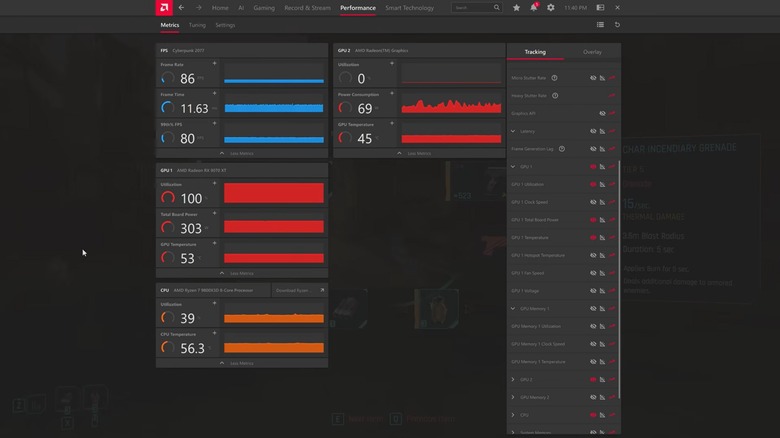
While most PC gamers just want to enjoy their Steam and GOG libraries, some want to make sure they're using their computers' resources to the fullest. If framerates dip, where and why? Is the game pulling too much RAM? AMD Adrenalin has a built-in system that lets you monitor these factors, but you can only get the most out of it if you tweak the right settings.
AMD Adrenalin includes a built-in overlay that lets you monitor your computer and even activate certain settings (such as FSR) on the fly. Hold down the "Alt" key and press "R" to bring it up, then change any settings you want. More importantly, the "Performance" tab shows what resources a game is utilizing and how much. You can customize which metrics you want to see by toggling the eye-shaped icons on the right side under "Tracking."
If you don't want to pause your game to monitor CPU and RAM usage, activate Sidebar mode. Open the overlay as normal and click the button next to the "Close" icon in the upper-right corner. It should look like a left-facing arrow inside a window. Now you can scroll through the settings without taking your eye off the game. But if you want live performance updates during a gaming session, go back to "Performance," select "Overlay," and toggle "Enable Metrics Overlay." Now AMD Adrenalin will tell you how many CPU cores a boss uses while you're actively fighting it. Depending on your monitor and the game, you will probably need to explore different settings, such as "Location" and "Columns," to create the ideal overlay setup. Don't forget to toggle "Game Detection for Metrics Overlay" so AMD Adrenalin hides the overlay when you aren't gaming.
Recording settings
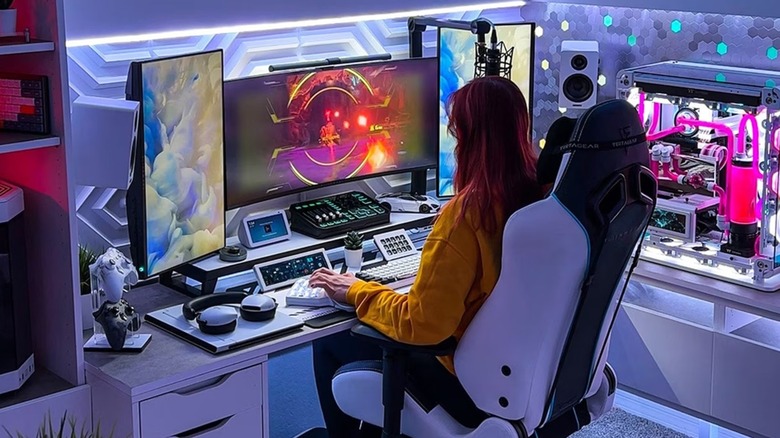
Recording gameplay for videos and streaming live to Twitch are easier than ever. Plenty of accessories can streamline the process, and there are plenty of apps that serve as complete video recording/streaming suites. Even AMD Adrenalin provides an entry point to the world of game streaming ... after you read the instructions, of course.
Before you start in AMD Adrenalin, you will want to change a few settings that affect how the program records your gameplay. You can find these in the "Record & Stream" window under the "Settings" tab. The most important options are "Recording FPS" and "Video Encoding Type." If you plan to post your video on YouTube, set the FPS to "60 FPS." Even if your computer can exceed those limits, YouTube itself cannot. "Video Encoding Type" lets you save recordings in one of three formats: AV1, AVC, and HEVC. AV1 offers the best compression but is slow to edit and doesn't work on all platforms. AVC, meanwhile, is easy to edit but provides comparatively inferior quality. While you enable "Enhanced Filtering to improve AVC video fidelity, gaming performance will take a hit. That just leaves HEVC as a middle ground between the two, with better video quality than AVC and a smoother editing experience than AV1.
Once you have tweaked the settings to suit your needs, you can record gameplay by opening the program's "Record & Stream" window, selecting the "Record" tab, and clicking "Start Recording." Alternatively, use the "Ctrl" + "Shift" + "E" shortcut to automatically begin and end a recording. If you aren't into streaming or recording, you can safely ignore these settings.