

12 Hidden Router Features That Can Replace Apps On Your Phone
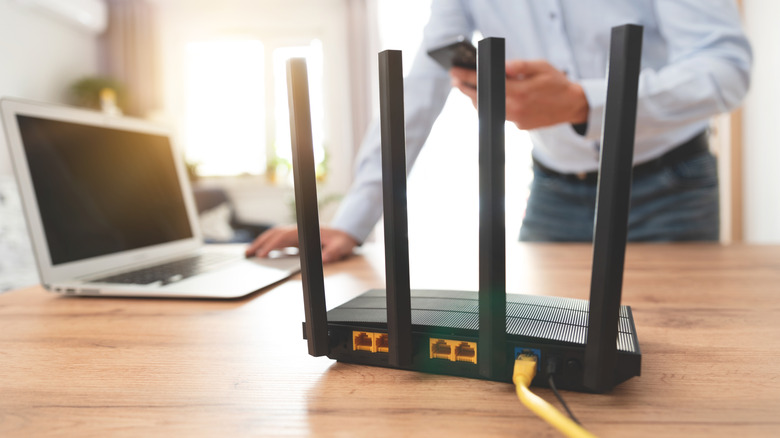
Most people only touch their routers when they need to turn them off and on again following an internet outage, but there's far more utility to those boring plastic boxes than meets the eye. A modern router is more than a simple networking device; inside, it has an operating system, a CPU, RAM, and even storage, just like laptops and desktop PCs do. In fact, if you never bother to restart your router, it can get slower over time or even crash (sound familiar?).
Some more expensive routers, or ones modded with custom firmware, can even run third-party apps and services, provided they have the RAM and the processing power to do so. There are many cool things you can do with your router, and with certain key features that are accessible through its admin interface, you can even (partially or entirely) replace some of the networking, cybersecurity, and even streaming apps you may be using right now on your phone — including paid ones.
Network-wide ad blocking can replace ad blocker apps

Nobody likes ads — sure, there are mobile apps that can block them, but what if you could do away with ads across your entire home network to make every device on it ad-free? Well, you can. That would include your phone while you're connected to Wi-Fi, meaning you'd only ever have to use cellular ad-blocking apps on mobile data.
One way to set this up is by using a Raspberry Pi as a network-wide ad-blocker with software like Pi-Hole. This is a popular beginner Raspberry Pi project, and it's great to try out if you have an old Pi lying around. However, your router might already support this feature natively, and it works similarly; both the Pi-Hole software and router-based ad-blocking use DNS filtering to prevent data from known ad servers from reaching your home network.
A good example is the AdGuard DNS feature, which now comes bundled with Wi-Fi 7 routers by Asus, which also happens to have some of the longest software support for its routers. Once you have that set up, the router can block ads, trackers, malware, and phishing scams, adding another layer of protection atop apps like AdGuard for Android. It also allows you to implement parental controls that only those with the router password can modify. This isn't a common router feature, though; you're more likely to find it on high-end, standalone routers or mesh Wi-Fi systems, which consist of several compatible routers that work together to boost coverage across your home; with this system, you're less likely to lose coverage on your Wi-Fi devices because the distributed mesh units hand each other data transmission duties as you move around!
Built-in parental controls can replace family safety apps

DNS filtering is a powerful parental control on routers. For instance, TP-Link — which many users consider to be the best major Wi-Fi brand — has a HomeShield feature that allows you to create individual, tailored profiles for your children. HomeShield has a neat feature that can prohibit users from disabling Google SafeSearch or YouTube's restricted mode, although it does require a subscription. Most modern routers also allow you to blacklist specific websites manually, which is an essential feature on routers that can't automatically block domains known to be inappropriate for children.
Even if features on your router aren't explicitly listed as "parental controls," you may find clever ways to use them as such. For example, if your router can be controlled by an app, you can turn Wi-Fi off manually when family time begins (or even schedule it to prevent late-night or early-morning browsing when your children are supposed to be asleep). Your guest network could also be configured to prevent your kids from accessing your home printer or your network-attached storage (NAS) content, for instance.
Your router's VPN server can replace remote-access apps
Many third-party mobile apps let you access your home computer remotely, but you could instead run your own reliable VPN server and securely connect to your own LAN as though you were at home on an Ethernet connection. Some Asus routers, for instance, can run a WireGuard VPN server. This creates a tunnel back to your home network, which means you can do things like access your NAS, Plex server, or even apps like TeamViewer or RustDesk remotely.
The word "VPN" is commonly associated with paid services that route your internet traffic through a remote server, but with the right tools, anyone can set up a VPN with strong encryption. Using your own VPN is not the same as using a paid VPN service to mask your location, however. With the former method, any browsing you do on connected devices would appear as though it's coming from your home's IP address — no matter where you are — since your router remains the endpoint. It does allow you to hide traffic from your mobile provider and access websites as though you were at home, though. This could come in handy for things like online banking during travel, assuming your bank allows it. Internet access with your personal tunnel back home doesn't work by default, though; you'll have to configure what's known as a "full tunnel," or VPN access will be limited to your LAN devices only.
A router VPN client can replace VPN apps on every device
Using your router as a VPN endpoint is a neat trick, but you can also use it in the opposite fashion by having it act as a VPN client itself. Typically, paid VPN services work on several operating systems, but they might limit the amount of device connections you can make. Instead of installing a VPN app on all your devices, you can set up the functionality on your router and have your paid subscription apply to all devices connected through the router.
If you have a router that can act as a VPN client, it can act as a single connection to your paid VPN, and any device you want to use on your VPN just needs to connect to your router, as usual. This means that, when you're at home on your own Wi-Fi network, you won't have to use your VPN app. You could also completely remove any VPN apps from devices that never leave your home, like streaming boxes or desktop PCs.
Even if your router doesn't appear to have VPN client functionality, you might not be out of luck. Some routers are capable of supporting features that manufacturers have disabled or omitted for one reason or another. If you can install custom firmware like OpenWrt on your router, then you should be able to set up a VPN client on your device, even if it hadn't come with its stock firmware.
Guest Wi-Fi can replace password-sharing apps

There are plenty of ways to share your Wi-Fi password with guests, like with built-in Wi-Fi password sharing features on Android and iOS. But whether your guest is a friend or a complete stranger, it's a risk to give out your primary Wi-Fi SSID password freely. Once someone has entered your network password on their device, they could potentially access other devices on your LAN. This could even occur unintentionally; if your guest's phone or laptop is infected with malware, it could spread to your LAN without them being any the wiser.
So, in lieu of sharing any passwords at all, see about setting up a guest network on your router. Doing this creates a separate SSID with a separate password — write it down on a notice board for your fridge, if you like. This secondary guest network is completely isolated from your LAN and the devices connected to it. On a guest network, your router creates a tunnel that only allows communication to and from the internet. You can also use this feature to isolate devices that don't need to connect to anything else on your network. Your smart TV, for instance, doesn't need access to your smart cameras or Wi-Fi printers. Lump them all into a guest network and let them phone back home without browsing your NAS or Windows network shares.
Router-based file sharing can replace basic cloud storage apps
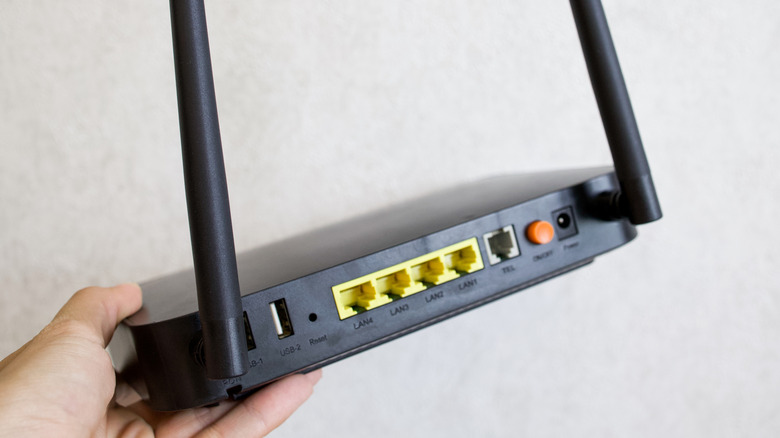
It's not uncommon for routers to have a USB port or two on the back. There are several clever uses for USB ports on routers, and if your cloud storage needs are modest, you could plug a USB hard drive (or even a smaller flash drive, for that matter) into the router to create a shared network drive that most of your devices should be able to see. Your phone's file management app should show you this drive while you're connected to your LAN. If it doesn't, there are third-party file explorer apps that do support shared network drives. This feature also works with the VPN server functionality we highlighted earlier; after all, if you're using a VPN to tunnel back to your home, you can see everything on your LAN.
Some routers offer more advanced sharing functionality out of the box. You might have the option to create an FTP server for your attached storage, meaning you could use an FTP client of your choice to access your files. Your router's USB port might have other cool use cases, too, like being able to host a compatible USB cellular modem that can act as an automatic fallback if your main internet connection goes down. If your router supports it, you could even turn an old USB printer into a networked printer, with the router acting as a print server. It's not a perfect replacement for apps like OneDrive or Google Drive, but it can be a powerful additional storage option for your phone and other devices.
A router's media server can replace streaming apps

Self-hosted media streaming services like Plex, Emby, and Jellyfin are awesome, but setting them up does require some technical know-how and, in some cases, additional hardware. However, in many cases, you can set up your own at-home streaming service using nothing but your existing router and a USB drive.
If your router has a USB port and supports sharing a network drive, it may also support DLNA. This is a basic and widely supported protocol to serve media over a network. All you have to do is organize your media files in folders — such as "Movies" or "Vacation Videos" — then share those folders using your router's media server configuration interface.
If your USB drive is networked, you should be able to push or delete files to it remotely, too. Just bear in mind that your router may not be able to support more than one drive, even if it has two USB ports; the secondary port may be reserved exclusively for things like USB modems or printers. DLNA streaming won't keep track of what you've watched or give you lots of metadata like Plex does, either, but it's fast and free!
Built-in security scanning can (sort of) replace basic antivirus/security apps
Many malware infections spread directly through the internet, oftentimes when users download infected programs or click on sketchy links in an email. However, infections can also happen without you doing anything "wrong" at all. That's why every internet-connected device needs strong protection against malware. Luckily, operating systems like Windows and macOS already come with some form of anti-malware protection, though it's advisable to add layers of protection using programs like Malwarebytes — or your router itself.
Every home router has a basic firewall designed to block incoming connection requests that you haven't explicitly allowed, such as when you perform port-forwarding. Some modern routers have sophisticated anti-malware features built into them. For example, the aforementioned HomeShield feature on TP-Link Deco mesh routers can block malicious websites before they can even reach your system.
Mesh routers may ask you if you want to set up malware protection when you initially hook them up. If you skipped that step — or if you were never prompted to do it in the first place — it's worth checking whether your router supports the feature, although setting it up may require a subscription. While enabling a basic router firewall can't remove existing malware from your computer, doing so can help prevent malware from infecting you in the first place, which we can all agree is a benefit.
Per-device traffic monitoring can replace data usage apps

If you find that your internet connection sometimes slows down for no apparent reason, it's possible that hardware like gaming consoles or laptops are hogging your entire data pipe. Individual devices can usually report their own bandwidth usage since the last time they connected to your network via Ethernet or Wi-Fi, but it's more reliable to use an app designed for monitoring bandwidth usage to see if anything strange is happening on your network.
However, using a dedicated app to check all your devices' bandwidth usage is a bit of a time sink, and doing so might not give you all the details you need. What if the culprit is a device you'd never suspect? Worse, what if a device that doesn't even belong to you is connected to your network and stealing your bandwidth? Luckily, your router can see every device that's connected to it, how much internet bandwidth each one uses, and when each one was most recently connected to your network.
Depending on your router model, though, you could have weeks or months of data to scroll through. Modern, more sophisticated routers often let you check total bandwidth usage with a graphical interface, thereby letting you narrow usage down to individual devices. You can even view devices in order of which ones used the most data. You can not only blacklist any devices you don't recognize, but you can also adjust the settings on devices you do recognize so they use less data.
Quality of Service can replace gaming and bandwidth-management apps

You may have come across "game optimizer" apps on mobile app stores, and on PC, there are apps like PingFast that promise to optimize your device's connection, reduce lag, and even increase speed. However, no matter what an app promises, it can't control the bandwidth that's coming from your ISP. Sharing your bandwidth to all the devices in your home is practically a router's entire job description, but in most cases, you can control how it does that rather than trusting it to give all your devices a fair share of the bandwidth pie.
Modern mesh routers make it quite easy to do this. In most cases, if you hop into your router's app, you can set the router to various modes. If you don't play many online video games, for instance, you can set your router to prioritize streaming apps. If you do end up downloading a massive game that needs to take up a lot of bandwidth, your router will still ensure your streaming services keep running.
Many routers, even older ones, have basic QoS (or "Quality of Service") settings, but it can be a little complicated to set them up on basic or outdated units. You can also typically prioritize bandwidth by device. For example, you can put your personal laptop high up on the priority list so your kids' device usage doesn't affect your work-from-home performance when they're playing "Fortnite" at all hours of the day.
Device blocking can replace Wi-Fi scanner apps
Network-scanning apps can tell you what else is on your network with you. They're useful for when you're on an unfamiliar network, such as public Wi-Fi, and want to sniff around to see who's also on the LAN. They can't reveal everything, but when you're at home, you've got access to your router; if it's a moderately modern model (say that three times fast!), it should expose a list of connected devices. Some models alert you every time a new device connects to the network, which means you can immediately open up the router interface, see the list of recently connected devices, and then ban whichever ones you don't recognize from your network.
Many routers' companion apps can also act as Wi-Fi scanners for home networks and take action against intruding devices. The amount of detail you can see about unrecognized devices depends on your router model, though — if your router only offers basic information, then you may still need to use one of those network sniffers to get fine-grained information. But, at the very least, you can execute quick and easy one-and-done device bans directly from the source.
Dynamic DNS can replace remote-access services
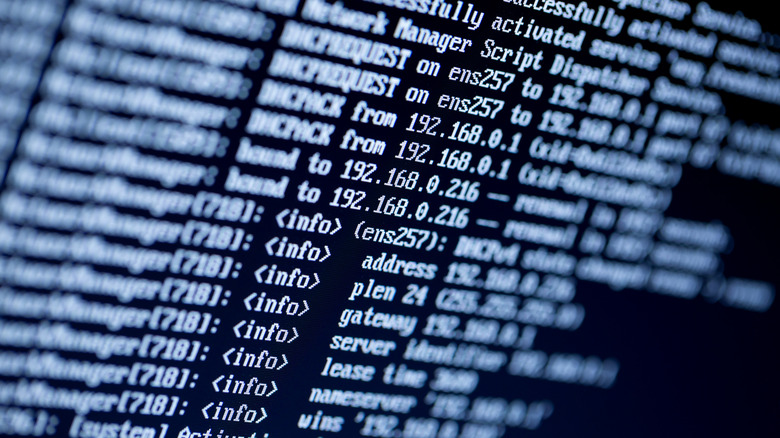
IP addresses make the internet go 'round. They're the unique addresses that tell a network where a physical device is located, whether a laptop, a phone, or a server. Your router has a public IP address that the internet can see, but it also assigns private IP addresses to your LAN devices. Its job is to route internet packets addressed to specific devices on your network to the right place. When a game-downloading service sends data to your router, it doesn't know which device is receiving that data. It just sees your router and the information associated with it.
If you want to access devices on your network remotely, you generally need a "static" IP address. Here, you pay your ISP to assign you a fixed IP address that's reserved for you. Most people, however, have internet plans with a "dynamic" IP address, meaning their IP addresses are reassigned every now and then. While dynamic IPs are better on the security front, they make it hard to secure consistent access to remote video streaming or NAS devices.
One third-party solution is having a client app on one of your at-home devices check your IP address at set intervals, then update the IP on file with a cloud-based middleman. But if your router supports Dynamic DNS, you might not need to pay for a remote access service like that at all. TP-Link, for example, has a free DDNS service that can pair well with using a VPN.