

10 Ways To Use Your Apple Watch When Traveling Abroad
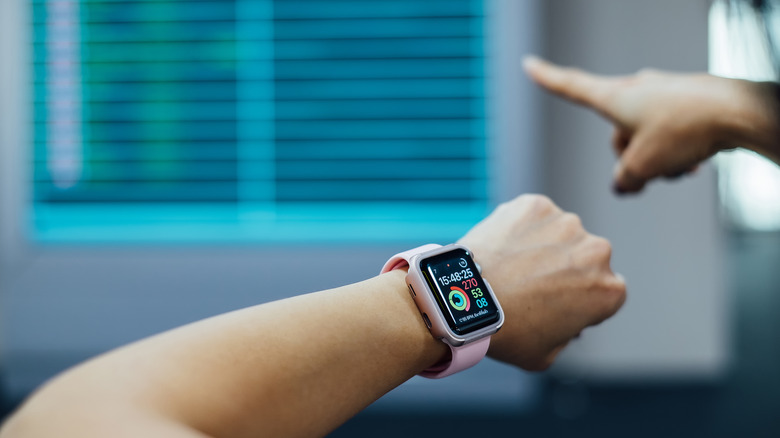
The Apple Watch is packed with all kinds of features that make it an excellent companion to the iPhone. It's great for staying on top of your notifications, and it's a fantastic fitness tracker for monitoring your health metrics to boot. However, it also has some lesser-known capabilities that you should take advantage of if you're going international.
The usefulness of the Apple Watch extends beyond your usual stomping grounds, as it's also a compact travel gadget that can make your vacation or business trip go smoother. With the wearable device on your wrist, you'll be able to acquire information that you need, confidently move around unfamiliar areas, and keep yourself safe, among other benefits. Some of these features will require an internet connection, either through the Apple Watch itself or via your paired iPhone, but that's an easy solve with the myriad ways you can get online abroad.
If you're heading out of the country soon, read on to see how you can maximize your Apple Watch while you're abroad. We've identified 10 ways to use your Apple Watch when traveling abroad.
Keep track of your flight
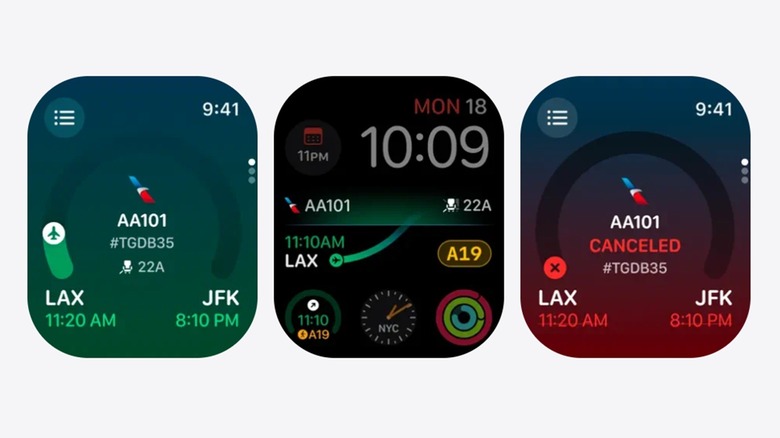
Before you even set foot in a foreign country, the Apple Watch will already be able to help you out. It's not just one of the useful gadgets for passing time at the airport because of the various entertainment apps that you can load into it. The watch will also allow you to keep track of your upcoming flights.
Through apps like Flighty and Flightradar24, you'll be able to see all the details of your flight, including its route, estimated departure and arrival times, and perhaps most important of all: delays. This means you won't have to keep getting up to take a look at the flight information display system, as the data is all available on your wrist. You can also download these apps on your iPhone, but if you get them on your Apple Watch, you can keep your phone charged and in your pocket or to play games and watch shows without any interruptions.
Store boarding passes and tickets
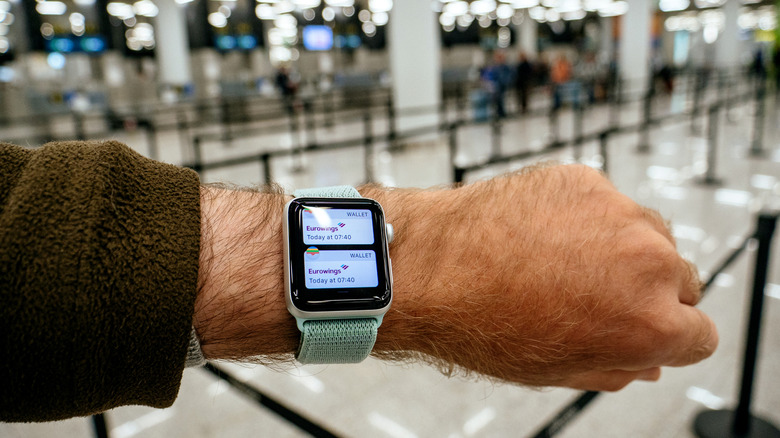
There's simply no need for physical boarding passes anymore if you have an Apple Watch. This is because many airlines will allow you to add them to the Apple Wallet, where they will be updated automatically if there are changes in your gate number or boarding time.
To add a boarding pass to your Apple Wallet, simply access the app, email, or message that contains it, either on your iPhone or Apple Watch, and choose to add it to the app. The pass will appear on the wearable device's Smart Stack based the time or your location, but you can also launch the Wallet app to bring it up.
The boarding pass isn't the only travel-related item that works with the Apple Wallet. You may also be able to store tickets for various modes of transportation wherever you're visiting. Once that's set up, instead of having to take out a physical ticket or your phone, you can just tap your Apple Watch on a scanner to gain entry.
Beat the time zones
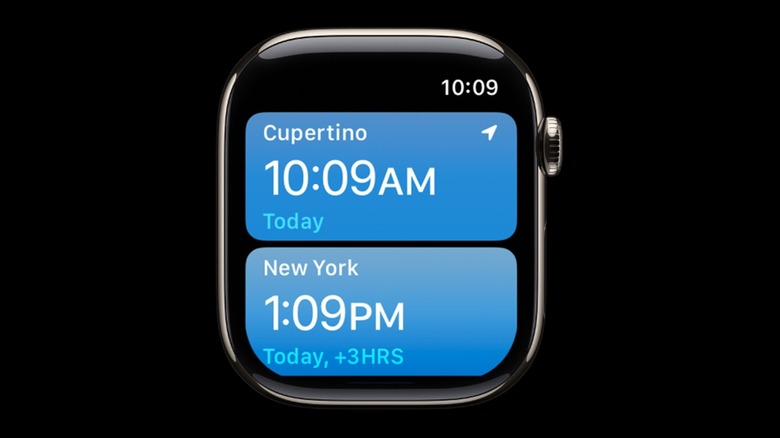
One of the major adjustments that you need to go through when traveling abroad is the difference in time zones. While you may have to wait for your body clock to straighten itself out, at the very least you won't have to change the time on your Apple Watch if you choose the Set Automatically option in Date & Time under Settings.
Things become a bit more complicated if you need to know the time in the country you're visiting and your home country — for example if you need to attend a business meeting on home time or you want to make sure that you're not calling your family too early or late. The Apple Watch's World Clock app will help with that, as you can add multiple cities and see the times in various places at a glance.
Alternatively, you can have your Apple Watch always show the time in a specific city by adding a World Clock complication to the watch face. If you touch and hold the device's screen, tap Edit, and swipe all the way to the left, you'll see if your current watch face supports complications. If it does, you can tap on the complication, turn the Digital Crown to select World Clock, and save the changes.
Monitor the weather
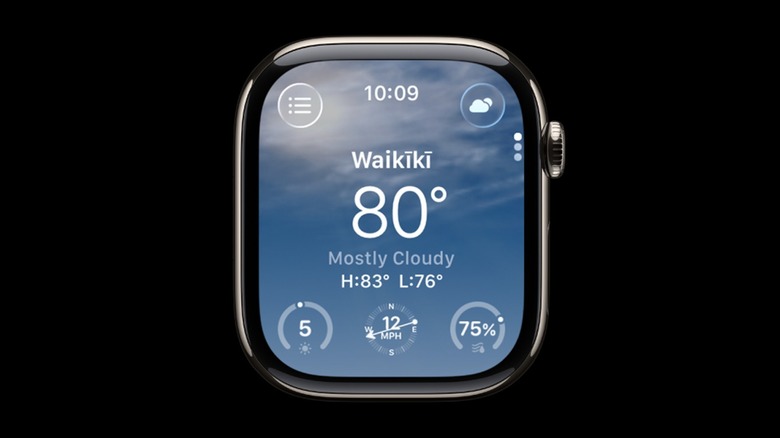
As long as you have Location Services turned on with your Apple Watch, you'll be able to access local data on the wearable device's Weather app. Not only will you see current information such as the weather conditions, temperature, and humidity, but you'll also be able to view forecasts for the next 12 hours and 10 days by scrolling down from the app's main screen. The Weather app may also display alerts if severe weather is expected at your location.
Having access to weather information for the country and city that you're visiting is important so that you can properly plan or adjust your itinerary for each day. If you have your itinerary in your iPhone, then accessing the Weather app on your Apple Watch will make it easier to change things. It will also allow you to quickly check if there are any changes in the forecasts, without having to take your phone out of your bag or pocket if you're in a crowded place.
Translate sentences
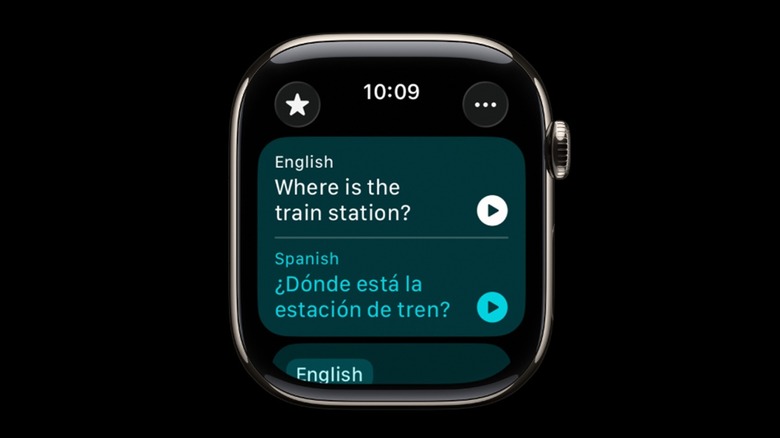
You can translate many languages on your iPhone, and you can do the same thing on your Apple Watch. After opening the Translate app on the smartwatch, you simply select the language you want to translate to, then tap the microphone button to say a phrase. You can do this to translate a conversation with a person, like when you're ordering food at a restaurant or asking for directions. You can replay the translation by pressing the Play button, and you can save the translation if you think you'll need it again by swiping left and tapping the Star button.
For areas with a spotty internet connection, you also have the option of downloading languages so that the Apple Watch can still translate for you. This is only available for the Apple Watch SE 3, the Apple Watch Series 9 and later, or the Apple Watch Ultra 2 or later, but if you own one of these models, this is a very helpful travel feature.
View maps and get directions
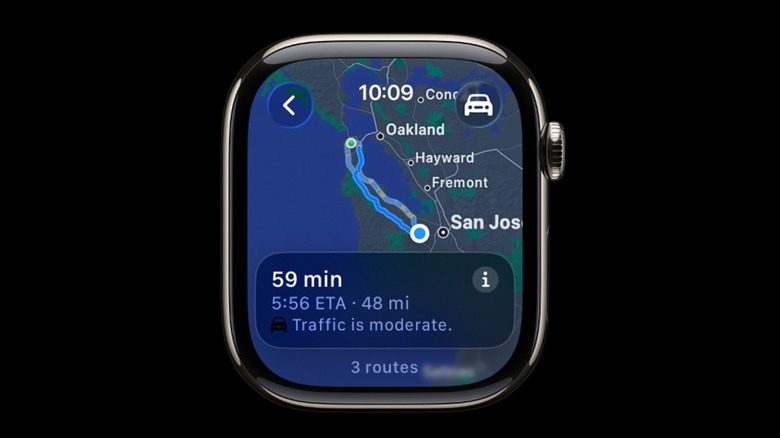
To get directions to destinations such as a tourist spot or a conference center, you can use the Apple Maps app on your Apple Watch. After searching for the place you want to go to, you can choose whether you'll be driving, cycling, walking, or taking public transportation. You'll be able to check out the route suggestions by turning the Digital Crown, and you can tap a route to see more information.
Similar to the Translate app, you'll still be able to use the Apple Maps app if you're offline by downloading maps and routes on your iPhone while you're at the hotel or wherever there's an internet connection. You'll then be able to see them, including turn-by-turn directions, on your Apple Watch as long as your iPhone is within Bluetooth range by tapping on the Search icon, on your picture or initials, then on the Offline Maps option. You can also turn on Sync with Apple Watch in this menu so that you can also access the maps even when your iPhone isn't nearby.
Explore without getting lost
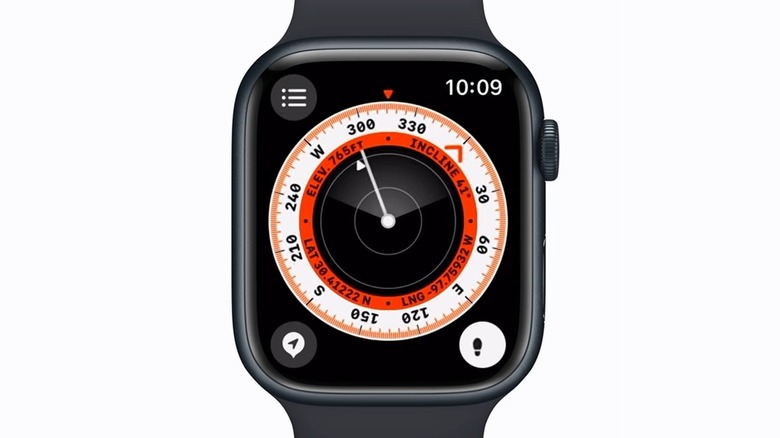
Just because you're in a new place, doesn't mean you need to be scared to explore. If you're worried that you might get yourself lost, you should take advantage of one of the Apple Watch safety features found in the Compass app.
To activate the feature, launch the Compass app in your Apple Watch, then tap the icon at the lower right that looks like a line connecting two dots. You can then start Backtrack by selecting Record Path. Once you want to go back to where you started, tap on the same icon, then select Retrace Path. The Compass app will show an arrow that will guide you to the approximate location of your starting point, so you'll just have to follow it.
When you're abroad, you can start the Backtrack feature as soon as you head out of your hotel, then you can go out and explore. If you got turned around because of side streets and alleyways, you can tap on Retrace Path to help you out. It's not going to consider elevation, or whether there's a building in the way, but getting the general direction of where your hotel is located should help you find your way back.
Purchase hassle-free with Apple Pay
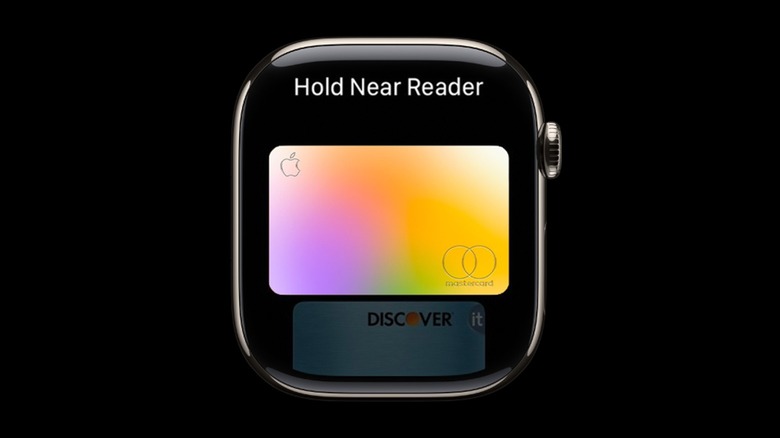
We think everyone should be using Apple Pay because it's widely accepted, convenient, and perhaps most important of all, secure. A random credit card number is generated with every payment to protect your information from getting stolen, and if you lose your iPhone or Apple Watch, you can remotely remove all the linked cards and lock the devices from your account.
To use Apple Pay on your Apple Watch, double-click the side button from the home screen to bring up the list of credit cards that you've loaded to your Apple Wallet. You can scroll up or down to choose the card that you'll be using, then hold the wearable device close to the card reader to complete the payment.
When you're traveling abroad, using your Apple Watch with Apple Pay is more convenient as the device is already on your wrist. There's no need to take out your wallet, and as contactless payments become more widespread around the world, there won't be a need to take out and unlock your phone either.
Take photos with your iPhone remotely

Among the unique Apple Watch features users love is the Camera Remote app, which allows the wearable device to function as a viewfinder for your iPhone's camera. You'll also be able to remotely take photos and record videos with this app, so you won't need to ask a stranger to do it for you. It will also be helpful for taking pictures of yourself when selfies won't be able to capture the entire scene that you want, as you can prop up your iPhone from a distance and use the Camera Remote app to shoot the picture.
With the Camera Remote app open, not only will you be able to use the Apple Watch as a viewfinder, but you can zoom in or out by turning the Digital Crown, or adjust exposure by tapping on an area in the previewed photo. By default, there's a countdown of three seconds before your iPhone takes the picture after you tap the Shutter button on the Apple Watch to give you time to pose, but you can turn this off in the three-dot menu at the lower right of the screen. The menu also shows options for choosing between your iPhone's front or rear camera, and turning on flash and live photo.
Reach emergency numbers quickly
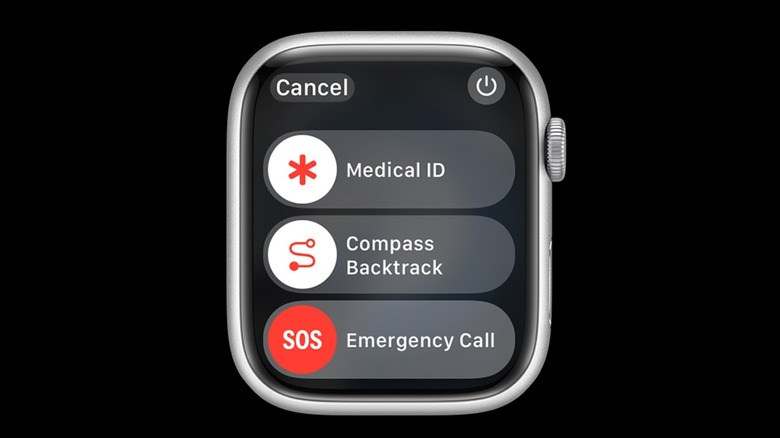
An emergency can happen at any time, whether you're at home or in a foreign country. This is why the Apple Watch's Emergency SOS is one of its most important features. To make a call to emergency services, you need to press and hold the smartwatch's Action button to bring up the option. You can drag the Emergency Call slider to start the call, but if you're unable to for any reason, you can just keep holding the Action button.
If you own the Apple Watch Series 5 and later, the Apple Watch SE and later, or any Apple Watch Ultra, activating the Emergency Call feature while you're abroad will call the local emergency services, even without requiring that you know the phone number, in a long list of supported countries. You just need to have a cellular connection on your Apple Watch, or it must be paired to iPhone to have any form of internet connection.
For supported models of the Apple Watch, you can also set up Crash Detection and Fall Detection to call emergency services when the wearable device detects an incident.