

7 Free Ways To Get Better Sound Quality On Any Audio File
There are a lot of audio file formats out there, and the differences broadly boil down to a trade-off between file size and audio quality. Audio formats designed for high compression, like MP3, manage to reduce songs to barely a handful of megabytes, but in the process they lose out on quite a bit of audio depth and quality. Meanwhile, a format like FLAC preserves the audio data completely, delivering better sound quality but at the cost of much larger file sizes (more than 10 times that of an MP3 file for the same audio).
This means that if you care about sound quality, you should be seeking out audio files with a higher resolution and bitrate, instead of the smallest MP3s. For streaming, you just need to ask which music streaming service has the best audio quality and proceed from there. But what if you cannot ensure higher-quality audio files? What if you have to play low-res streams or MP3s, and need ways to make them sound better? Frankly, you can't add information to a file that doesn't have it.
That doesn't mean you can do nothing. There are many other factors in your playback that can be used to improve the sound quality, no matter the audio file. You can also make changes to the file itself. So if you cannot find better-quality audio sources, try these workarounds to salvage some sound.
Use a DAC
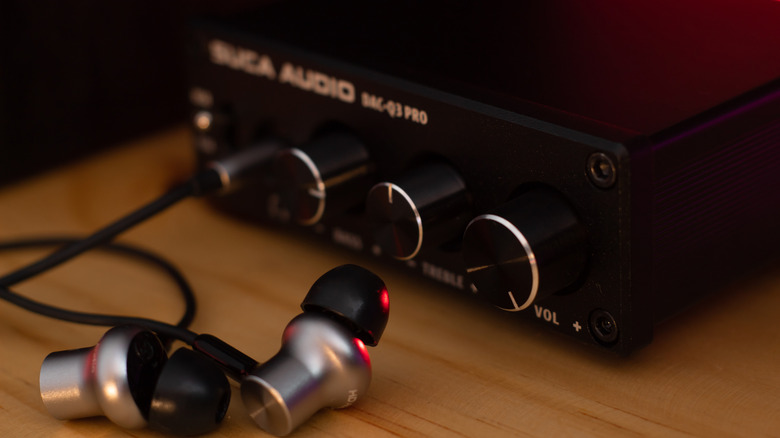
An audio file like MP3 or FLAC is a digital file format that contains audio data encoded as binary information. But headphones or speakers cannot play ones and zeros. The audio file must be translated into a continuous electrical signal, and the component that does that is called a digital-to-analog converter, or DAC. Contrary to what many people believe, a DAC isn't always a separate external component. Anything that can play a digital audio file — your phone, your computer, a television — contains a DAC to handle the audio output.
The problem is that it isn't always a good one. The default DAC hardware is just enough to get the job done; it isn't specialized enough to do it perfectly. The biggest problem is noise. Because a DAC like this is installed inside an active electronic device, interference introduces unwanted noise into the final output signal. This, in addition to the poorer quality of conversion, makes even high-quality audio files sound worse.
The solution is to use an external DAC. A proper Hi-Fi setup always includes a powerful DAC for this reason, but for simple PC or phone listening, you can get one of the best portable DACs instead. A DAC like this will give you the most accurate conversion of your audio file, which makes a big difference for high-res files. For poor-quality files, though, the differences are going to be less apparent.
Amp the sound
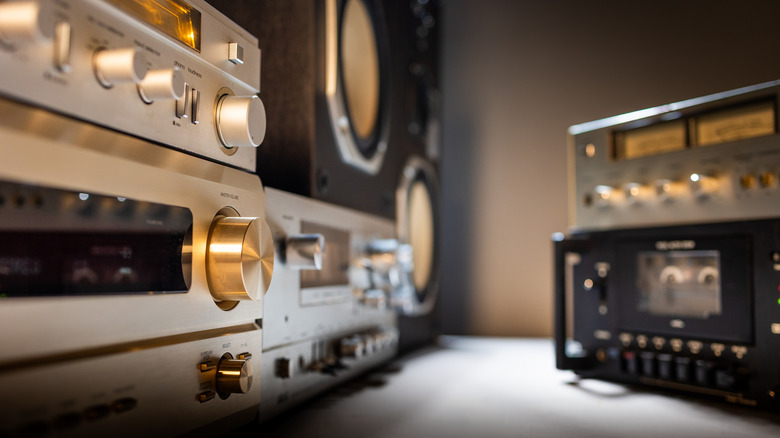
Amplifiers are a key part of any audio setup, yet perhaps also one of the most poorly understood ones. It is a common misconception that an amplifier simply increases the volume of the audio, when that is just one of the effects, not the main purpose. What an amplifier actually does is boost the strength of the audio signal itself before it goes into a speaker. The reason for doing this is to improve the clarity of the audio, as a weaker signal often loses the softer parts of the sound, muddying those frequencies in playback.
Some amount of amplification is present in all audio circuits by default, but that generally only does the bare minimum. Worse, a low-quality amplifier can distort the signal while amplifying it, increasing the volume but destroying the balance. This is why any proper audio setup uses a dedicated amplifier. Don't worry if you are not looking to install a bulky hi-fi setup — just like DACs, portable amps also exist. With a portable amp, you can get amplification even while listening to headphones or desktop speakers.
Do be careful, though. Amps are good to have, and even necessary, but you need to balance them to the speakers you have. Setting the amp too high or too low is a common amplifier mistake that could be killing your speakers. And just like a DAC, an amp's impact is mostly felt on higher-quality files, so it can only do so much for low-res audio.
Buy better headphones or speakers
We have already talked about using a DAC and an amplifier, but the most obvious audio hardware upgrade is to get a better playback device itself. Sure, a proper DAC and amplifier setup will ensure the most accurate audio signal reaches the output, but if the device responsible for actually playing that audio is sub-par, the result is not going to be impressive. Even a high-quality audio file will lose its nuances with poor audio reproduction, to say nothing of low-quality MP3s.
But why? How exactly do better speakers differ, when any price point can produce sound? It boils down to the quality of components used and the frequency response. Generally speaking, any soundtrack can be divided into three ranges of audio frequencies: the low-frequency or the bass, the mid-range, and the high-frequency or the treble. Each of these ranges of sound is reproduced by a dedicated speaker component.
In a cheap speaker or headphone, you will have just one driver forced to produce all types of sounds. This gives you lackluster bass and a shrill, cracking treble, ruining any kind of audio. You need to buy a better speaker that has specialized drivers for each type of sound, like any model from the best home audio speaker brands out there. Better speakers will also be capable of handling more power, allowing full use of an amplifier to improve sound quality. The same goes for headphones, albeit on a smaller scale.
Adjust the EQ balance
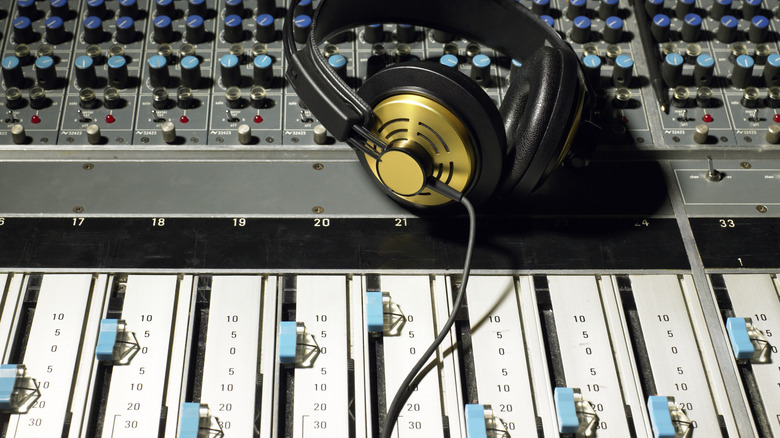
So far, we have looked at hardware improvements to improve the fidelity of your audio playback setup. And while that is a great way to improve the sound quality of most audio files, hardware improvements alone can't rescue them all. Low-quality or poorly balanced audio files, especially, will not be fixed by better audio hardware, since it can only play the sound accurately and reproduce even the flaws.
To overcome issues like this, we need to start adjusting the audio file itself. And the easiest, non-destructive way of doing that is through the equalizer. An equalizer lets you adjust the levels of individual bands of frequency instead of the entire track, allowing you to reduce or increase certain ranges. So you can, say, tone down a particular high-frequency band that is drowning out the rest of the mix while boosting the low bass that isn't coming out as strongly.
This can be used to adjust for the peculiarities of your speakers or headphones. For example, you might have a pair that goes too soft on the treble. Using an EQ, you can boost that part to work around the issue. Of course, finding the right EQ settings to do this for every audio device you use can be a long and finicky process, making it a tricky solution. A better way might be to use a free tool that can give your headphones an audiophile-approved tune-up by automatically providing the perfect EQ settings.
Tinker with a DAW
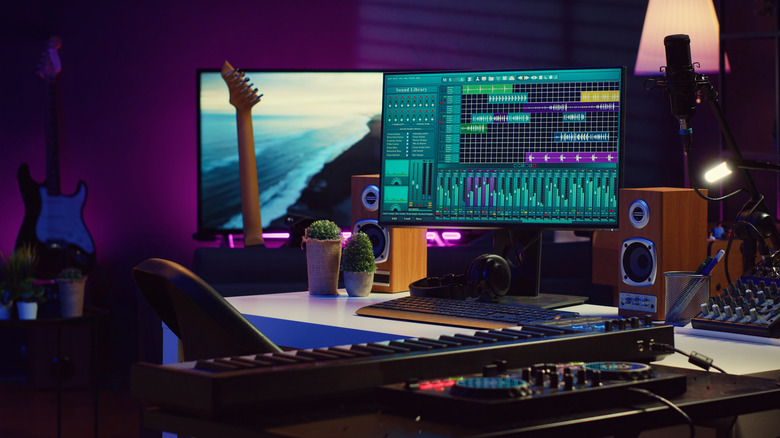
Equalizer adjustments can be a good way to fix balance issues with a song, but the problem is that it is a setting on your device or audio player that applies to everything coming out of it. What if you want to adjust the EQ on a song-by-song basis? After all, a thumpy rock song is going to require a very different balance than an orchestral piece. How can you adjust the balance for every song without having to pull up the EQ every few minutes?
The answer is to adjust the songs themselves. With a Digital Audio Workstation (DAW), you can do just that. Editing the audio files themselves may seem like too complicated a step, and in some ways, it is. That being said, we are not talking about the real bells and whistles of the application, which come into play when trying to record music yourself. That's when you need to keep the 3-to-1 rule for audio in mind, understand the intricacies of audio mixing, and use a DAW to its full potential to bring it all together.
But if all you want to do is equalize individual songs, you can just open it in any DAW software and tweak the EQ balance as you do during playback. The only difference would be that this lets you permanently save the changes to the file to improve its sound quality. If you are feeling more adventurous, you can try cleaning up noise from the audio as well.
Apply audio filters
We talked about how an equalizer can be used to adjust the frequency balance, but it's not the only type of non-destructive adjustment you can make to the audio playback. Just like the EQ, there are other audio filters. Unlike EQ, however, they are not that common, and most audio players won't have any settings for them. The only widely accessible option is the VLC media player, with multiple types of audio filters that can be applied to both audio and video files.
There is the equalizer, but there is also a spatializer. You probably already know ways to get the most out of spatial audio, and know what it is — a feature that makes some soundtracks give the illusion of three-dimensionality. The various sounds in such files appear to be coming from specific directions, immersing you completely in the audio space. With VLC's Spatializer, you can enable this even for audio files that do not have this feature, making them sound spatial.
VLC also has a compressor setting. This audio filter compresses the audio file's dynamic range, reducing extremely low or high volumes and shifting them toward the middle. Technically, this reduces sound quality, but for tracks where parts of the audio are too loud or too soft, compression can help balance things. You can freely tweak all these audio filters until you get the right sound, as it does not permanently change the file.
Enhance with AI
We started this article by saying there is only so much you can do to improve sound quality without better files, since you can't add audio information to a file that doesn't have it. Without going too deep into the specifics of how bitrate affects audio quality, just know that an audio file with a higher bitrate has more audio detail, while smaller files strip away everything but the bare essentials to reduce size, losing quality in the process.
And the worst part is that there is no way to undo this. Unless you are willing to try AI. AI-based image-enhancement tools are well known by now, upscaling a picture by adding more pixels to increase its resolution, while trying to maintain the same overall look. Now we have AI-based audio enhancers that can do the same thing to audio files. Some focus specifically on speech, others on audio in general.
These audio enhancers work in two ways. One is to directly upscale the audio quality by adding information. The second is to detect and remove noise, cleaning up the soundtrack and making it more polished. The dynamic range and the EQ balance are also tweaked automatically in this process to make the result sound better. Of course, being AI, the results can be inconsistent, but the tools have been improving rapidly, and you can actually get some great results by upscaling low-res audio files into higher-quality audio.