

4 Useful Blu-Ray Player Settings You Should Change For Better Picture Quality
Unless you're spending top dollar on a full-fledged Kaleidascope setup, a 4K UHD Blu-ray player is still the best option for home theater picture and sound quality. Dropping $800 or more on high-end Panasonic hardware may not be in the cards for most folks, but you can get your hands on a solid 4K player for around $250 to $500. Standard 1080p Blu-ray players are still a thing too, and a model like the Sony BDP-S1700 will only set you back $115 or so.
Out of the box, most Blu-ray players are primed to deliver great picture and sound, but don't assume your player is delivering at peak capacity — especially if you own a premium 4K TV. You spent big on that living room screen, so it pays to make sure every pixel is packed with as much color, contrast, and brightness data as possible. To that end, it's worth diving into your Blu-ray settings for some manual optimization. At the very least, you'll end up discovering that your player's defaults are already pretty great.
You might also find out that one or two critical picture settings have unchecked boxes, or that you're far better off not connecting the player to your home Wi-Fi. Picture fine-tuning is truly an art form, but knowing what to look for in menus and dashboards can be difficult. So, we decided to put together a road map of Blu-ray settings you should check to get the best picture quality possible, including checking each HDR box, turning on deep color, and keeping up with firmware updates.
Put a check in each and every HDR checkbox
Over the last several years, High Dynamic Range (HDR) has become one of the most important picture standards in home theater. If you plan on shopping for a new TV anytime soon, definitely make sure your new set is at least capable of Dolby Vision or HDR10+ (don't just settle for HDR10). The same goes for your Blu-ray player.
Dolby Vision and HDR10+ debuted in 2014 and 2017, respectively. The former is more commonly licensed than the latter, but both picture standards support dynamic metadata. This allows your Blu-ray player to optimize color and brightness settings on a scene-by-scene basis, instead of mapping the whole movie with pre-written metadata. Long story short: dynamic is better than static, and the base HDR10 standard only supports the latter.
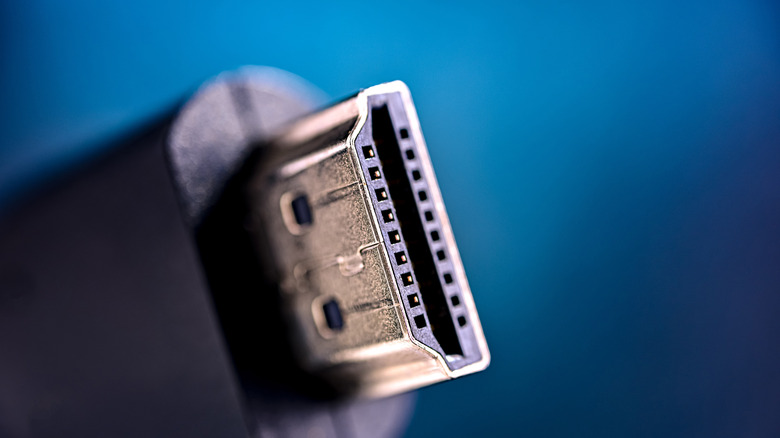
Additionally, you should make sure you're using Ultra High Speed HDMI cables (48Gbps or greater) if future-proofing your setup is important to you. Premium High Speed HDMI (18Gbps) should be just fine for Dolby Vision and HDR10+, but if you plan on building a Dolby Audio or Dolby Atmos surround sound system — or simply want the best of the best — Ultra is the way to go. Ultra96 is also on the market now, too.
Limit your player's processing
Most Blu-ray players have the ability to upscale your physical media before the final picture reaches your TV or projector screen. Upscaling is a process in which additional pixel info is used to elevate the resolution of your source material to more closely resemble the pixel count of your screen. For the average consumer or entry-level home theater owner, the results might be enough; but if you're looking for the purest, most cinematic results, upscaling with a Blu-ray player may not be your best bet.
Most TVs and AV receivers have picture upscaling capabilities, and depending on the hardware you own, you may want to let your main display or AVR take care of all picture refinements. If that's the case, we recommend going into your Blu-ray player's settings to disable upscaling entirely; that way, your player just passes along the info on the disc without enhancements. For older movies and shows, you may not even want your TV or receiver to apply upscaling to preserve the media's natural film grain.
To that end, we also suggest disabling any noise reduction settings that your Blu-ray player offers. This type of picture processing can help to smooth your final image, but often at the expense of film grain. You should also ensure your TV is set to its Filmmaker preset (if it has one); this disables a bunch of picture processing, in order to keep the final picture looking as "filmic" as possible.
Turn on HDMI Deep Color
The new TV you purchased this year may be able to take advantage of Blu-ray player settings you were never able to use. One of these features is called HDMI Deep Color, which debuted in 2006 as part of the HDMI 1.3 standard. Deep Color allows a source device like a Blu-ray player to output additional color info to a TV or projector. This usually results in picture quality with a wider color gamut, additional color volume, and less banding (when you can see the transition from one shade of color to another).
Generally speaking, most AV components that support HDR10 will also support HDMI Deep Color. The former is required to output 10-bit color via HDMI, while enhanced formats like Dolby Vision can deliver 12-bit visuals to a compatible display. If your Blu-ray player predates HDR10, you should still check to see if it has an HDMI Deep Color toggle you can flip on; you should also do the same for TVs and projectors released before 2015 — when HDR10 was introduced.
Fortunately, newer displays and AV components will often auto-optimize picture settings based on what's connected using HDMI. Game consoles like the PlayStation 5 are particularly great at input-switching and gameplay enhancements, and HDMI features like Variable Refresh Rate and Auto Low Latency Mode ensure the hardware is pushed to its graphical limits.
Install firmware updates

Back in the 2010s, streaming apps were relatively new, and everyone wanted to use them. This led to many an AV manufacturer building apps into their devices, which included everything from actual streaming dongles and smart TVs to game consoles and Blu-ray players. This also meant the player required an internet connection; some players could only connect via Ethernet, while others offered both wired and wireless connectivity to your network.
Fast forward to modern times, and you'll find that a.) there are significantly fewer Blu-ray players on the market than there were a decade ago, and b.) what is available can still connect to the internet. We're big proponents of keeping devices offline if the internet isn't mandatory, and Blu-ray players are no exception. That said, we do occasionally recommend connecting your player to your home Wi-Fi, but for one reason: firmware and software updates.
Now and then, player manufacturers may introduce one or a few picture optimizations that can only be added to your player via firmware. If your player has a USB port, theoretically, you should be able to manually install firmware on a flash drive; you'll then plug the drive into the player to initiate the update. But a temporary handshake with Wi-Fi accomplishes the same task, and then you can immediately turn off networking.
How we chose these Blu-ray player settings
Our main goal in writing this article was to touch on Blu-ray player features and settings you'll find on both newer players, as well as legacy hardware you might have hanging around the house. We also wanted to focus on settings that would have the biggest impact on picture quality — regardless of whether you're using a TV or projector setup.
One last thing: Investing in a Blu-ray player — whether it's a 4K model or a standard 1080p unit — isn't a decision you should sit on. From one year to the next, we're seeing fewer options; nowadays, Panasonic is pretty much the only North American supplier if you're not dabbling in ultra-premium hardware. It's hard to say when a physical media reader is going to disappear, but if Sony's plans for video game discs are any indication, the end times may come sooner than you think.