

5 Things You Should Consider When Buying A New Monitor, According To Users
Whether you're ready to upgrade your old computer monitor or purchase the first monitor for your desktop setup, there is no dearth of options. A wide range of manufacturers offer computer monitors in all shapes, resolutions, and sizes, giving you plenty of freedom to get the right monitor for your needs. However, if you're new to the monitor market or it's been a while since you shopped for one, having a good grasp of the basics and what you're looking for in your purchase is a good idea to help you avoid common mistakes people make when buying a monitor.
With a solid understanding of the key considerations for a monitor, such as whether to opt for 1440p or 1080p resolution or upgrade to 4K, you can confidently shop for the right model. This will also help you avoid wasting your money on features that will be less useful or won't add any real value to your setup. We chose these considerations based on actual user feedback on online forums, expert advice, and our own experience with computer monitors.
Display panel technology
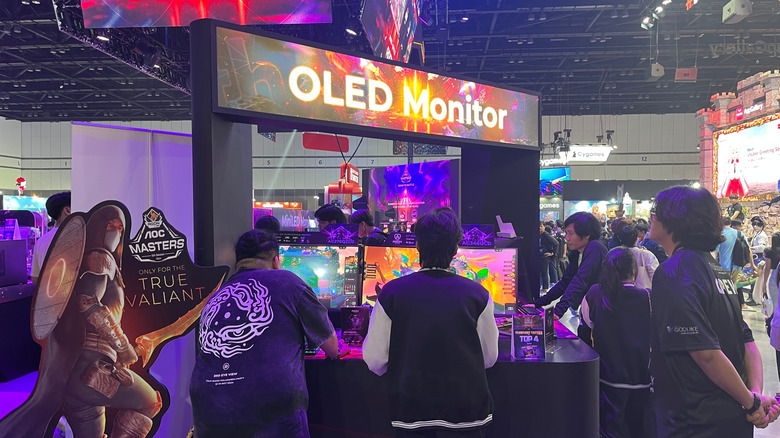
Whether you want an LCD screen or an OLED panel should be one of the first things to figure out when you are planning to shop for a monitor, as this significantly impacts your overall purchase. LCD and OLED are two primary types of display panels you'll find on the market. OLEDs are generally appreciated for their excellent picture quality, inky blacks, and near-infinite contrast ratio. They also have good viewing angles and fast response times. However, OLED monitors are more expensive, aren't the best at displaying text because of their pixel arrangement, and are susceptible to burn-in. You'll also find two types of OLED monitors on the market: W-OLED and QD-OLED, both of which have their own advantages and disadvantages.
LCD monitors, on the other hand, can be significantly cheaper than OLEDs, but their picture quality can vary depending on factors such as whether they have Mini-LED backlighting or a layer of quantum dots. They also don't suffer from burn-in. Moreover, whether they use an IPS panel or a VA panel can influence their contrast ratio, viewing angles, and color accuracy. A third type of LCD panel, called a TN panel, is now rare. LCD monitors are often referred to as LED monitors as they use LED backlighting, and Mini-LED monitors are also LCD monitors, but instead of regular LEDs, they use smaller LEDs for better backlight control and higher brightness.
Monitor size and resolution
Besides the display panel technology, you'll want to focus on your monitor size and resolution. You can choose a screen size depending on the space on your desk and then choose an appropriate resolution. Consumer Reports recommends a screen size of 24 inches for most home office use, but if you play around with a lot of windows, sit farther from the screen, and have sufficient space on your desk, you can go with a bigger size. However, keep in mind that if you buy a massive screen with a lower resolution, the content may look pixelated and blurry, whereas if you go with a small screen with a high resolution, like 4K, you become dependent on scaling or risk tiny menus and icons. A better metric to consider is pixel density; 90-115 PPI is generally believed to be comfortable. However, if you really want a high-resolution screen or work with photos, you can go with 130-140 PPI.
Besides size, resolution, and pixel density, you may also want to consider features like aspect ratio and screen curvature. Ultrawide monitors, particularly with a curved screen, are great for an immersive experience and can be a good alternative to a dual monitor setup, but there are some reasons to avoid them as well.
Refresh rate
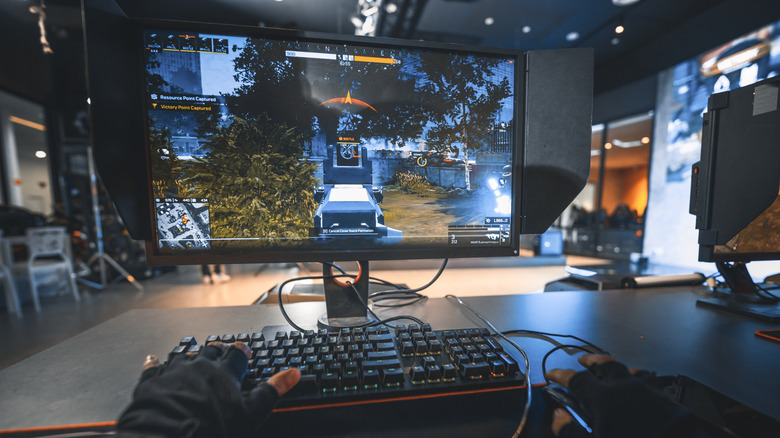
A monitor's refresh rate is another key feature to consider, as it impacts how smooth everything looks when you are scrolling around or gaming. It's measured in hertz (Hz) and denotes how many times a panel updates the image on the screen in one second. The standard refresh rate you'll find in a monitor is 60Hz, and while it's typically fine for office work, browsing the internet, and media consumption, higher refresh rates like 120Hz and 144Hz can make actions like dragging windows around the screen and scrolling through long documents feel more fluid and smoother. A high refresh rate panel also reduces eye fatigue during long viewing sessions.
More importantly, if you're into gaming and want smoother action, a high refresh rate panel becomes necessary. Fortunately, high refresh rate panels in computer monitors are pretty common and not a premium feature. However, while it may seem like getting the highest refresh rate possible would be the best course of action, you'll get diminishing returns after 240Hz, and in terms of value for money, 144Hz or 165Hz refresh rates are typically a sweet spot in monitors. It's also important to remember that you need a powerful GPU to push the higher refresh rates, especially as you go higher in resolution.
Besides the refresh rate, it's crucial to consider whether your monitor supports the compatible variable refresh rate (VRR) technology, like Nvidia G-Sync or AMD FreeSync, for the GPU your computer is using. VRR is used to match the monitor's refresh rate with the frame rates being pushed by your GPU, and without it, your monitor will suffer from screen tearing or distorted visuals as multiple frames are mashed together.
Connectivity and IO selection
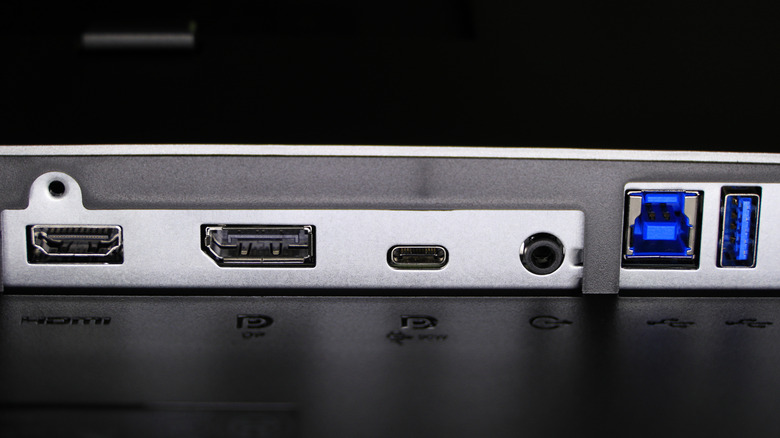
The connectivity options and various I/O ports available on a monitor are pretty important, as they can simplify or complicate your overall setup. Most modern monitors typically include HDMI and DisplayPort inputs to get a video signal from your computer. It's crucial to confirm that the port you plan to use can handle the resolution and refresh rate combination you're sending to it. Similarly, if you plan to use a laptop that only has USB-C or Thunderbolt ports for video outputs, like the Apple MacBook Air or MacBook Neo, monitors that feature a USB-C or Thunderbolt port for input should be your primary choice. Otherwise, you'll have to use a dock or an adapter for the connection, which can sometimes limit the quality of the connection while also costing more. Moreover, support for USB Power Delivery via the USB-C port on a monitor can be an excellent quality-of-life feature for laptop use, as a single cable can handle the video signal as well as charge your laptop.
You can also confirm whether or not your monitor has built-in USB ports or audio jacks to function as a USB hub for your computer if you plan to connect peripherals to your monitor rather than your computer. The USB ports can also be used to connect storage devices, depending on the USB port's generation. These I/O ports are pretty handy when you have a limited port selection on your computer or want a cleaner setup.
Ergonomics and stand flexibility
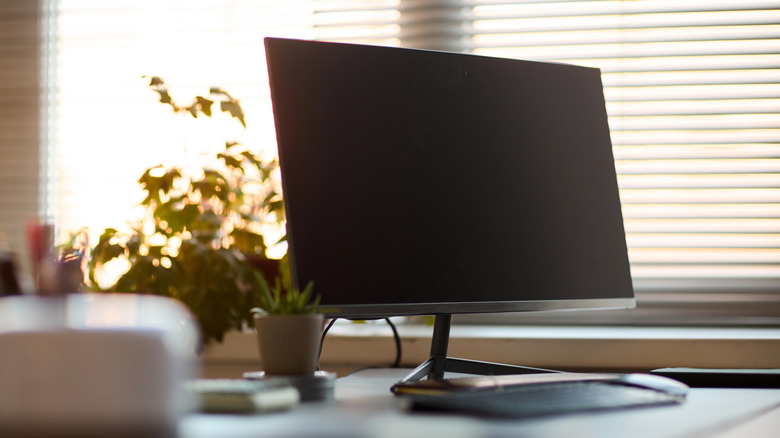
Unless you always plan to use a monitor arm with your display, it's crucial to consider the ergonomics and flexibility of the supplied stand. This is something that many buyers don't often think about, but a non-ergonomic stand can seriously impact your everyday use and potentially affect your comfort and posture. The ergonomics of a monitor's supplied stand can vary between models. While some stands are pretty flexible, supporting robust height adjustments, changes to tilt and swivel, and even pivot, others can limit some of these adjustments or have a fixed stand. You can check the manufacturer's documentation to confirm the ergonomics of the monitor stand.
One nice-to-have feature in a monitor stand is cable routing channels or holes, which can help make your desk setup cleaner. Plus, do check how much space the stand is going to take on your desk to avoid surprises when you are installing it, as some stands have wide and angled legs to provide sufficient support to widescreen and curved monitors. Finally, you should look for a standard VESA mounting pattern on the monitor, which would allow you to use an arm or a third-party stand in the future if needed. Non-standard mounting patterns can make it tricky to find a compatible arm.