

15 Home Office Upgrades That Just Work
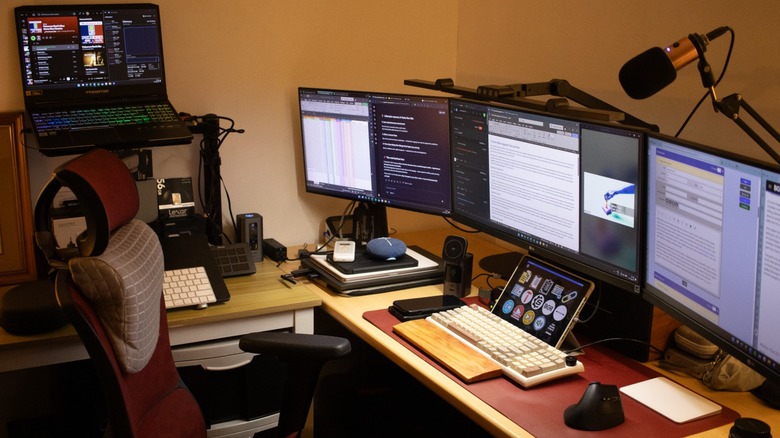
You probably have a home office if you're a fully remote worker, have a hybrid arrangement with your workplace, or run your own business from your house. For many, the home office consists of a desk, chair, and laptop — while this is a good start to getting things done, you can make yourself much more productive by adding items to help you focus and make working more comfortable.
There are many accessories and pieces of furniture you can get to improve your workstation, but we also understand that setting them up can take time away from your work and family. So, if you're looking to improve your working area without having to worry about complicated installations, these are some home office upgrades that just work. I arranged this list based on how important I feel it is to get the upgrade, and, more importantly, I own and use every piece I recommend daily (save for one).
Ergonomic mesh chair
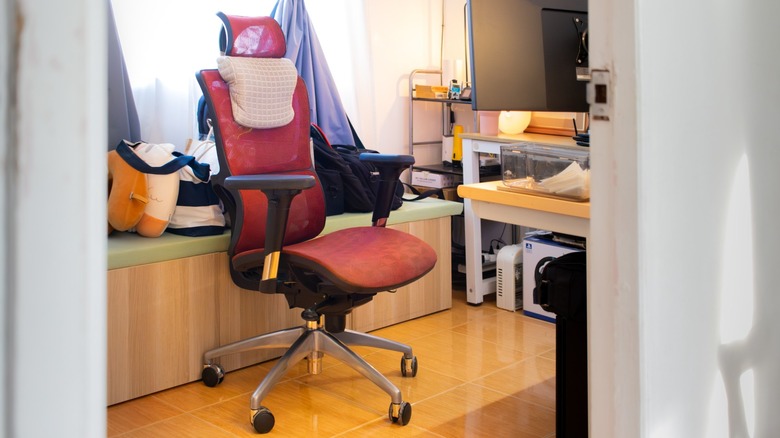
One of the sayings that I live by is "Don't skimp on anything that separates you from the ground," which is why one of the first upgrades that I put in my home office is an ergonomic mesh chair. Although you should avoid picking the cheapest possible chair, that doesn't mean that you should go all-out and spend thousands of dollars on a nice chair. You should instead buy a seat that feels nice to sit in for long periods and won't break the bank — in fact, you can find an ergonomic desk chair for every budget.
If possible, visit a physical store if you're shopping for an office chair and test-drive your choices before committing to a purchase. That's because we all have different body shapes, so what might be comfortable for me isn't necessarily a good option for you. I also picked an ergonomic chair instead of a generic office or even gaming chair. That's because sitting for long periods affects posture and health, so it's good to invest in a chair that considers your ergonomics. The mesh design is also helpful as it's breathable and prevents sweat from accumulating on my skin while providing support.
External monitor
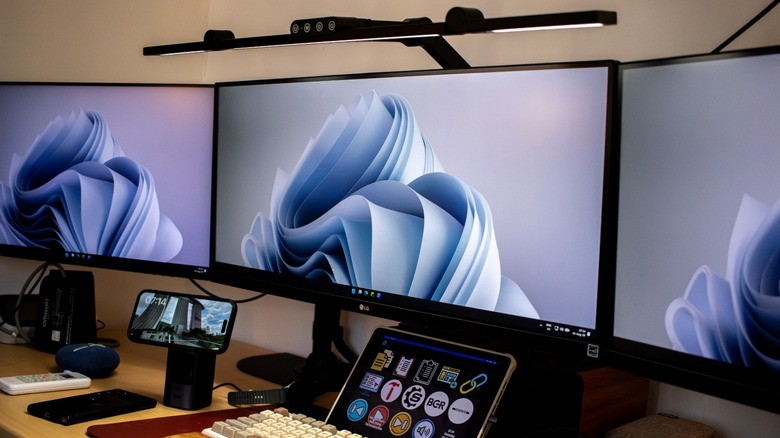
Most laptops come with screen sizes that vary between 12 and 17 inches, with most office laptops sitting in the 13- and 15-inch range. While you may feel that this is good enough for everyday use, having an external monitor will do wonders for your productivity and could even reduce neck strain. Even a 24-inch external monitor, which is nowhere near as large as these cheap ultrawide monitors, would give you so much more space to open multiple apps side by side or make it easier to see what you're working on without squinting.
Another reason you should get an external monitor, especially one with an adjustable stand, is that it brings the display closer to eye level. If the laptop is placed at desk level, you're likely looking slightly down on its display. You likely won't notice its physical effect if you're only seated in front of a laptop for an hour or two daily — but if you spend six hours or more in that position, your neck and shoulders will pay the toll, and you might feel some pain, which some doctors call "tech neck."
Monitor riser or arm
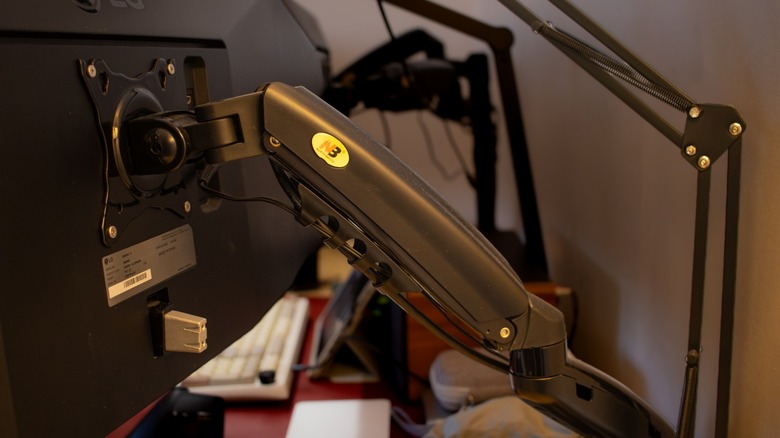
An external monitor is indeed useful for both productivity and physical health, but the stands that many come with are still limited in many ways. More expensive options often let you swivel, tilt, and rotate the display, but if you still can't find a setting that's comfortable for your neck (or you bought a cheaper display that only comes with a fixed stand), you could either get a monitor riser or arm to solve that problem.
A monitor riser is just a stand that you can put your monitor on — although it's cheap and simple, it helps bring your monitor to eye level and also gives you extra space underneath your screen and reduces desk clutter. But if you want something that will give you fine adjustments and give you even more space under your monitor, we can't recommend enough one of the best monitor arms you can buy. They're also quick and easy to set up — a monitor riser will take you less than five minutes, while a monitor arm will take less than an hour to assemble.
Laptop stand
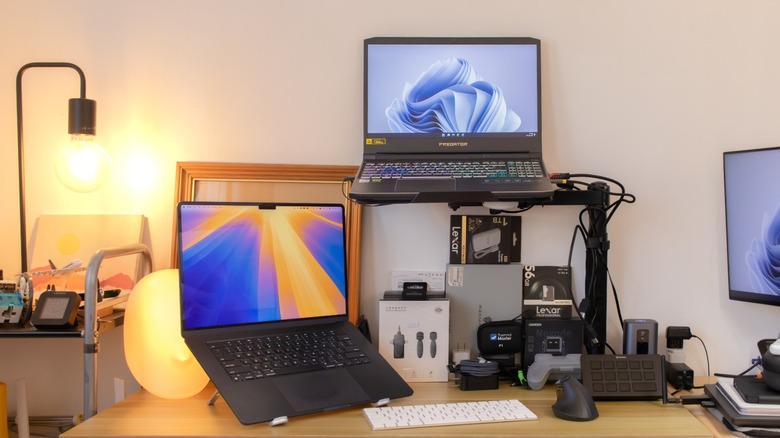
While it's highly recommended to get an external monitor, it may not be possible all the time. If that's the case, the next best thing you can get is a laptop stand. While this doesn't give you more desktop real estate, it at least puts the laptop monitor at eye level to reduce neck and shoulder strain. It's also a good option if you work and travel a lot, meaning you can get a somewhat comfortable position even if you're in a coffee shop or a hotel. For this reason, I always keep a laptop stand in my workstation luggage to ensure I can work comfortably wherever I go.
I also have a laptop stand in my home office — even though I already have three external monitors mounted to arms, I still put my laptop on one. This gave me more space on my home office desk to arrange the other projects I'm working on underneath my monitors.
An ergonomic vertical mouse
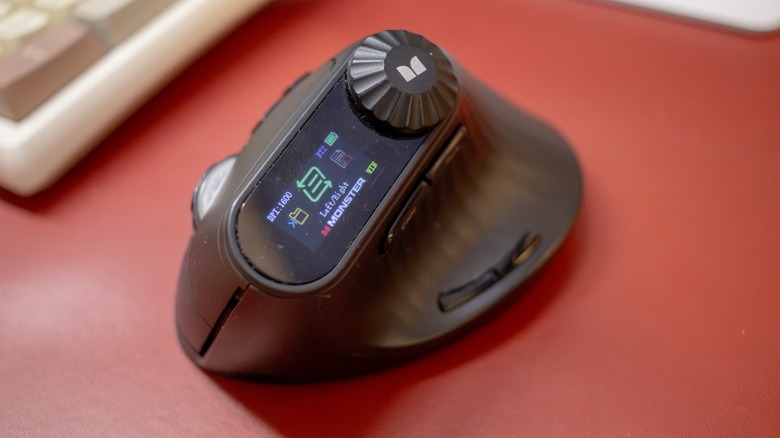
Many users swear by an ergonomic computer mouse in their offices, but I find that my wrist still feels strained after using them for several hours. That's because having your wrist flat on your desk is an unnatural position — if you relax your arms on your sides, you'd actually see that the wrist is facing towards your body. A vertical mouse solves this by helping you keep your hand at that relaxed placement. Although it may look and feel awkward to use for the first few minutes, it's easy to get used to.
Aside from reducing pain with an ergonomic vertical mouse, it's also a good idea to get a mouse with a couple of extra buttons. My current vertical mouse comes with a built-in copy and paste button, allowing me to do these functions without needing to press Ctrl+C and Ctrl+V (or Cmd+C and Cmd+V if I'm on my MacBook) on the keyboard.
A good keyboard
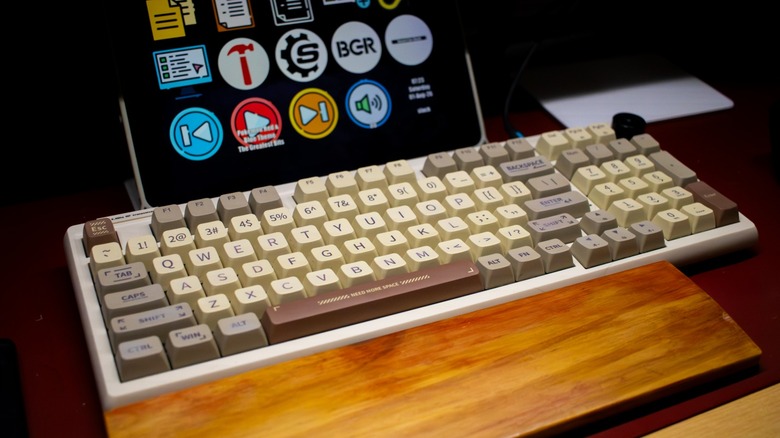
A keyboard is one of the simplest changes I made to my home office, and it had the biggest impact. I'm a fan of mechanical keyboards and even have a small collection of these gadgets, but I still wouldn't sleep on some non-mechanical options like the Apple Magic Keyboard. In fact, I bought one in 2019 and still use it with my MacBook when I'm working outside my office.
Nevertheless, excellent non-mechanical keyboards are few and far between, whereas there's a healthy number of options when it comes to mechanical keyboards. Some of the other reasons enthusiasts choose mechanical keyboards include excellent feedback and typing feel — which is quite important as the keyboard is one of the just two primary ways (three, if you have a touchscreen monitor) you control your computer.
But whether you're interested in buying a mechanical keyboard or just want something nice on your desk, this is an upgrade that's worth spending on. It's also recommended to physically try out a keyboard that you like (or at least read and watch a ton of reviews) before buying, so that you know what you're getting.
Desk mat
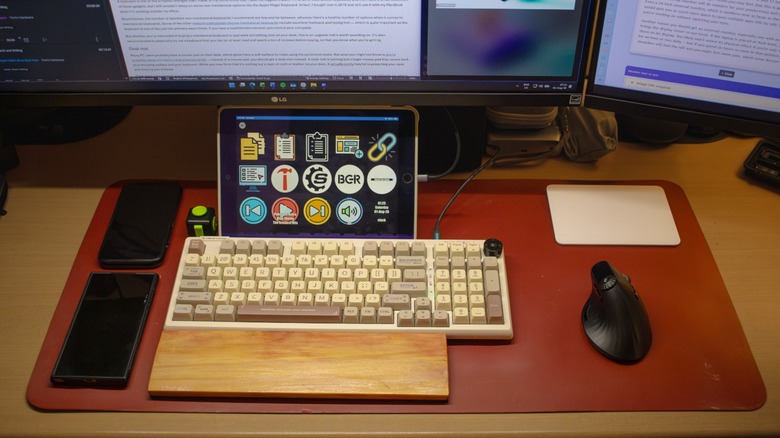
Many PC users probably have a mouse pad on their desk, which gives them a soft surface to make using the peripheral easier. But what you might not know is that you're probably using one that's many sizes too small. If so, you should get a desk mat instead. A desk mat is nothing but a larger mouse pad that covers both your mousing surface and your keyboard. While you may think that it's nothing but a layer of cloth or leather on your desk, it's actually pretty helpful in protecting your desk and keeping you in focus.
Desk mats help prevent your mouse and keyboard from scratching your desk, especially during prolonged use. It also adds a surface to place all your peripherals on, which helps absorb vibration and make work feel smoother and steadier. Another thing that you get with a desk mat is visual separation, meaning there is a specific region on your table associated with your peripherals. This helps reduce clutter (both visually and mentally) and allows you to focus better on the task at hand.
Desk or monitor light bar
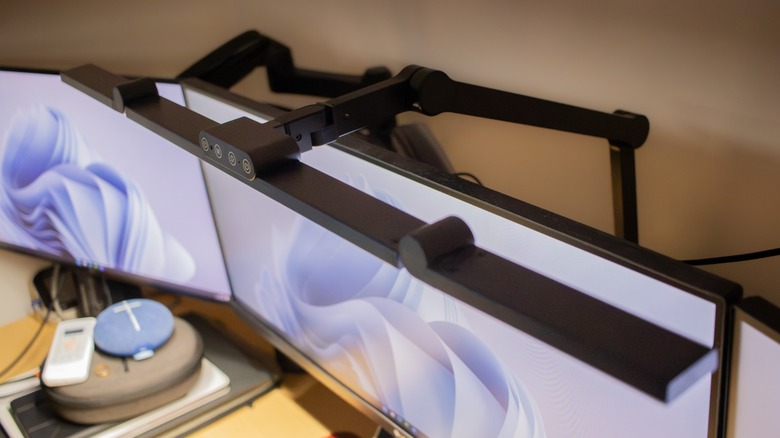
It's crucial to balance the light that your screen emits with the lighting in its environment. If your room is either too dark or too bright, it can cause contrast glare, which can cause eyestrain and headaches. One common solution to this is to use a desk lamp to add bias lighting, which will help balance the amount of light that you see on your screen and in the background. However, desk lamps often take up space, which can be a hassle, especially if you have a small desk.
This is why many would recommend a monitor light bar to help ease your eye troubles. This mounts right on top of your monitor, giving you a soft, diffused light that illuminates the front of your screen, including your keyboard and mouse area. However, not all light bars are made the same — some models do not come with directional control, adding glare to the top of your screen. A few monitors also come with thin bezels that might get damaged if you mount something heavy directly on them, meaning putting a light bar on them isn't recommended.
Because of that, I picked a desk-mounted light bar for my home office instead. This mounts directly on my desk, ensuring it doesn't strain any part of my monitor, and it also comes with a long enough arm so I can set it in the perfect position to light up my workspace without causing any glare.
ANC headphones or a good pair of speakers
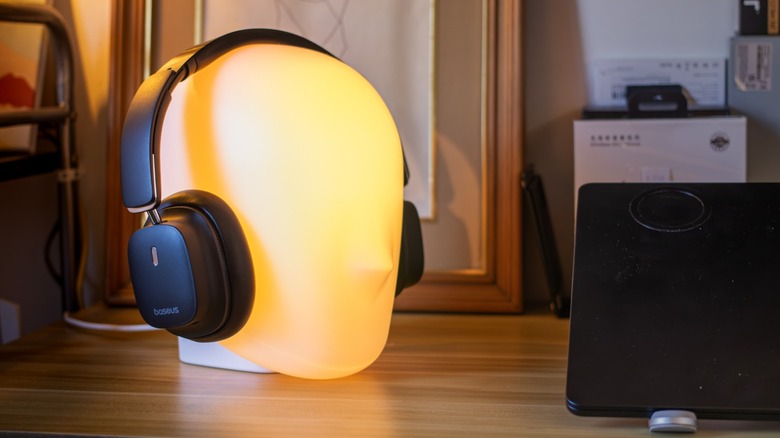
If you're used to listening to music from the best Bluetooth speaker brands, you'll know that most laptops come with abysmal sound quality. While there are a few that stand out, like MacBooks, a laptop's small, thin form factor means that even the best-engineered built-in speakers will probably sound worse than proper speakers.
So, whether you like listening to music while working or frequently go to meetings, a good pair of speakers or ANC headphones will do wonders for you. I personally prefer the former as I don't like having anything on me while I'm working, but I also appreciate the latter when my wife is working alongside me in our office. You might think that a monitor's built-in speakers are going to be good enough, but even these cheap alternatives will show you the merits of having dedicated speakers on your desk for both work and leisure.
Microphone
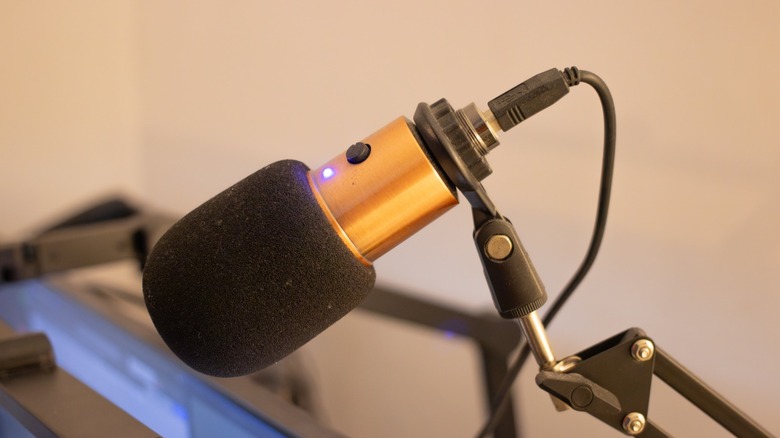
Most modern laptops come with a built-in microphone, usually located beside the webcam or hidden in the chassis. While this is good enough for most communication, it would still pay to have a dedicated external microphone, especially if you frequently have meetings or important virtual presentations. This is especially true if your laptop sits on a stand away from your face, as its built-in microphone is no longer in the optimal position to pick up your voice.
You don't have to buy the most expensive microphone you can get your hands on to get good audio quality — even a cheap Amazon Basics option would be good enough for most calls. What's more important is that the device is placed close enough to you so it can clearly pick up your voice. But if you're recording podcasts or conducting live interviews, you'd probably want to invest at least $100 for a better microphone.
High-output USB charger
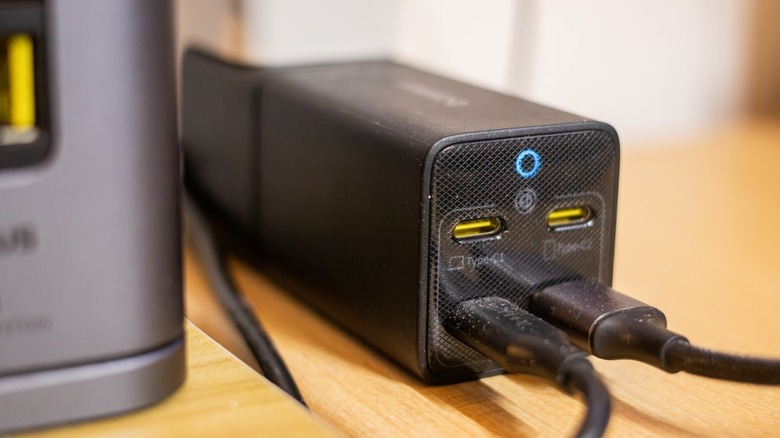
Almost all modern devices now use USB-C for charging, so it's also a good idea to have a high-output USB adapter to charge devices on your desk while working. While the charger you use for your phone, tablet, or laptop is good enough to power them, having a separate brick for each device can get annoying, especially if you need to plug them under your desk every time you get to work. It's also going to be a problem if you don't have enough outlets to keep them charged simultaneously.
One solution to this is a high-output USB charger, especially those with a capacity of 100 watts or more. These chargers help ensure that all your gear — from your phone and smartwatch to your tablet and laptop — gets the juice it needs throughout the day. So, once your workday is done and you want to go somewhere, you don't have to worry that one of your gadgets has a low battery.
Desk-mounted power strip
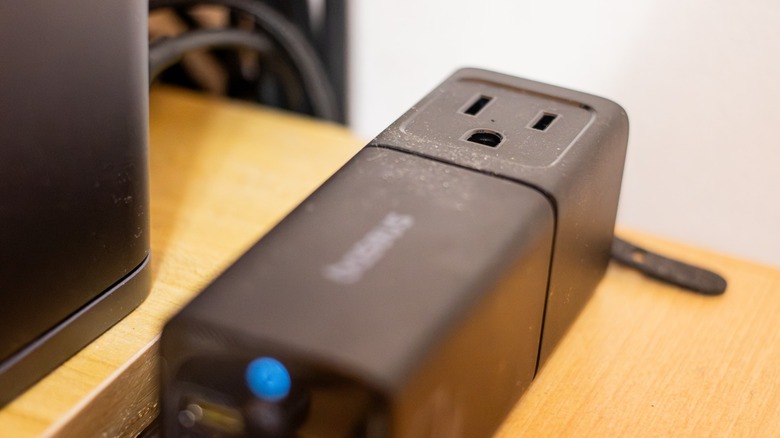
Even if you already have a high-output USB charger, there might still be a few times that you'll need a wall outlet, which is why it's also a good idea to have a desk-mounted power strip. For example, I have a Baseus PowerCombo Mini Power Strip, which gives me one extra outlet right on my desk. It's particularly useful when I need to charge one of my older laptops, which I use for experimenting with Linux, or if I need to use my blood pressure monitor.
I also have a couple of power strips under my desk, which is where my monitors, speaker, and gaming laptop get their power from. This is crucial because the nearest outlet is on another wall, so having a power strip allowed me to lay out the office the way I like. But even if the outlet is right behind my desk, I would still get this upgrade as it reduces cable spaghetti and makes my workstation much cleaner and easier to manage overall.
Cable management accessories
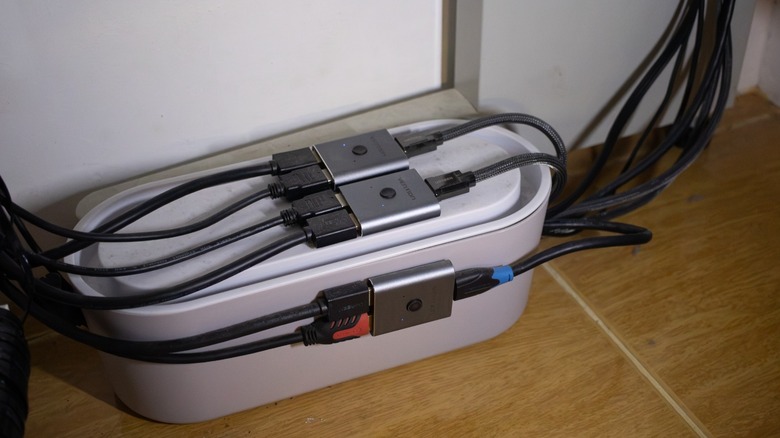
Many people build their home office workstations and leave the various cables cluttered behind their desks because it's such a hassle to fix. But if you can spare a few dollars, these cheap gadgets can help fix that. Bundling your wires together helps reduce the chance of accidentally unplugging your gadgets, especially if one happens to catch your foot as you're standing up. And when you're removing one gadget (say a monitor) to repair or upgrade it, you don't have to deal with a spaghetti of cables just to get what you need.
Fixing it up also won't take long when you have all the items you need, although it can be quite a hassle as managing cables often means crawling underneath your desk. Still, arranging them often doesn't take much thought — oftentimes, all you need to do is bind your wires together in one bundle and stick all the extra length inside a cable box, and you'll be all good.
Wireless charger
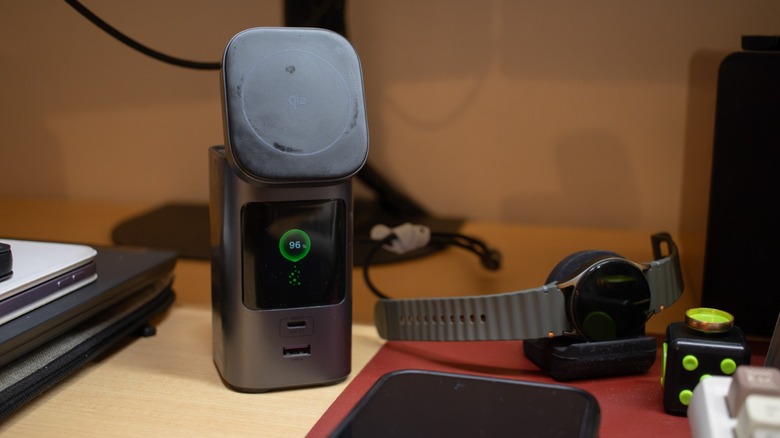
Even if you primarily work from a computer, the ubiquity of smartphones these days means that you'd probably need it for one way or another throughout your workday. So, if your phone offers wireless charging, it's also a good idea to get one of the best wireless chargers for your desk. While these aren't as efficient as wired chargers and certainly not as fast, they make it easy to charge your phone when you're not using it. That way, you don't have to remove and reattach the USB cable every time you need to use your device.
This helps you stay focused, as you can simply stick your phone on the wireless charger after using it, even without looking, helping you stay focused on the task at hand. Aside from that, Apple's StandBy mode is also quite useful, as it could make your phone double as a desk clock, calendar, digital frame, and more.
Standing desk
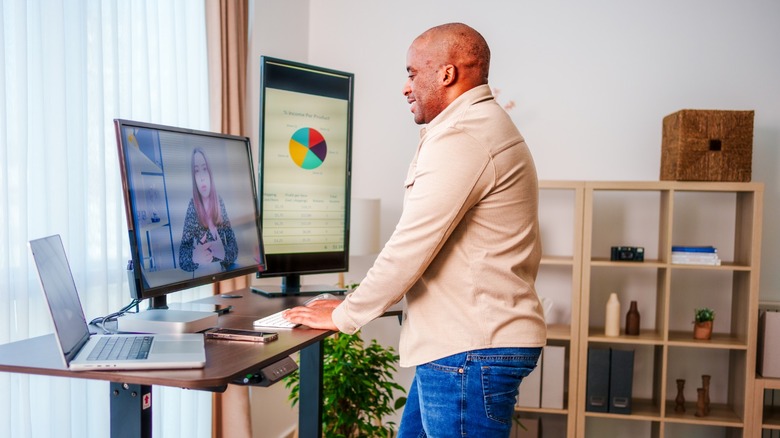
It's a good idea to invest in a standing desk if you're primarily working from home, as it encourages you to move around. When you work in an office, you'd have to prepare, commute to your workplace, and walk from the station or parking to your desk. This might not sound like much, but it adds a few minutes of activity each day, which is crucial for your health. But if you work from home, the farthest distance you'd often travel is from your bedroom to your home office via the kitchen.
One way to avoid falling into a sedentary lifestyle and help get yourself moving is to follow the 20-8-2 technique. This reduces back and neck pain and also encourages you to move around. And if you pair a standing desk with a walking pad, you can actually get your blood circulating even while you're in a meeting or doing other work. This is the only item that I don't own yet out of everything I recommended, but that's because I'm still saving up for the model that I want. Since I spend most of my day in my home office, this is an investment I will splurge on.
Why I recommend these upgrades
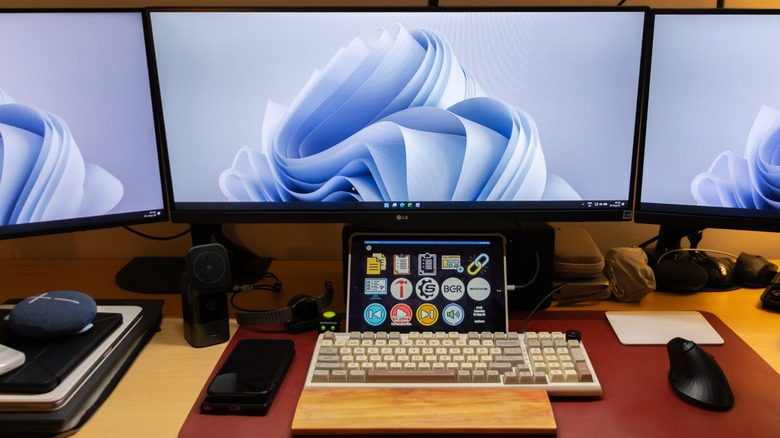
I do not balk from spending on my home office and have been upgrading it continuously since I started working from home in 2020. My philosophy is since this is where I make my living, then it deserves to get the best accessories I can afford to help me become more productive. As I said earlier, I own almost all the items I recommended above, so I've personally experienced the positive effects they had on my workflow.
The only thing that's missing from my home office is the standing desk. I haven't bought one yet because I have a big workstation and need an expensive custom-made model to securely fit all my gear.